Oracle9i Installation Guide phần 8 doc
Bạn đang xem bản rút gọn của tài liệu. Xem và tải ngay bản đầy đủ của tài liệu tại đây (184.16 KB, 23 trang )
Post-Installation for Installed Oracle Products
Post-Installation 4-27
■ Use DBMS_MGWADM.DB_CONNECT_INFO
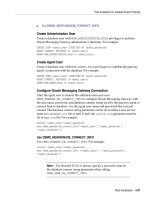
Create Administration User
Create a database user with MGW_ADMINISTRATOR_ROLE privileges to perform
Oracle Messaging Gateway administrative functions. For example,
CREATE USER <admin_user> IDENTIFED BY <admin_password>;
GRANT CONNECT, RESOURCE to <admin_user>;
GRANT MGW_ADMINISTRATOR_ROLE to <admin_user>;
Create Agent User
Create a database user with MGW_AGENT_ROLE privileges to establish the gateway
agent’s connection with the database. For example,
CREATE USER <agent_user> IDENTIFED BY <agent_password>;
GRANT CONNECT, RESOURCE to <agent_user>;
GRANT MGW_AGENT_ROLE to <agent_user>;
Configure Oracle Messaging Gateway Connection
After the agent user is created, the administration user uses
DBMS_MGWADM.DB_CONNECT_INFO to configure Oracle Messaging Gateway with
the user name, password, and database connect string used by the gateway agent to
connect back to database. Use the agent user name and password that you just
created. The database connect string parameter can be set to either a new service
name in tnsnames.ora file or null. If null, the oracle_sid parameter must be
set in mgw.ora file. For example,
connect <admin_user>/<admin_password>
exec dbms_mgwadm.db_connect_info('<agent_user>','<agent_password>',
'<agent_database>');
Use DBMS_MGWADM.DB_CONNECT_INFO
Use DBMS_MGWADM.DB_CONNECT_INFO. For example,
connect <admin_user>/<admin_password>;
exec dbms_mgwadm.db_connect_info (’<agent_user>’, ’<agent_password>’,
’<agent_database>’;
Note: For Oracle9i 9.2.0.1.0, always specify a non-null value for
the database connect string parameter when calling
DBMS_MGW_DB_CONNECT_INFO.
Additional Oracle Product Installation and Configuration
4-28 Installation Guide
Installation Verification for Oracle Messaging Gateway
The following procedure verifies the installation and includes a startup and
shutdown of the Oracle Messaging Gateway agent.
1. Start the database listener for the external procedure and other listeners for the
regular database connection.
2. Test the database connect string for the gateway agent user using the following
command:
sqlplus agent_user/agent_password@agent_database.
If successful, the gateway agent will connect to the database.
3. Connect as admin_user and call DBMS_MGWADM.STARTUP to start the
gateway agent.
4. Use the MGW_GATEWAY view to see AGENT_STATUS change to RUNNING, and
AGENT_PING change to REACHABLE.
5. Connect as admin_user and call DBMS_MGWADM.SHUTDOWN.
6. Use the MGW_GATEWAY view to see AGENT_STATUS change to NOT_STARTED.
Additional Oracle Product Installation and Configuration
This section provides further information on installing additional Oracle products
to your initial installation and on using Oracle Configuration Assistants.
■ Running Oracle Configuration Assistants As Standalone Tools
■ Configuring the Database for Additional Oracle Products
■ Configuring Oracle Real Application Clusters
■ Configuring Oracle Label Security
■ Configuring Oracle Precompilers
■ Configuring Oracle Workflow
■ Creating a Recovery Catalog for Recovery Manager
■ Configuring Secure Sockets Layer
Running Oracle Configuration Assistants As Standalone Tools
Configuration Assistants are usually run during an installation session, but can also
be run in stand-alone mode. As with Oracle Universal Installer, each of these
Additional Oracle Product Installation and Configuration
Post-Installation 4-29
assistants can also be run non-interactively using a response file. The following
Oracle configuration assistants are described in this section:
■ Using Oracle Net Configuration Assistant
■ Using Database Upgrade Assistant
■ Using Database Configuration Assistant
■ Configuring New or Upgraded Databases
■ Using Oracle Enterprise Manager Configuration Assistant
Using Oracle Net Configuration Assistant
When Oracle Net Server or Oracle Net Client is installed, Oracle Universal Installer
automatically launches Oracle Net Configuration Assistant.
If you choose to do a separate Oracle9i Client installation, then Oracle Net
Configuration Assistant will automatically create a configuration that is consistent
with selections made during the installation. The Installer will automatically run the
Oracle Net Configuration Assistant to set up a net service name in the local naming
file found in the $ORACLE_HOME/network/admin directory of the client
installation.
After installation is complete, a more detailed configuration can be accomplished
using the Oracle Net Configuration Assistant by using the following command in
the $ORACLE_HOME/bin directory:
$ netca
See Also: "Non-Interactive Installation and Configuration" on
page 3-37 for more information on using response files with the
product assistants.
Note: If you create a database using the Database Configuration
Assistant during or after the installation, it will automatically
update the network configuration information necessary for the
new database.
Additional Oracle Product Installation and Configuration
4-30 Installation Guide
Using Database Upgrade Assistant
If you installed Oracle9i software to use an existing database from a prior software
version and chose not to upgrade the database during the installation, then you
must upgrade the database before mounting it.
Start Database Upgrade Assistant by using the dbua command located in the
$ORACLE_HOME/bin directory:
$ dbua
For help with the Database Upgrade Assistant, use the -help or -h command line
parameters with dbua.
$ dbua -help
Using Database Configuration Assistant
Oracle Database Configuration Assistant can create a default or customized
database, configure an existing database to use Oracle products, or generate a set of
shell and SQL scripts that you can inspect, modify, and run at a later time.
Start Database Configuration Assistant by using the dbca command located in the
$ORACLE_HOME/bin directory:
$ dbca
For help with the Database Configuration Assistant, use the -help or -h command
line parameters with dbca.
$ dbca -help
See Also: "Oracle Net Configuration Assistant" on page 1-9 for
more information on how Oracle Net Configuration Assistant
configures your installation.
Oracle9i Net Services Administrator’s Reference for more information
on the use and configuration of Oracle Net.
See Also: Oracle9i Database Migration for more information on
upgrade.
See Also: "Database Configuration Assistant" on page 1-7 for
more information on the types of databases that you can install
with Database Configuration Assistant.
Additional Oracle Product Installation and Configuration
Post-Installation 4-31
Configuring New or Upgraded Databases
Oracle Corporation recommends running the utlrp.sql script after creating,
upgrading, or migrating a database. This script recompiles all PL/SQL modules
that may be in an INVALID state, including packages, procedures, and types. This
step is optional, but recommended so that the cost of recompilation is incurred
during the installation rather than at a later time.
1. Start SQL*Plus by using the following command:
$ SQLPLUS /NOLOG
2. Connect to the database with the SYS account by using the following command:
SQL> CONNECT SYS/PASSWORD AS SYSDBA
In the preceding command, the initial default for PASSWORD is
CHANGE_ON_INSTALL. This password must be changed before using the
database.
3. Start the database (if necessary) by using the following command:
SQL> STARTUP
4. Run the utlrp.sql script by using the following command:
SQL> @$ORACLE_HOME/rdbms/admin/utlrp.sql
Using Oracle Enterprise Manager Configuration Assistant
Oracle Enterprise Manager Configuration Assistant is used to configure the local
Oracle Management Server. You can configure the local Oracle Management Server
by creating, upgrading or deleting an Oracle Enterprise Manager repository.
If you installed the Oracle Management Server, Oracle Enterprise Manager
Configuration Assistant automatically starts at the end of the installation to guide
you through configuration.
Configuring the Database for Additional Oracle Products
If you install additional Oracle products after the initial installation, use the
Database Configuration Assistant to configure your database for the new products.
The database must be running.
See Also: Oracle Enterprise Manager Configuration Guide for more
information on post-installation steps for Oracle Enterprise
Manager.
Additional Oracle Product Installation and Configuration
4-32 Installation Guide
1. Start up the Database Configuration Assistant by using the dbca command
located in the $ORACLE_HOME/bin/ directory:
$ dbca
2. Select Configure Database option in a database.
3. Select the appropriate database SID from the list of those detected by the
Database Configuration Assistant.
4. Choose the products you wish to enable from the list and click Finish.
Execute privileges will be granted to PUBLIC for all of the products and packages.
Adding Oracle Text to Your Installation
If you intend to install Oracle Text after your initial installation, ensure that you have
at least 10 MB of disk space for the data dictionary and include the
$ORACLE_HOME/ctx/lib directory in the LD_LIBRARY_PATH environment
variable.
Your database must include tablespaces specific to Oracle Text data. Verify that
tablespaces exist to serve as default and temporary tablespaces for Oracle Text.
Oracle Text uses the DRSYS tablespace for its default and temporary tablespaces. If
tablespaces for Oracle Text do not exist or you do not want to use the default DRSYS
tablespace, then create additional tablespaces before installation. Verify that
tablespaces exist to serve as default and temporary tablespaces for Oracle Text.
Configuring Oracle Real Application Clusters
The following sections contain post-installation instructions for Oracle Real
Application Clusters:
■ Managing Oracle Real Application Clusters
■ Re-installing Oracle Real Application Clusters
■ Inspecting Oracle Real Application Clusters Configuration for Linux
See Also: Oracle9i ConText to Oracle Text Migration for more
information on migrating text.
Oracle9i SQL Reference for more information on creating tablespaces.
Additional Oracle Product Installation and Configuration
Post-Installation 4-33
Managing Oracle Real Application Clusters
To start the Oracle Real Application Clusters Global Services Daemon automatically
when the computer is restarted, log in as the root user and add a line similar to the
following in the /etc/init.d/dbora system startup file:
su - oracle -c $ORACLE_HOME/bin/gsd
Re-installing Oracle Real Application Clusters
If the installation fails before completion and you have to re-install, click Yes on all
Installer windows that ask "Do you want to re-install name of a product?" The remote
copy operation to the other nodes ignores the products for which you declined the
re-install.
Inspecting Oracle Real Application Clusters Configuration for Linux
This section describes how to inspect the kernel configuration for Oracle Real
Application Clusters. Configurations do not work if you fail to configure the
Watchdog Timer device and the raw device.
Inspecting the Watchdog Timer Device
For the Watchdog Timer device, the typical causes of failures are:
■ The Watchdog Timer device driver is not configured.
■ The Watchdog Timer device driver is not loaded to the kernel.
■ The margin time is incorrect.
■ The CONFIG_WATCHDOG_NOWAYOUT parameter is not set.
1. If you configured the Watchdog Timer device as a module, load the Watchdog
Timer device driver to the kernel. This is required after every boot. For example,
enter:
# /sbin/insmod softdog soft_margin=10
2. Add the insmod command lines in the Linux startup script (For example,
/etc/rc.d/rc.local) to prevent losing the module after restarting the
system.
See Also: Oracle9i Real Application Clusters Setup and Configuration
for more information on Oracle Real Application Clusters.
Additional Oracle Product Installation and Configuration
4-34 Installation Guide
3. Run the wdttest1 command to check the first three possible configuration
failures. If the configuration is correct, it reboots the system after the margin
time has passed. For example, enter:
# wdttest1
passed: 1 sec
passed: 2 sec
.
.
.
passed: 60 sec
.
.
.
Reboot occured
4. Run the wdttest2 command to check the CONFIG_WATCHDOG_NOWAYOUT
parameter. If the configuration is correct, it reboots the system after the margin
time has passed. For example:
# wdttest2
passed: 1 sec
passed: 2 sec
.
.
.
passed: 60 sec
.
.
.
Reboot occured
Configuring Oracle Label Security
If Oracle9i software is already installed and a database is created, then verify that
the COMPATIBLE initialization parameter is set to 9.2.0.1.0 or higher.
Configuring Oracle Precompilers
All precompiler configuration files are located in the
$ORACLE_HOME/precomp/admin directory. Table 4–7 describes the Oracle
Precompilers.
Additional Oracle Product Installation and Configuration
Post-Installation 4-35
Note: You cannot use Oracle Precompilers independently of
Oracle9i to convert embedded PL/SQL.
Table 4–7 Oracle Precompilers
Precompilers Configuration Files See Also
Pro*C/C++
pcscfg.cfg
This file installs without
content and can be
configured with any text
editor according to the
site-specific requirements.
Programmer’s Guide to the Pro*C/C++
Precompiler for more information on
configuring the pcscfg.cfg file.
Pro*COBOL
pcbcfg.cfg
This file installs without
content and can be
configured with any text
editor according to the
site-specific requirements.
Pro*COBOL Programmer’s Guide for
more information on configuring the
pcbcfg.cfg file.
Pro*COBOL18
pcccob.cfg
This file installs without
content and can be
configured with any text
editor according to the
site-specific requirements.
Pro*COBOL Programmer’s Guide for
more information on configuring the
pcccob.cfg file.
Pro*FORTRAN
pccfor.cfg
This file installs without
content and can be
configured with any text
editor according to the
site-specific requirements.
FORTRAN documentation for more
information on configuring the
pccfor.cfg file.
SQL*Modula Ada
pmscfg.cfg
This file installs without
content and can be
configured with any text
editor according to the
site-specific requirements.
SQL*Module for Ada Programmer’s
Guide for more information on
configuring the pmscfg.cfg file.
Additional Oracle Product Installation and Configuration
4-36 Installation Guide
Configuring Oracle Workflow
You must perform a number of configuration procedures for Oracle Workflow.
These include the following:
■ Edit the init.ora parameter file
■ Install and configure a web server
■ Verify your base URL
■ Set up the Oracle Workflow Monitor and HTML help
Creating a Recovery Catalog for Recovery Manager
Recovery Manager is an automated recovery utility that is installed as part of
Oracle9i database. It stores information in a recovery catalog in a separate Oracle9i
database. This second Oracle9i database should be installed on a separate computer
to provide maximum fault resistance.
To create a recovery catalog, perform the following steps:
1. Install Oracle9i database on a separate computer from any other Oracle9i
system and create a database for the recovery catalog.
Create a typical, preconfigured database with Database Configuration
Assistant. The default database is adequate for the recovery catalog.
2. Create a user in the recovery catalog database to be the
RECOVERY_CATALOG_OWNER.
See Also: Oracle Workflow Server Installation Notes, Oracle Workflow
Client Installation Notes, and Oracle Workflow Guide for more
information on these procedures.
Note: If the installation and maintenance of a second Oracle9i
database is impractical, then you can use Recovery Manager in a
restricted mode without a recovery catalog. If you do this, be aware
that the size of your control file is limited by the size of the
minimum data block size your operating system permits. This size
varies from platform to platform. Most UNIX systems have a
minimum data block size of 2048 bytes, which imposes a 20000
block size limit.
Starter Database Contents
Post-Installation 4-37
3. As the RECOVERY_CATALOG_OWNER user, run the createCatalog command
at the Oracle Recovery Manager prompt.
Configuring Secure Sockets Layer
After Secure Sockets Layer is installed, run Oracle Net Configuration Assistant to
configure it properly for your system.
Starter Database Contents
The following sections provides database administrative information on the default
starter database, as well as basic information on Oracle database usernames,
passwords and file locations.
■ Unlocking and Resetting User Passwords
■ Reviewing User Names and Passwords
■ Identifying Databases
■ Tablespaces and Data Files
■ Locating the Initialization Parameter File
■ Locating Redo Log Files
■ Locating Control Files
■ Using Rollback Segments
■ Using the Data Dictionary
Unlocking and Resetting User Passwords
Passwords for all Oracle system administration roles and privileges except SYS,
SYSTEM and SCOTT are expired upon installation. You are required to unlock user
names and reset passwords for all other administrative user names before using
them. You can do this through Database Configuration Assistant.
See Also: Oracle9i Database Backup and Recovery Guide for more
information on Recovery Manager.
See Also: Oracle Advanced Security Administrator’s Guide for more
information on Secure Sockets Layer.
Starter Database Contents
4-38 Installation Guide
Unlocking and Resetting Passwords Automatically
During installation, click the Password Management button from the Database
Configuration Assistant window to change passwords immediately after installation.
There is an alternative method to reset your passwords. If you unlock the password
but do not specify a new password, then the database user’s account will be
unlocked and the password will remain expired until the next time when you login
as that user. SQL*Plus will then prompt you for a new password.
Unlocking and Resetting Passwords Manually
To change a password and unlock an account manually, review the list of default
administrative user names, passwords and functions in Table 4–8, "Default User
Names and Passwords". Select a user, and unlock and reset the password by using
the following commands:
1. Start SQL*Plus and log in as SYSDBA by using the following commands:
$ sqlplus /nolog
SQL> connect / as sysdba
2. Change the password by using the following command:
SQL> ALTER USER USERNAME IDENTIFIED BY PASSWORD ACCOUNT UNLOCK
The alter statement will both reset the password and unlock the account.
Reviewing User Names and Passwords
All databases created by Database Configuration Assistant include the SYS,
SYSTEM, and DBSNMP user names and passwords. In addition, Oracle
Note: If you want unauthenticated access to your data via HTTP,
unlock the ANONYMOUS user account.
See Also: Oracle9i Database Administrators’ Guide for more
information on unlocking passwords after installation and for
information on Oracle security procedures and best security
practices.
Oracle Enterprise Manager Administrator’s Guide for more
information on using Oracle Security Manager or Oracle DBA
Studio to change passwords.
Starter Database Contents
Post-Installation 4-39
Corporation provides several other administrative users. Unlock users and reset
passwords before using these administrative accounts.
Table 4–8 describes the default user names and passwords.
Note: To unlock administrative user passwords after installation,
click the Password Management button in the Database Assistant
window.
Table 4–8 Default User Names and Passwords
User Name Password Description See Also
CTXSYS CTXSYS CTXSYS is the Oracle Text user name with
CONNECT, DBA, and RESOURCE database roles.
Oracle9i Oracle Text
Reference
DBSNMP DBSNMP DBSNMP includes the CONNECT, RESOURCE,
and SNMPAGENT database roles. Run
catnsnmp.sql if you want to delete this role and
user.
Oracle Intelligent Agent
User’s Guide
LBACSYS LBACSYS LBACSYS is the Oracle Label Security
administrator user name.
Oracle Label Security
Administrator’s Guide
MDSYS MDSYS MDSYS is the Oracle Spatial and Oracle interMedia
Locator administrator user name.
Oracle Spatial User’s
Guide and Reference
MTSSYS MTSSYS MTSSYS is the Oracle Service for Microsoft
Transaction Server (MTS) user name.
Using Microsoft
Transaction Server With
Oracle9i
ODM ODM ODM is the data mining username. ODM performs
data mining operations.
Oracle9i Data Mining
Administrator’s Guide
Oracle9i Data Mining
Concepts
ODM_MTR MTRPW ODM_MTR is the account associated with the data
repository for data mining sample programs.
Oracle9i Data Mining
Administrator’s Guide
Oracle9i Data Mining
Concepts
Starter Database Contents
4-40 Installation Guide
OLAPSYS MANAGER OLAPSYS is the identity used to create OLAP
metadata structures.
OLAPSYS, including the OLAP_DBA,
RESOURCE, and CONNECT database roles, is the
user name that owns the OLAP Catalog
(CWMLite).
Oracle9i OLAP User’s
Guide
ORDPLUGINS ORDPLUGINS ORDPLUGINS is the Oracle interMedia Audio and
Video user name with the CONNECT and
RESOURCE roles. ORDPLUGINS allows
non-native plug-in formats.
Oracle9i interMedia User’s
Guide and Reference
ORDSYS ORDSYS ORDSYS is the Oracle interMedia Audio, Video,
and Image administrator user name with
CONNECT, JAVAUSERPRIV, and RESOURCE
database roles.
Oracle9i interMedia User’s
Guide and Reference
OUTLN OUTLN OUTLN includes the CONNECT and RESOURCE
database roles, and supports plan stability. Plan
stability allows you to maintain the same execution
plans for the same SQL statements. OUTLN acts as
a role to centrally manage metadata associated
with stored outlines.
Oracle9i Database
Concepts
Oracle9i Database
Performance Guide and
Reference
Table 4–8 Default User Names and Passwords (Cont.)
User Name Password Description See Also
Starter Database Contents
Post-Installation 4-41
SYS CHANGE_
ON_INSTALL
SYS is used for performing database
administration tasks. SYS includes the following
database roles:
AQ_ADMINISTRATOR_ROLE
AQ_USER_ROLE
CONNECT
CTXAPP
DBA
DELETE_CATALOG_ROLE
EXECUTE_CATALOG_ROLE
EXP_FULL_DATABASE
HS_ADMIN_ROLE
IMP_FULL_DATABASE
JAVA_ADMIN
JAVADEBUGPRIV
JAVAIDPRIV
JAVAUSERPRIV
OEM_MONITOR
RECOVERY_CATALOG_OWNER
RESOURCE
SELECT_CATALOG_ROLE
SNMPAGENT
TIMESERIES_DBA
TIMESERIES_DEVELOPER
Oracle9i Database
Administrator’s Guide
SYSTEM MANAGER You can use SYSTEM to perform database
administration tasks. SYSTEM includes the
AQ_ADMINISTRATOR_ROLE and DBA database
roles.
Oracle9i Database
Administrator’s Guide
SCOTT TIGER SCOTT includes the CONNECT and RESOURCE
database roles.
Oracle9i Database
Administrator’s Guide
Table 4–8 Default User Names and Passwords (Cont.)
User Name Password Description See Also
Starter Database Contents
4-42 Installation Guide
Identifying Databases
The Oracle9i software identifies a database by its global database name. A global
database name consists of the database name and network domain. The global
database name uniquely distinguishes a database from any other database in the
same network domain. Enter a global database name when prompted in the
Database Identification window during Oracle9i database installation.
Example 4–1 Example of a Global Database Name
sales.us.acme.com
In the preceding example, sales is the name of the database. The database name
portion is a string of no more than 8 characters that can contain alphanumeric, and
additional characters. The database name is also assigned to the DB_NAME
parameter in the init.ora file.
us.acme.com is the network domain in which the database is located. Together,
the database name and the network domain make the global database name unique.
The domain portion is a string of no more than 128 characters that can contain
alpha, numeric, period (.), and additional characters. The domain name is also
assigned to the DB_DOMAIN parameter in the init.ora file.
Note: Any database user can be granted limited SYS role database
privileges to use the Oracle Enterprise Manager Diagnostics Pack.
Grant users access to these necessary SYS privileges by granting
them the OEM_MONITOR role. This role is created when the
database is installed and is defined in the following SQL script:
$ORACLE_HOME/rdbms/admin/catsnmp.sql
In addition to being granted the OEM_MONITOR role, users must
have sufficient default tablespace quota within the monitored
database for OEM to run and evaluate some advanced events.
Failure to allocate sufficient tablespace to users that are granted the
OEM_MONITOR role will result in an insufficient privilege
message.
The passwords are necessary only when the user resets and unlocks
the passwords manually and are not required when it is done
automatically.
Starter Database Contents
Post-Installation 4-43
The DB_NAME parameter and the DB_DOMAIN name parameter combine to
create the global database name value assigned to the SERVICE_NAMES parameter
in the init.ora file.
The System Identifier (SID) identifies a specific Oracle9i database instance. The SID
uniquely distinguishes a database from any other database on the same computer.
Multiple Oracle home directories enable you to have multiple, active Oracle
databases on a single computer. Each database requires a unique SID and database
name.
The SID name comes from the value entered for the SID prefix in the Database
Identification window. The SID can be up to 8 alphanumeric characters in length.
For example, if the SID and database name for an Oracle database are ORCL, each
database file is in the $ORACLE_BASE/oradata/ORCL directory and the
initialization parameter file is in the $ORACLE_BASE/admin/ORCL/pfile
directory. The ORCL directory is named after the DB_NAME parameter value.
Tablespaces and Data Files
An Oracle9i database is divided into smaller logical areas of space known as
tablespaces. Each tablespace corresponds to one or more physical data files. Data
files contain the contents of logical database structures such as tables and indexes.
You can associate each data file with only one tablespace and database.
Table 4–9 describes the tablespaces in the Oracle9i database located in the
$ORACLE_BASE/oradata/db_name directory.
Note: Unless you specify different names with Database
Configuration Assistant, the tablespaces and data files described in
the following table are automatically included in the Custom
database.
Table 4–9 Tablespaces and Data Files
Tablespace Data File Contains
CWMLITE cwmlite.dbf OLAP catalog metadata repository
(CWMLite)
EXAMPLE example01.dbf Example Schema
DRSYS drsys01.dbf Oracle Text-related schema objects
Starter Database Contents
4-44 Installation Guide
INDX indx01.dbf Indexes associated with the data in the
USERS tablespace.
ODM odm01.dbf ODM and ODM_MTR schema objects.
RBS rbs01.dbf Rolled back transactions that failed to
complete normally
Note: You might need to expand this
tablespace if you have long-running or
high-data-volume transactions.
SYSTEM system01.dbf The data dictionary. This includes
definitions of tables, views, and stored
procedures needed by the Oracle database.
Note: The database maintains information
in this area automatically. The SYSTEM
tablespace is present in all Oracle
databases.
TEMP temp01.dbf Temporary tables and/or indexes created
during the processing of your SQL
statement
Note: You might need to expand this
tablespace if you are executing a SQL
statement that involves a lot of sorting,
such as ANALYZE COMPUTE STATISTICS
on a very large table, or the constructs
GROUP BY, ORDER BY, or DISTINCT.
TOOLS tools01.dbf The Installer creates this data file when the
user wants to install any third-party or
Oracle tools/products.
USERS users01.dbf As you generate and enter data into tables,
you fill this space with your data.
XDB xdb01.dbf The XDB tablespace holds the data that is
stored in the Oracle XML DB repository via
SQL or via protocols like HTTP and
WebDAV.
Table 4–9 Tablespaces and Data Files (Cont.)
Tablespace Data File Contains
Starter Database Contents
Post-Installation 4-45
Locating the Initialization Parameter File
The starter database contains the init.ora database initialization parameter file. It
is a text file that contains a list of preconfigured instance configuration parameters.
The file is located in the $ORACLE_BASE/admin/db_name/pfile directory, and
must exist for an instance to start. No edits are required to this file in order to use
the starter database.
Locating Redo Log Files
The starter database and the custom database each contain three redo log files
located in the $ORACLE_BASE/oradata/db_name directory. Table 4–10 describes
the redo log files.
Note: If you choose to create a new repository and accept the
default settings when running the Oracle Enterprise Manager
Configuration Assistant, create the OEM_REPOSITORY tablespace.
A data file named oem_repository.dbf will be created.
See Also: Oracle9i Database Concepts and Oracle9i Database
Administrator’s Guide for more information on tablespaces and data
files.
See Also: Oracle9i Database Administrator’s Guide and Oracle9i
Database Reference for more information on database-specific
initialization parameters and their default values.
Starter Database Contents
4-46 Installation Guide
Locating Control Files
The starter database contains three control files. These files are located in the
$ORACLE_BASE/oradata/db_name directory. The files control01.ctl,
control02.ctl, and control03.ctl are automatically included in the Custom
database. Oracle Corporation recommends that you keep at least three control files
(on separate physical drives) for each database and set the CONTROL_FILES
initialization parameter to list each control file. Table 4–11 describes the database
control files.
Table 4–10 Redo Log files
Database Files Disk Size Description
redo01.log
redo02.log
redo03.log
1 MB
1 MB
1 MB
Redo log files hold a record of all changes
made to data in the database buffer cache.
If an instance failure occurs, then Oracle9i
uses the redo log files to recover the
modified data in memory.
Oracle9i uses redo log files in a cyclical
fashion. For example, if three files
constitute the online redo log, Oracle9i
fills the first file, then the second file, and
then the third file. In the next cycle, it
reuses and fills the first file, the second
file, and so on.
See Also: Oracle9i Database Backup and Recovery Guide for more
information on redo log files.
Table 4–11 Database Control Files
Control Files Description
control01.ctl
control02.ctl
control03.ctl
A control file is an administrative file. Oracle9i requires a
control file to start and run the database. The control file
records the physical structure of the database. For example, a
control file contains the database name, and the names and
locations of the database data files and redo log files.
See Also: Oracle9i Database Administrator’s Guide for more
information on setting this initialization parameter value.
Starter Database Contents
Post-Installation 4-47
Using Rollback Segments
Rollback segments record the old values of data changed by each transaction
whether or not the transaction has been committed. Every database contains one or
more rollback segments. Use rollback segments to provide read consistency, roll
back transactions, and recover the database. Table 4–12 describes the rollback
segments of the starter database.
Using the Data Dictionary
The data dictionary is a protected collection of tables and views containing
reference information on the database, its structure, and its users. The data stored in
the dictionary includes the following:
■ Names of the Oracle database users
■ Privileges and roles granted to each user
■ Names and definitions of schema objects including tables, views, snapshots,
indexes, clusters, synonyms, sequences, procedures, functions, and packages
■ Integrity constraints
■ Space allocation for database objects
■ Auditing information, such as who accessed or updated various objects
Table 4–12 Rollback Segments
Rollback Segment Contained in this Tablespace Used by
SYSTEM SYSTEM SYS
RB_TEMP SYSTEM (private) SYS
RB1 through RB16
are a pool of rollback
segments that any
instance, requiring a
rollback segment,
can use.
RBS PUBLIC
See Also: Oracle9i Database Concepts and Oracle9i Database
Reference for more information on data dictionary.
Oracle Software Removal
4-48 Installation Guide
Oracle Software Removal
A complete removal of Oracle software requires you to remove any installed
databases with the Database Configuration Assistant and deconfigure Oracle Net
with the Oracle Net Configuration Assistant. Removal requires that you:
■ Run Database Configuration Assistant and Oracle Net Configuration Assistant
before you use the Installer to remove the Oracle software
■ Stop Oracle Internet Directory Control Utility and Oracle Internet Directory
Monitor
■ Change APACHE account primary GID to the group that owns the
oraInventory directory
A partial removal of Oracle software does not necessarily require you to run either
Database Configuration Assistant or Oracle Net Configuration Assistant.
Removing an Oracle Database with Database Configuration Assistant
1. Start the Database Configuration Assistant by using the dbca command located
in the $ORACLE_HOME/bin/ directory:
$ dbca
2. The Welcome window appears. Click Next.
3. Select Delete a Database from Operations window.
4. Select the instance for the database that you want to delete.
5. Click Finish. Verify that you want to delete the database in the window that
appears.
Because you can only delete one database at a time, you must repeat these steps for
each database that you want to delete.
After you have run the Database Configuration Assistant, run the Oracle Net
Configuration Assistant in remove mode by starting the assistant from the
command line with the /deinst parameter:
Note: You cannot remove Oracle9i JVM separately from other
products installed with Oracle9i. Removing Oracle9i JVM causes
Oracle Universal Installer to remove Oracle9i and other products
dependent on Oracle9i JVM from your system.
Oracle Software Removal
Post-Installation 4-49
$ netca /deinst
Removing Oracle Internet Directory
To remove Oracle Internet Directory Services:
1. Stop the Oracle Internet Directory Server by using the following command:
$ oidctl connect=net_service_name server=oidldapd \
instance=server_instance_number stop
In the preceding command, net_service_name parameter is the network
connection to the Oracle9i Database Server which stores the directory data and
server_instance_number is the instance number which appears in the
Server List tab of Oracle Directory Manager.
2. Stop the Oracle Internet Directory Monitor by using the following command:
$ oidmon connect=net_service_name stop
Follow the procedures in "Removing an Oracle Database with Database
Configuration Assistant" to remove the Oracle9i database configured with
Oracle Internet Directory.
Changing the APACHE Account GID for Removal
1. Log in as root user.
2. Change the APACHE account primary GID group to the group that has
ownership of the oraInventory directory. Typically, this is the
ORAINVENTORY group.
3. Log out as root user.
Removing Oracle Label Security
Perform the following steps to remove Oracle Label Security. Do not perform a
DROP USER CASCADE on the LBACSYS account to remove Oracle Label Security.
1. Connect as SYSDBA.
2. Execute the $ORACLE_HOME/lbac/admin/droplbasys.sql script to delete
the LBACSYS account.
See Also: Oracle Internet Directory Administrator’s Reference for
more information on removing Oracle Internet Directory.