Professional ASP.NET 3.5 in C# and Visual Basic Part 34 pps
Bạn đang xem bản rút gọn của tài liệu. Xem và tải ngay bản đầy đủ của tài liệu tại đây (287.24 KB, 10 trang )
Evjen c06.tex V2 - 01/28/2008 1:58pm Page 285
Chapter 6: Themes and Skins
Next, create a standard
.aspx
page that uses your custom server control. Before running the page, be sure
to apply the defined theme on the page using the
Theme
attribute in the
@Page
directive. With everything
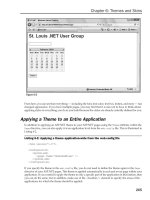
in place, running the page produces the following results in the browser:
FROM THE SKIN FILE
This value, which was specified in the skin file, is displayed no matter what you apply as the
HeaderText
value in the server control.
In addition to changing values of custom properties that are contained in server control, you can also
change the inherited properties that come from
WebControl
. For instance, you can change settings in
your skin file as shown in Listing 6-17.
Listing 6-17: Changing inherited properties in the custom control
<%@ Register Assembly="ControlForThemes" Namespace="ControlForThemes"
TagPrefix="cc1" %>
<cc1:webcustomcontrol1 runat="server" BackColor="Gray" />
With this in place, you have changed one o f the inherited properties from the skin file. This setting
changes the background color of the server control to gray (even if it is set to something else in the
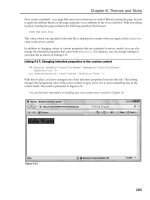
control itself). The result is presented in Figure 6-13.
You can find more i nformation on building your own custom server controls in Chapter 26.
Figure 6-13
285
Evjen c06.tex V2 - 01/28/2008 1:58pm Page 286
Chapter 6: Themes and Skins
Summary
With the availability of themes and skins in ASP.NET 3.5, it is quite easy to apply a consistent look
and feel across your entire application. Remember that themes can contain only simple server control
definitions in a
.skin
file or elaborate style definitions, which include not only
.skin
files, but also CSS
style definitions and even images!
As you will see later in the book, you can use themes in conjunction with the personalization features
that ASP.NET provides. This enables your end users to customize their experiences by selecting their
own themes. Your application can present a theme just for t hem, and it can remember their choices
through the APIs that are offered in ASP.NET 3.5.
286
Evjen c07.tex V2 - 01/28/2008 2:01pm Page 287
Data Binding
in ASP.NET 3.5
One of the most exciting features of ASP.NET 1.0/1.1 was its capability to bind entire collections
of data to controls at runtime without requiring you to write large amounts of code. The controls
understood they were data-bound and would render t he appropriate HTML for each item in the
data collection. Additionally, you could bind the controls to any type of data sources, from simple
arrays to complex Oracle database query results. This was a huge step forward from ASP, in which
each developer was responsible for writing all the data access code, looping through a recordset,
and manually rendering the appropriate HTML code for each record of data.
In ASP.NET 2.0, Microsoft took the concept of data binding and expanded it to make it even easier
to understand and use by introducing a new layer of data abstraction called data source controls.
It also brought into the toolbox a series of new and powerful databound controls such as the Grid-
View, DetailsView, and FormView. ASP.NET 3.5 continues to make fetching and displaying data in
ASP.NET as simple as possible by introducing the LinqDataSource control and the ListView control
This chapter explores all the provided data source controls, and describes other data-binding
features in ASP.NET. It shows how you can use the data source controls to easily and quickly bind
data to data-bound controls. It also focuses on the power of the data-bound list controls included in
ASP.NET 3.5, such as the GridView, DetailsView, FormView, and the new ListView control. Finally,
you take a look at changes in the inline data binding syntax and inline XML data binding.
Data Source Controls
In ASP.NET 1.0/1.1, you typically performed a data-binding operation by writing some data access
code to retrieve a
DataReader
or a
DataSet
object; then you bound that data object to a server
control such as a DataGrid, DropDownList, or ListBox. If you wanted to update or delete the bound
data, you were then responsible for writing the data access code to do that. Listing 7-1 shows a
typical example of a data-binding operation in ASP.NET 1.0/1.1.
Evjen c07.tex V2 - 01/28/2008 2:01pm Page 288
Chapter 7: Data Binding in ASP.NET 3.5
Listing 7-1: Typical data-binding operation i n ASP.NET 1.0/1.1
VB
Dim conn As New SqlConnection()
Dim cmd As New SqlCommand("SELECT * FROM Customers", conn)
Dim da As New SqlDataAdapter(cmd)
Dim ds As New DataSet()
da.Fill(ds)
DataGrid1.DataSource = ds
DataGrid1.DataBind()
C#
SqlConnection conn = new SqlConnection();
SqlCommand cmd = new SqlCommand("SELECT * FROM Customers", conn);
SqlDataAdapter da = new SqlDataAdapter(cmd);
DataSet ds = new DataSet();
da.Fill(ds);
DataGrid1.DataSource = ds;
DataGrid1.DataBind();
ASP.NET 2.0 introduced an additional layer of abstraction through the use of data source controls. As
shown in Figure 7-1, these controls abstract the use of an underlying data provider, such as the SQL Data
Provider or the OLE DB Data Provider. This means you no longer need to concern yourself with the hows
and whys of using the data providers. Instead, the data source controls do all the heavy lifting for you.
You need to know only where your data is and, if necessary, how to construct a query for performing
CRUD (Create, Retrieve, Update, and Delete) o perations.
Figure 7-1
Additionally, because the data source controls all derive from the
Control
class, you can use them much
as you would any other Web Server control. For instance, you can define and control the behavior of
288
Evjen c07.tex V2 - 01/28/2008 2:01pm Page 289
Chapter 7: Data Binding in ASP.NET 3.5
the data source control either declaratively in your HTML or programmatically. This means you can
perform all manner of data access and manipulation without ever having to write one line of code. In
fact, although you certainly can control the data source controls fro m code, the samples in this chapter
show you how to perform powerful database queries using nothing more than the Visual Studio 2008
wizards and declarative syntax.
The six built-in data source controls in ASP.NET 3.5 are each used for a specific type of data access. The
following table lists and describes each data source control.
Control Name Description
SqlDataSource control Provides access to any data source that has an ADO.NET Data
Provider available; by default, the control has access to the ODBC,
OLE DB, SQL Server, Oracle, and SQL Server CE providers.
LinqDataSource control Provides access to different types of data objects using LINQ queries.
ObjectDataSource control Provides specialized data access to business objects or other classes
that return data.
XmlDataSource control Provides specialized data access to XML documents, either
physically or in-memory.
SiteMapDataSource control Provides specialized access to site map data for a Web site that is
stored by the site map provider.
AccessDataSource control Provides specialized access to Access databases.
All the data source controls are derived from the
DataSourceControl
class, which is derived from
Control
and implements the
IDataSource
and
IListSource
interfaces. This means that although each
control is designed for use with specific data sources, all data source controls share a basic set of core
functionality. It also means that it is easy for you to create your own custom data source controls based
on the structure of your specific data sources.
SqlDataSource Control
The SqlDataSource control is the data source control to use if your data is stored in a SQL Server, SQL
Server Express, Oracle Server, ODBC data source, OLE DB data source, or Windows SQL CE Database.
The control provides an easy-to-use wizard that walks you through the configuration process, or you can
modify the control manually by changing the control attributes directly in Source view. In the example
presented in this section, you walk through creating a SqlDataSource control and configuring it using the
wizard. After you complete the configuration, you examine the source code it generates.
Begin using the control by opening an
.aspx
page inside a Visual Studio Web site project and dragging
the SqlDataSource control from the t oolbox o nto the form. The Visual Studio toolbox has been divided
into functional groups so you find all the data-related controls located under the Data section.
Configuring a Data Connection
After the control has been dropped onto the Web page, you tell it what connection it should use. The
easiest way to do this is by using the Configure Data Source Wizard, shown in Figure 7-2. Launch this
wizard by selecting the Configure Data Source option from the data source control’s smart tag menu.
289
Evjen c07.tex V2 - 01/28/2008 2:01pm Page 290
Chapter 7: Data Binding in ASP.NET 3.5
Figure 7-2
Once the wizard opens, you should create a connection to the Northwind database in SQL. You will use
this connection for most of the demonstrations in this chapter.
Beginning with Microsoft SQL Server 2005, Microsoft no longer includes t he Northwind sample database
as part of the standard installation. You can still downl oad the installation scripts for the sample
database from the following location:
/>46A0-8DA2-EEBC53A68034&displaylang=en
After the wizard opens, you can select an existing connection from the drop-down list or create a new
connection. If you click the New Connection button, the Connection Properties dialog, shown in
Figure 7-3, appears. From here, you can set all the properties of a new database connection.
Click the Change button. From here, you can choose the specific data provider you want this connection
to use. By default, the control uses the ADO.NET SQL Data Provider; also available are Oracle, OLE DB,
ODBC, and SQL Server Mobile Edition providers.
The list of providers is generated from the data contained in the
DbProviderFactory
node of the
machine.config
file. If you have additional providers to display in the wizard you can modify
your
machine.config
file to include specific providers’ information.
Next, simply fill in the appropriate information for your database connection. Click the Test Connection
button to verify that your connection information is correct, and then click OK to return to the wizard.
290
Evjen c07.tex V2 - 01/28/2008 2:01pm Page 291
Chapter 7: Data Binding in ASP.NET 3.5
Figure 7-3
After you have returned to the Data Source Configuration Wizard, notice that the connection you cre-
ated is listed in the available connections drop-down list. After you select a connection string from the
drop-down, the connection information shows in the Data Connection info area. This allows you to easily
review the connection information for the Connection selected in the drop-down list.
Click the Next button to continue through the wizard. The next step allows you to choose to have the wiz-
ard save your connection information in your
web.config
file to make maintenance and deployment of
your application easier. This screen allows you to specify the key under which the connection information
291
Evjen c07.tex V2 - 01/28/2008 2:01pm Page 292
Chapter 7: Data Binding in ASP.NET 3.5
should be stored in the configuration file. Should you choose not to store your connection information
in the
web.config
file, it is stored in the actual
.aspx
page as a property of the
SqlDataSource
control
named
ConnectionString
. If the provider chosen was not the SQL Data Provider, a property named
ProviderName
will be used to store that setting.
The next step in the wizard allows you to configure the
SELECT
statement your data source control will
use to retrieve data from the database. This screen, shown in Figure 7-4, gives you a drop-down list of all
the tables and views available in the database that you specified in your connection information. After
you select a table or view, the list box allows you to select the column you want to include in the
query. You can select all columns available using an asterisk (
*
), or you can choose specific columns by
marking the check box located next to each column name. By clicking the WHERE or ORDER BY button,
it is also possible to specify
WHERE
clause parameters for filtering and
ORDER BY
settings for sorting in your
query. For now, do not enter any additional
WHERE
or
ORDER BY
settings.
Figure 7-4
292
Evjen c07.tex V2 - 01/28/2008 2:01pm Page 293
Chapter 7: Data Binding in ASP.NET 3.5
Finally, the Advanced button contains two advanced options. You can have the wizard generate
INSERT
,
UPDATE
,and
DELETE
statements for your data, based on the
SELECT
statement you created. You can
also configure the data source control to use Optimistic Concurrency to prevent data concurrency issues.
Optimistic Concurrency is a database technique that can help you prevent the accidental overwriting
of data. When Optimistic Concurrency is enabled, the Update and Delete SQL statements used by the
SqlDataSource control are modified so that they include both the original and updated values. When the
queries are executed, the data in the targeted record is compated to the SqlDataSource controls original
values and if a difference is found,indicating that the data has changed since it was originally reterived
by the SqlDataSource control, the Update or Delete will not occur.
The final screen of the wizard allows you to preview the data selected by your data source control to
verify the query is working as you expect it to. Simply click the Finish button to complete the wizard.
When you are done configuring your data connection, you can see exactly what the configured SqlData-
Source control looks like. Change to Source view in Visual Studio to see how the wizard has generated
the appropriate attributes for your control. It should look something like the code in Listing 7-2.
Listing 7-2: Typical SqlDataSource control generated by Visual Studio
<
asp:SqlDataSource ID="SqlDataSource1" Runat="server"
SelectCommand="SELECT * FROM [Customers]"
ConnectionString="
<
%$ ConnectionStrings:AppConnectionString1 %
>
"
>
<
/asp:SqlDataSource
>
You can see that the control uses a declarative syntax to configure which connection it should use by
creating a
ConnectionString
attribute, and what query to execute by creating a
SelectCommand
attribute.
A little later in this chapter, you look at how to configure the
SqlDataSource
control to execute
INSERT
,
UPDATE
,and
DELETE
commands as this data changes.
Data Source Mode Property
One of many important properties of the SqlDataSource control is the
DataSourceMode
property. This
property enables you to tell the control if it should use a
DataSet
or a
DataReader
internally when
retrieving the data. This is important when you are designing data-driven ASP.NET p ages. If you choose
to use a
DataReader
, data is retrieved using what is commonly known as fire hose mode,oraforward-only,
read-only cursor. This is the fastest and most efficient way to read data from your data source because
a
DataReader
does not have the memory and processing overhead of a
DataSet
. But choosing to use a
DataSet
makes the data source control m ore powerful by enabling the control to perform other opera-
tions such as filtering, sorting, and paging. It also enables the built-in caching capabilities of the control.
Each option offers distinct advantages and disadvantages, so consider this property carefully when
designing your Web site. The default value for this prope rty is to use a
DataSet
to retrieve data. The
code in Listing 7-3 shows how to add the
DataSourceMode
property to your SqlDataSource control.
Listing 7-3: Adding the DataSourceMode property to a SqlDataSource control
<
asp:SqlDataSource ID="SqlDataSource1" Runat="server"
SelectCommand="SELECT * FROM [Customers]"
ConnectionString="
<
%$ ConnectionStrings:AppConnectionString1 %
>
"
DataSourceMode="DataSet"
>
<
/asp:SqlDataSource
>
293
Evjen c07.tex V2 - 01/28/2008 2:01pm Page 294
Chapter 7: Data Binding in ASP.NET 3.5
Filtering Data Using SelectParameters
Of course, when selecting data from your data source, you may not want to get every single row of data
from a view or table. You want to be able to specify parameters in your query to limit the data that is
returned. The data source control allows you to do this by using the
SelectParameters
collection to
create parameters that it can use at runtime to alter the data that is returned from a q uery.
The
SelectParameters
collection consists of types that derive from the
Parameters
class. You can
combine any number of parameters in the collection. The data so urce control then uses these to create a
dynamic SQL query. The following table lists and describes the available parameter types.
Parameter Description
ControlParameter
Uses the value of a property of t he specified control
CookieParameter
Uses the key value of a cookie
FormParameter
Uses the key value from the Forms collection
QuerystringParameter
Uses a key value from the QueryString collection
ProfileParameter
Uses a key value from the user’s profile
SessionParameter
Uses a key value from the current user’s session
Because all the parameter controls derive from the
Parameter
class, they all contain several useful
common properties. Some of these properties are shown in the following table.
Property Description
Type
Allows you to strongly type the value of the parameter
ConvertEmptyStringToNull
Indicates the control should convert the value assigned to it to
Null
if it is equal to
System.String.Empty
DefaultValue
Allows you to specify a default value for the parameter if it is
evaluated as
Null
The code in Listing 7-4 shows an example of adding a QueryStringParameter to the
SelectParameters
collection of your SqlDataSource control. As you can see, the
SelectCommand
query has been modified
to include a
WHERE
clause. When you run this code, the value of the query string field
ID
is bound to the
@CustomerID
placeholder in your
SelectCommand
, allowing you to select only those customers whose
CustomerID
field matches the value of the query string field.
Listing 7-4: Filtering select data using SelectParameter controls
<
asp:SqlDataSource ID="SqlDataSource1" Runat="server"
SelectCommand="SELECT * FROM [Customers] WHERE ([CustomerID] = @CustomerID)"
ConnectionString="
<
%$ ConnectionStrings:AppConnectionString1 %
>
"
DataSourceMode="DataSet"
>
294