Windows Admin Scripting Little Black Book- P4 ppt
Bạn đang xem bản rút gọn của tài liệu. Xem và tải ngay bản đầy đủ của tài liệu tại đây (361.83 KB, 10 trang )
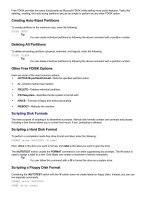
The KiXtart RPC service is a client/server mechanism to retrieve certain networking information not available from
the NETAPI.DLL. The KX95.DLL, loaded on the Windows 9x client, retrieves and reports the information to the RPC
service, which is loaded on a Windows NT system.
Note
The RPC service can be run on any NT system, but it must be a member of the domain where the
logon script resides. For more information on configuring KiXtart for Windows 9x, please consult the
KiXtart manual.
KiXtart Components
There are three basic components to KiXtart: commands, functions, and macros. KiXtart commands are instructions
that perform simple tasks, such as the RUN or SHELL commands. KiXtart functions perform complex tasks and
usually require parameters, similar to functions in other scripting languages. KiXtart macros provide various system
and user information by accessing Windows Application Programming Interfaces (APIs).
KiXtart Variables
Most KiXtart functions return codes that indicate the success or failure of the completed operation. Variables are
used extensively in KiXtart to store values or return codes. KiXtart variables names consist of a $ sign followed by
text, and should not be the same as any of the built-in KiXtart component names. Optionally declaring a variable and
assigning a value is identical to doing so in VBScript:
DIM $MYVARIABLE
$MYVARIABLE = "SOME VALUE"
Windows Script Host
Microsoft’s Windows Script Host is a language-independent scripting host for 32-bit windows operating systems. It
provides the most powerful functionality of all the scripting methods discussed so far. Windows Scripting Host works
seamlessly with all scriptable objects available to Windows, allowing you to create complex, scripted applications. By
providing extensive scripting capabilities combined with support for multiple scripting languages, WSH is quickly
becoming the scripting method of choice.
CSCRIPT and WSCRIPT
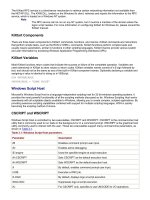
Windows Script Host is controlled by two executables, CSCRIPT and WSCRIPT. CSCRIPT is the command-line host
utility that is commonly used to run tasks in the background or in a command prompt. WSCRIPT is the graphical host
utility commonly used to interact with the user. These two executables support many command-line parameters, as
shown in
Table 3.1
.
Table 3.1: Windows Script Host parameters.
Parameter Description
//B Disables command prompt user input.
//D Enables active debugging.
/E:/engine Uses the specified engine at script execution
//H:CSCRIPT Sets CSCRIPT as the default execution host.
//H:WSCRIPT Sets WSCRIPT as the default execution host.
//I By default, enables command prompt user input.
//JOB Executes a WSC job.
//LOGO By default, displays logo at script execution.
//NOLOGO Suppresses logo at script execution.
//U For CSCRIPT only, specifies to use UNICODE for I/O operations
Table 3.1: Windows Script Host parameters.
Parameter Description
//S Saves options on a per user basis
//T:seconds Specifies the maximum time, in seconds, a script is allowed to run.
//X Executes the current script within the debugger
//? Displays help context
What in the World Is an API?
Before you can start scripting with Windows Script Host, you should have a basic understanding of APIs. An
Application Programming Interface (API) is a collection of functions that the operating system or application can call
on to perform many different tasks. By using a common set of code, applications can perform operations identical to
those that the operating system performs. These APIs are normally stored in DLL files. Although programmers can
access DLLs through compiled applications, scripters need to find another method of access.
Working with Objects
Objects provide a way for scripters to access API functions. An object is simply a collection of functions that perform
similar tasks. These objects are normally stored in OCX (OLE custom control) or DLL files. To gain access to an
object, you use the CreateObject function to load an object into memory, connect to the object, and set this
connection to a variable. This is called instantiating an object and is performed as follows:
Set variable = CreateObject("object")
Once the instance is created, you can use this variable throughout your script to access all the methods within the
object.
The Windows Script Host object model (see Figure 3.1
) is a hierarchal, organized collection of objects, mostly stored
in a file called WSHOM.OCX located in the Windows\System or Winnt\System32 directories. Each of the core objects
contains its own methods and properties to perform specific tasks.
Figure 3.1: The Windows Script Host object model.
The Wscript Object
The Wscript object is the core scripting object. It allows you to collect information about your script, work with
arguments, and call other ActiveX objects. The Wscript object contains the methods to instantiate other objects and
is automatically instantiated every time a script is run. The most commonly used Wscript method is the Echo
method, which sends output to the screen:
Wscript.Echo "Some Output"
The WshNetwork Object
The WshNetwork object provides access to Windows network functions. You can use this object to work with
network connections and perform various network-related tasks. The most common tasks used with this function are
mapping printers and drives, and obtaining a computer’s network information.
The WshShell Object
The WshShell object provides direct access to Windows and registry functions. You can use this object to work with
shortcuts, display messages to users, manipulate the registry and environment variables, and run external
commands.
The FileSystemObject Object
Is there an echo in here? Although not actually a part of the Windows Script Object model, the FileSystemObject
object, contained in SCRRUN.DLL, can be used to access and manipulate the file system. Through this object, you
can perform almost any file management task that you perform manually.
Now that you are familiar with the Windows Script Host Object model, you can start using subroutines to organize
your scripts.
Subroutines
Imagine if you had to perform a series of 20 steps on more than 1,000 files. What a pain it would be to rewrite those
steps so many times! This is why developers created subroutines. Throughout this chapter, you will find various
subroutines reused in examples. Subroutines allow you to take a section of repeated code and make it accessible by
simply calling it. Subroutines accept multiple parameters, allowing you to pass arguments to the subroutine for
manipulation. Windows Script Host provides two types of subroutines: sub procedures and functions.
Sub Procedures
A sub procedure performs a series of actions without returning any data. A typical use of a sub procedure is to
perform file manipulation, working with text files, or to display user prompts. A sub procedure is structured as follows:
Sub SubName (arguments)
Code
End Sub
Here, SubName is the name given to the sub procedure; arguments are the parameters passed to the sub
procedure (separated by commas); and code is the script action(s) to perform.
Note
Any variables used within a sub procedure will not be accessible outside of the sub procedure,
unless they are explicitly declared beforehand.
Functions
A function is similar to a sub procedure except that it can return data. A typical use of a function is to perform
calculations, create objects, or return error codes. A function is structured as follows:
Function FunctionName (arguments)
Code
End Function
Here, FunctionName is the name given to the function; arguments are the parameters passed to the function
(separated by commas); and Code is the script action(s) to perform. To return a value outside of the function, from
within your function name a variable with the same name as your function and set a value to it.
Working with the File System
Files and folders are the building blocks of any system. They contain the data we treasure, the operating system we
use, and the applications we work with. Shell scripting, KiXtart, and Windows Script Host provide many ways of
working with the file system. Although the tasks these scripting methods perform are similar, the commands, syntax,
and limitations of each method differ.
Manipulating the File System Using Shell Scripting
Shell scripting provides limited functionality for manipulating the file system. Although Resource Kit utilities extend
the capabilities of shell scripting, it still cannot compare to the more powerful functions of KiXtart and Windows Script
Host. So, why use shell scripting? Shell scripting comes built into every operating system, and you will run into
situations where shell scripting is your only alternative.
Deleting Files Depending on Extension
The Windows NT/2000 DELETE command supports many options that the Windows 9x command does not. To
remove files based on extension in Windows NT/2000, start the command prompt and enter the following:
DEL *.ext /F /Q /S
Here, ext is the file extension of the files to delete; the /F switch forces the deletion of read-only files; the /Q switch
removes prompts; and the /S switch performs deletions not only in the current directory, but in the subdirectories as
well.
Deleting Folders and Subfolders
As ridiculous as this may sound, Windows NT does not include a command to delete folders. Microsoft has created a
Resource Kit utility called RMDIR.EXE (Remove Directory), included in Windows 2000, that mimics the Windows 9x
DELTREE.EXE (Delete Tree) command. To delete a root folder and all its subfolders with RMDIR, start the
command prompt and enter the following:
RMDIR /Q /S directory
Here, directory is the name of the directory to delete; the /Q switch removes prompts; and the /S switch performs
the deletion of all files and subdirectories.
Determining File Versions
FILEVER.EXE is a Resource Kit utility to display file versions from the command line. To determine a file version,
start the command prompt and enter the following:
FILEVER filename
Here, filename is the path and name of file to determine the file version.
Note
Remember, only application files have versions.
Updating Program Files Depending on Version
REPLACE.EXE is a Windows NT/2000 command that can be used to update older files with newer file versions. To
update a file with a newer version, start the command prompt and enter the following:
REPLACE /R /S /U source destination
Here, source is the path and name of the source file; destination is the directory to start the replacement; the /R
switch allows for read-only file replacement; the /S switch performs the replacement in the current directory and all
subdirectories; and the /U switch specifies to only replace files with a newer version.
Replicating Files and Directories
You can tell users to back up their files to the server, but whether the users actually do back the files up is a different
story. ROBOCOPY is a Resource Kit utility to copy, move, or replicate files from the command line. To replicate files,
start the command prompt and enter the following:
ROBOCOPY /MIR /ETA /NP /LOG+:logfile source destination
Here, the /MIR mirrors a directory tree; the /ETA switch displays the estimated time of arrival of copied files; the /NP
switch causes no copy progress to be displayed; the /LOG+:logfile outputs the status to the logfile; and destination
is the location to replicate the source to.
Note
Version 1.95 of ROBOCOPY was designed for Windows NT/2000 and does not work in Windows 9x.
Appending Text Files
Collecting information from log files can be a time-consuming task. Often, these files are properly formatted but
simply need to be collected to a central file. To append the contents of one text file to another, start the command
prompt and enter the following:
TYPE file1 >> file2
Here, file1 is the file whose contents you want to append to file2.
Manipulating the File System Using KiXtart
KiXtart is a scripting language that is best used when you know the exact file or directory you want to manipulate.
KiXtart provides poor directory parsing capabilities with its limited DIR command and lack of recursive support. To
compensate, you can call external commands for indirect file management and KiXtart commands for direct file
management.
Using External Commands
KiXtart provides two statements to run an external 16- or 32-bit application or command: SHELL and RUN. The
SHELL statement will wait for the external command to complete, but the RUN statement will not. Both the SHELL
and RUN statements have the same syntax:
statement "command"
Here, statement is the RUN or SHELL statement, and command is the command to run. To delete all the files in the
temp directory using the RUN statement, you would enter:
RUN "%COMSPEC% /C DEL C:\TEMP\*.* /F /Q /S"
Note
%COMSPEC% /C is used to run commands from the DOS environment.
Renaming a File or Folder
KiXtart does not contain a function to rename a file or folder. Instead, you can copy the current item to a new item
with the desired name, and then delete the old item. To rename a file or folder, proceed as follows:
1. Create a new directory to store all files included in this example.
2. Download and extract the latest version of KiXtart from www.microsoft.com
to the new directory.
3. Select Start|Run and enter “kix32 scriptfile”.
Here, scriptfile is the full path of the new directory from step 1 and the file name of a script file that contains the
following:
$Root = "rootdir"
$File = "oldfilefolder"
$Name = "newfilefolder"
Copy "$Root\$File" "$Root\$Name" /H
Del "$Root\$File"
Here, rootdir is the root directory name of the file or folder to rename (without the last \); oldfilefolder is the name of
the file or folder to rename; newfilefolder is the name to rename the oldfilefolder to; and /H specifies to include
system and hidden files.
Displaying File or Folder Attributes
The KiXtart command GetFileAttr allows you to display file or folder attributes. To display the attributes of a file or
folder, proceed as follows:
1. Create a new directory to store all files included in this example.
2. Download and extract the latest version of KiXtart, from www.microsoft.com
, to the new directory.
3. Select Start|Run and enter “kix32 scriptfile”.
Here, scriptfile is the full path of the new directory from step 1 and file name of a script file that contains the
following:
$File = "filefolder"
GoSub FileAttribs
GoSub DisplayAttribs
:FileAttribs
$ReadOnly = 0 $Hidden = 0 $System = 0
$Dir = 0 $Archive = 0 $Encrypt = 0
$Normal = 0 $Temp = 0 $Sparse = 0
$Reparse = 0 $Compress = 0 $Offline = 0
If GetFileAttr($File) & 1 $ReadOnly = 1 EndIf
If GetFileAttr($File) & 2 $Hidden = 1 EndIf
If GetFileAttr($File) & 4 $System = 1 EndIf
If GetFileAttr($File) & 16 $Dir = 1 EndIf
If GetFileAttr($File) & 32 $Archive = 1 EndIf
If GetFileAttr($File) & 64 $Encrypt = 1 EndIf
If GetFileAttr($File) & 128 $Normal = 1 EndIf
If GetFileAttr($File) & 256 $Temp = 1 EndIf
If GetFileAttr($File) & 512 $Sparse = 1 EndIf
If GetFileAttr($File) & 1024 $Reparse = 1 EndIf
If GetFileAttr($File) & 2046 $Compress = 1 EndIf
If GetFileAttr($File) & 4096 $Offline = 1 EndIf
Return
:DisplayAttribs
? "File: " + $File
? ""
? "ReadOnly: " + $ReadOnly
? "Hidden: " + $Hidden
? "System: " + $System
? "Directory: " + $Dir
? "Archive: " + $Archive
? "Encrypted: " + $Encrypt
? "Normal: " + $Normal
? "Temporary: " + $Temp
? "Sparse: " + $Sparse
? "Reparse: " + $Reparse
? "Compressed: " + $Compress
? "Offline: " + $Offline
Sleep 5
Return
Here, filefolder is the file or folder that contains the attributes you want to get.
Note
Windows 2000 adds several new file attributes with NTFS 5. For more information, see Chapter 17
of the Windows 2000 Professional Resource Kit.
Setting File or Folder Attributes
The KiXtart command SetFileAttr allows you to set file or folder attributes. To display the attributes of a file or folder,
proceed as follows:
1. Create a new directory to store all files included in this example.
2. Download and extract the latest version of KiXtart, from www.microsoft.com
, to the new directory.
3. Select Start|Run and enter “kix32 scriptfile”.
Here, scriptfile is the full path of the new directory from step 1 and file name of a script file that contains the
following:
$File = "filefolder"
$ReadOnly = 0 $Hidden = 0 $System = 0
$Archive = 0 $Normal = 0 $Temp = 0
$Offline = 0
GoSub SetAttribs
:SetAttribs
$Rcode = SetFileAttr($File,128)
$Attribs = 0
If $ReadOnly = 1 $Attribs = $Attribs + 1 EndIf
If $Hidden = 1 $Attribs = $Attribs + 2 EndIf
If $System = 1 $Attribs = $Attribs + 4 EndIf
If $Archive = 1 $Attribs = $Attribs + 32 EndIf
If $Temp = 1 $Attribs = $Attribs + 256 EndIf
If $Offline = 1 $Attribs = $Attribs + 4096 EndIf
$Rcode = SetFileAttr($File,$Attribs)
Return
Here, filefolder is the file or folder that contains the attributes you want to set. To modify filefolder’s attributes,
change the value of the corresponding variable names ($ReadOnly, $Hidden, $System, $Archive, $Normal,
$Temp, $Offline) to 1 to enable, or 0 to disable.
Appending Text Files
To append the contents of one text file to another, proceed as follows:
1. Create a new directory to store all files included in this example.
2. Download and extract the latest version of KiXtart, from www.microsoft.com
, to the new directory.
3. Select Start|Run and enter “kix32 scriptfile”.
Here, scriptfile is the full path of the new directory from step 1 and file name of a script file that contains the
following:
$File1 = "file1"
$File2 = "file2"
$Rcode = Open(1,$File1)
$Rcode = Open(2,$File2,5)
$File1 = ReadLine(1)
While @Error=0
If $File1
$Rcode = WriteLine(2,$File1 + Chr(13) + Chr(10))
EndIf
$File1 = ReadLine(1)
Loop
$Rcode = Close(1)
$Rcode = Close(2)
Here, file1 is the file whose contents you want to append to file2.
Searching and Replacing Lines within Files
Replacing specific lines within the AUTOEXEC.BAT, CONFIG.SYS, or other text files is a common administrative
task. To search and replace a line within a text file, proceed as follows:
1. Create a new directory to store all files included in this example.
2. Download and extract the latest version of KiXtart, from www.microsoft.com
, to the new directory.
3. Select Start|Run and enter “kix32 scriptfile”.
Here, scriptfile is the full path of the new directory from step 1 and file name of a script file that contains the
following:
$File = "somefile"
$DLine = 'searchline'
$RLine = 'replaceline'
$TempFile = $File + ".TMP"
$LineNum = 0
$Rcode = OPEN (1, $File, 2)
DEL $TempFile
$Rcode = OPEN (2, $TempFile, 5)
$Line = READLINE(1)
WHILE @Error = 0
$LineNum = $LineNum + 1
IF $Line = $DLine
$Rcode = WRITELINE(2, $RLine + Chr(13) + Chr(10))
ELSE
$Rcode = WRITELINE(2, $Line + Chr(13) + Chr(10))
ENDIF
$Line = READLINE(1)
LOOP
$Rcode = CLOSE(1)
$Rcode = CLOSE(2)
COPY $TempFile $File
DEL $TempFile
Here, somefile is the file to parse, and replaceline is the text to replace the searchline with.
Searching and Replacing within an INI File
INI files, or initialization files, are text files that were originally created to store configuration information for 16-bit
applications. KiXtart is the easiest scripting method for modifying an INI file because it has two built-in INI functions
(READPROFILESTRING and WRITEPROFILESTRING). To search and replace a value in an INI file, proceed as
follows:
1. Create a new directory to store all files included in this example.
2. Download and extract the latest version of KiXtart, from www.microsoft.com
, to the new directory.
3. Select Start|Run and enter “kix32 scriptfile”.
Here, scriptfile is the full path of the new directory from step 1 and file name of a script file that contains the
following:
$LoadKey = ReadProfileString("inifile", section, key)
If $LoadKey = oldvalue
WriteProfileString("inifile ", section, key, newvalue)
EndIf
Here, inifile is the complete name and path of the INI file; section is the name of the INI section to search (without
the brackets); key is the name of the key to search; oldvalue is the value to find; and newvalue is the value to
replace it with.
Note
WriteProfileString in this example replaces the old value with a new value surrounded by double
quotes. If you wish to clear the value, the new value should be a space surrounded by double
quotes. Simply supplying double quotes (no space) would delete the entire key and value from the
INI file.
Manipulating the File System Using Windows Script Host
Many of the file management tasks administrators would like to script are too complex or cannot be done with shell
scripting or KiXtart. Windows Script Host (WSH) provides direct access to the file system, allowing you to create
complex and unique file management scripts.
Accessing the FileSystemObject
The FileSystemObject stores all the functions that allow you to manipulate the file system through a script file. To
create an instance of the FileSystemObject, proceed as follows:
Set FSO = CreateObject("Scripting.FileSystemObject")
Going through Subfolders
This subroutine will work through the subfolders of a main directory, calling another subroutine called MainSub:
Sub GoSubFolders (objDIR)
If objDIR <> "\System Volume Information" Then
MainSub objDIR
For Each eFolder in objDIR.SubFolders
GoSubFolders eFolder
Next
End If
End Sub
Note
The System Volume Information directory is a Windows 2000 system directory that causes script
errors when attempting access to it.
Connecting to a File
Before performing certain WSH actions on a file, you must first connect to it using the GetFile method. Here is a
function to connect to a file:
Function GetFile(sFILE)
On Error Resume Next
Set GetFile = FSO.GetFile(sFILE)
If Err.Number <> 0 Then
Wscript.Echo "Error connecting to: " & sFILE & VBlf & _
"[" & Err.Number & "] " & Err.Description
Wscript.Quit Err.Number
End If
End Function
Tip
On Error Resume Next allows the script to continue to the next statement if an error occurs. This
allows you to perform error checking and alerting.
In this script, a connection to a file is attempted, and the user is prompted if any errors occur.
Connecting to a Folder
Before performing certain WSH actions on a folder, you must first connect to it using the GetFolder method. Here is
a function to connect to a folder:
Function GetFolder(sFOLDER)
On Error Resume Next