Tương tác giữa PHP và jQuery - part 16 pps
Bạn đang xem bản rút gọn của tài liệu. Xem và tải ngay bản đầy đủ của tài liệu tại đây (705.67 KB, 10 trang )
CHAPTER 4 ■ BUILD AN EVENTS CALENDAR
151
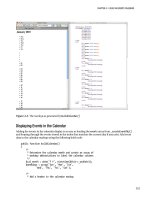
Figure 4-5. The markup as generated by buildCalendar()
Displaying Events in the Calendar
Adding the events to the calendar display is as easy as loading the events array from _createEventObj()
and looping through the events stored in the index that matches the current day if any exist. Add event
data to the calendar markup using the following bold code:
public function buildCalendar()
{
/*
* Determine the calendar month and create an array of
* weekday abbreviations to label the calendar columns
*/
$cal_month = date('F Y', strtotime($this->_useDate));
$weekdays = array('Sun', 'Mon', 'Tue',
'Wed', 'Thu', 'Fri', 'Sat');
/*
* Add a header to the calendar markup
CHAPTER 4 ■ BUILD AN EVENTS CALENDAR
152
*/
$html = "\n\t<h2>$cal_month</h2>";
for ( $d=0, $labels=NULL; $d<7; ++$d )
{
$labels .= "\n\t\t<li>" . $weekdays[$d] . "</li>";
}
$html .= "\n\t<ul class=\"weekdays\">"
. $labels . "\n\t</ul>";
/*
* Load events data
*/
$events = $this->_createEventObj();
/*
* Create the calendar markup
*/
$html .= "\n\t<ul>"; // Start a new unordered list
for ( $i=1, $c=1, $t=date('j'), $m=date('m'), $y=date('Y');
$c<=$this->_daysInMonth; ++$i )
{
/*
* Apply a "fill" class to the boxes occurring before
* the first of the month
*/
$class = $i<=$this->_startDay ? "fill" : NULL;
/*
* Add a "today" class if the current date matches
* the current date
*/
if ( $c+1==$t && $m==$this->_m && $y==$this->_y )
{
$class = "today";
}
/*
* Build the opening and closing list item tags
*/
$ls = sprintf("\n\t\t<li class=\"%s\">", $class);
$le = "\n\t\t</li>";
/*
* Add the day of the month to identify the calendar box
*/
if ( $this->_startDay<$i && $this->_daysInMonth>=$c)
{
/*
* Format events data
*/
$event_info = NULL; // clear the variable
CHAPTER 4 ■ BUILD AN EVENTS CALENDAR
153
if ( isset($events[$c]) )
{
foreach ( $events[$c] as $event )
{
$link = '<a href="view.php?event_id='
. $event->id . '">' . $event->title
. '</a>';
$event_info .= "\n\t\t\t$link";
}
}
$date = sprintf("\n\t\t\t<strong>%02d</strong>",$c++);
}
else { $date=" "; }
/*
* If the current day is a Saturday, wrap to the next row
*/
$wrap = $i!=0 && $i%7==0 ? "\n\t</ul>\n\t<ul>" : NULL;
/*
* Assemble the pieces into a finished item
*/
$html .= $ls . $date . $event_info . $le . $wrap;
}
/*
* Add filler to finish out the last week
*/
while ( $i%7!=1 )
{
$html .= "\n\t\t<li class=\"fill\"> </li>";
++$i;
}
/*
* Close the final unordered list
*/
$html .= "\n\t</ul>\n\n";
/*
* Return the markup for output
*/
return $html;
}
■ Caution Don’t forget to add the new $event_info variable into the markup at the bottom of the loop!
CHAPTER 4 ■ BUILD AN EVENTS CALENDAR
154
When the database events are loaded into the calendar display, the titles show up next to the
appropriate date (see Figure 4-6).
Figure 4-6. An event title displayed next to the appropriate date
■ Note The linked event titles point to a file called view.php that doesn’t exist yet. This file will be built and
explained in the “Outputing HTML to Display Full Event Descriptions” section later in this chapter.
Making the Calendar Look Like a Calendar
At this point, your markup is proper and your events are there, but the generated code doesn’t look
much like a calendar at all.
To rectify this, you’ll now be taking a moment to complete the HTML markup and style the page
using CSS.
CHAPTER 4 ■ BUILD AN EVENTS CALENDAR
155
■ Note Because this book is not about CSS, the rules used won’t be explained in detail. For more information on
CSS, check out Beginning CSS Web Development by Simon Collison (Apress, 2006).
In a nutshell, the CSS file will do the following:
• Float each list item to the left.
• Adjust margins and borders to make the dates look like a traditional calendar.
• Add a hover effect so the day over which the mouse is hovering will be highlighted.
• Style event titles.
• Add hover effects for event titles as well.
• Add some CSS3 flair, including rounded corners and drop shadows, for fun.
■ Tip For more information on CSS3, visit o/.
Create a new file called style.css in the css folder (/public/assets/css/style.css) and add the
following rules:
body {
background-color: #789;
font-family: georgia, serif;
font-size: 13px;
}
#content {
display: block;
width: 812px;
margin: 40px auto 10px;
padding: 10px;
background-color: #FFF;
-moz-border-radius: 6px;
-webkit-border-radius: 6px;
border-radius: 6px;
border:2px solid black;
-moz-box-shadow: 0 0 14px #123;
-webkit-box-shadow: 0 0 14px #123;
box-shadow: 0 0 14px #123;
}
h2,p {
margin: 0 auto 14px;
CHAPTER 4 ■ BUILD AN EVENTS CALENDAR
156
text-align: center;
}
ul {
display: block;
clear: left;
height: 82px;
width: 812px;
margin: 0 auto;
padding: 0;
list-style: none;
background-color: #FFF;
text-align: center;
border: 1px solid black;
border-top: 0;
border-bottom: 2px solid black;
}
li {
position: relative;
float: left;
margin: 0;
padding: 20px 2px 2px;
border-left: 1px solid black;
border-right: 1px solid black;
width: 110px;
height: 60px;
overflow: hidden;
background-color: white;
}
li:hover {
background-color: #FCB;
z-index: 1;
-moz-box-shadow: 0 0 10px #789;
-webkit-box-shadow: 0 0 10px #789;
box-shadow: 0 0 10px #789;
}
.weekdays {
height: 20px;
border-top: 2px solid black;
}
.weekdays li {
height: 16px;
padding: 2px 2px;
background-color: #BCF;
}
.fill {
CHAPTER 4 ■ BUILD AN EVENTS CALENDAR
157
background-color: #BCD;
}
.weekdays li:hover,li.fill:hover {
background-color: #BCD;
-moz-box-shadow: none;
-webkit-box-shadow: none;
box-shadow: none;
}
.weekdays li:hover,.today {
background-color: #BCF;
}
li strong {
position: absolute;
top: 2px;
right: 2px;
}
li a {
position: relative;
display: block;
border: 1px dotted black;
margin: 2px;
padding: 2px;
font-size: 11px;
background-color: #DEF;
text-align: left;
-moz-border-radius: 6px;
-webkit-border-radius: 6px;
border-radius: 6px;
z-index: 1;
text-decoration: none;
color: black;
font-weight: bold;
font-style: italic;
}
li a:hover {
background-color: #BCF;
z-index: 2;
-moz-box-shadow: 0 0 6px #789;
-webkit-box-shadow: 0 0 6px #789;
box-shadow: 0 0 6px #789;
}
Save the style sheet, and close it; you won’t need to modify it again in this chapter. In the next
section, you’ll create common files that will, among other things, include these styles into the page.
CHAPTER 4 ■ BUILD AN EVENTS CALENDAR
158
Creating the Common Files—Header and Footer
There are going to be multiple pages viewed by your users in this application, and they all need a
common set of HTML elements, style sheets, and more. To simplify maintenance as much as possible,
you’ll be using two files—header.inc.php and footer.inc.php—to contain those common elements.
First, create a file called header.inc.php in the common folder
(/public/assets/common/header.inc.php). This file will hold the DOCTYPE declaration for the HTML and
create a head section that contains a Content-Type meta tag, the document title, and links to any CSS files
required for the document.
Because the document title will vary from page to page, you’ll be setting a variable—$page_title—
to store each page’s title.
Also, because more than one CSS file may be needed for a page, an array of CSS file names will be
passed in a variable called $css_files and looped through to generate the proper markup.
Inside this file, place the following code:
<!DOCTYPE html
PUBLIC "-//W3C//DTD XHTML 1.0 Strict//EN"
"
<html xmlns=" xml:lang="en" lang="en">
<head>
<meta http-equiv="Content-Type"
content="text/html;charset=utf-8" />
<title><?php echo $page_title; ?></title>
<?php foreach ( $css_files as $css ): ?>
<link rel="stylesheet" type="text/css" media="screen,projection"
href="assets/css/<?php echo $css; ?>" />
<?php endforeach; ?>
</head>
<body>
Next, create a file called footer.inc.php in the common folder
(/public/assets/common/footer.inc.php) to contain the closing parts of the markup.
For now, this file doesn’t need to do much: it simply closes the body and html tags opened in
header.inc.php. As you continue developing this application, more will be added here.
Insert the following into footer.inc.php:
</body>
</html>
Adding the Files to the Index
To bring the new pieces together, you’ll need to modify the index file. First, you’ll need to add values to
the $page_title and $css_files variables, and then you should include the header file.
Also, to wrap the page content, add in a new div with the ID content that wraps around the call to
buildCalendar().
CHAPTER 4 ■ BUILD AN EVENTS CALENDAR
159
Finally, add a call to the footer file to finish the page. When it’s completed, the index file will be
modified with the code shown in bold:
<?php
/*
* Include necessary files
*/
include_once ' /sys/core/init.inc.php';
/*
* Load the calendar
*/
$cal = new Calendar($dbo, "2010-01-01 12:00:00");
/*
* Set up the page title and CSS files
*/
$page_title = "Events Calendar";
$css_files = array('style.css');
/*
* Include the header
*/
include_once 'assets/common/header.inc.php';
?>
<div id="content">
<?php
/*
* Display the calendar HTML
*/
echo $cal->buildCalendar();
?>
</div><! end #content >
<?php
/*
* Include the footer
*/
include_once 'assets/common/footer.inc.php';
?>
After saving the changes, reload your browser to see the results (see Figure 4-7).
CHAPTER 4 ■ BUILD AN EVENTS CALENDAR
160
Figure 4-7. The calendar with the header, footer, and CSS styles applied
Outputing HTML to Display Full Event Descriptions
The next step in this application is to allow the user to view the details of an event. This will be done in
three steps:
1. Create a method to format an array of a single event’s data when loaded by ID.
2. Create a method to generate markup containing the data as loaded by the first
method.
3. Create a new file to display the markup generated by the second method.
Creating a Method to Format Single Event Data
Similar to _createEventObj(), the purpose of this method, which you’ll call _loadEventById(), is to
generate an Event object from the result set returned by _loadEventData().