Tài liệu OASIS OpenDocument Essentials Using OASIS OpenDocument XML- P2 doc
Bạn đang xem bản rút gọn của tài liệu. Xem và tải ngay bản đầy đủ của tài liệu tại đây (1.11 MB, 98 trang )
Chapter 5. Spreadsheets
Surprisingly, we have already covered a great deal of the information about
spreadsheets. Spreadsheets share a great deal of their markup with tables that you
find in text documents. This shouldn’t come as a surprise—a spreadsheet is just a
two-dimensional table. It can have many blank rows and columns and can do
calculations on the cell entries, but a spreadsheet is still just a table at heart.
However, there are things that make a spreadsheet, well, spreadsheetish. Most
important, the <office:body> has an <office:spreadsheet> element as
its child (rather than <office:text> for a word processing document). Other
elements and attributes specific to spreadsheets are in the styles.xml file, but
most are in content.xml.
Spreadsheet Information in styles.xml
The styles.xml file stores information that OpenOffice.org sets from the sheet
tab of the Format Page dialog, shown in Figure 5.1, “Spreadsheet Page Options”.
Specifically, this information is in the <style:page-layout-properties>
element that is inside the first <style:page-layout> element within the
<office:automatic-styles>.
Figure 5.1. Spreadsheet Page Options
Using OASIS OpenDocument XML 93
Chapter 5. Spreadsheets
1. The style:print-page-order attribute has a value of ttb for top
to bottom, and ltr for left to right. If the first page number is not one (the
default), then the style:first-page-number attribute will give the
number that you specify.
2. The value of the style:print attribute summarizes all the marked
checkboxes as a whitespace-separated list. If you turn on all the
checkboxes, the value will be these words (separated by whitespace):
annotations, charts, drawings, formulas, grid, headers,
objects, and zero-values.
3. If you are scaling to a percentage, then the style:scale-to attribute
will have the scaling percentage (with a percent sign) as its value. If you are
fitting to a number of pages, then the style:scale-to-pages
attribute will provide that value. If you are scaling to width and height, then
the style:scale-to-X and style:scale-to-Y attributes will
give the number of pages in each direction.
Example 5.1, “Page Options” shows this markup.
Example 5.1. Page Options
<office:automatic-styles>
<style:page-layout style:name="pm1">
<style:page-layout-properties
style:print-page-order="ttb" style:first-page-number="2"
style:scale-to-pages="1"
style:writing-mode="lr-tb"
style:print="formulas grid headers zero-values"/>
<! etc. >
</style:page-master>
<! more styles >
</office:automatic-styles>
Spreadsheet Information in content.xml
The <office:automatic-styles> element contains
• Column styles
• Row styles
• Sheet styles
• Number styles
• Cell Styles
Column and Row Styles
Each differently styled column in the spreadsheet gets a <style:style> whose
style:family is table-column. Its child <style:table-column-
properties> element specifies the width of the column (style:column-
width) in the form of a length, such as 1.1in.
94 OASIS OpenDocument Essentials
Spreadsheet Information in content.xml
The column styles are followed by <style:style> elements whose
style:family is table-row. Their child <style:table-row-
properties> element specifies the style:row-height. If you have chosen
“optimal height” then this element will also set style:use-optimal-row-
height to true.
Styles for the Sheet as a Whole
A <style:style> element with a style:family="table" primarily serves
to connect a table with a master page and to determine whether the sheet is hidden
or not. Example 5.2, “Style Information for a Sheet” shows just such an element.
Example 5.2. Style Information for a Sheet
<style:style style:name="ta1" style:family="table"
style:master-page-name="Default">
<style:table-properties table:display="true"/>
</style:style>
Number Styles
The other major style information in a spreadsheet deals with formatting numbers so
that they show up as percentages, scientific notation, etc. A number style must
convey two pieces of information: what kind of a number it is (number, currency,
percent, date, etc.) and how the number is to be displayed. This is mirrored in the
XML as a <number:entity-style> element, where entity can be number,
currency, percent, date, etc.
This element has a required style:name attribute that gives the style a unique
identifier, and a style:family attribute with a value of data-style. The
contents of this element will tell how to display the number, percent, currency, date,
etc.
Number, Percent, Scientific, and Fraction Styles
Let’s start with the “pure numeric” styles: numbers, percents, scientific notation, and
fractions.
Plain Numbers
A plain number is contained in a <number:number-style> element with a
style:name attribute. Contained within this element is the description of how to
display the number. In this case, we need only a simple <number:number>
element that has these attributes
• number:decimal-places tells how many digits are to the right of the
decimal symbol
• number:min-integer-digits tells how many leading zeros are
present.
Using OASIS OpenDocument XML 95
Chapter 5. Spreadsheets
• number:grouping. If you have checked the“thousands separator”
dialog item, then this attribute will be present and will have a value of
true.
Figure 5.2. Number Styles Dialog
Example 5.3, “Number Style for format #,##0.00” shows a number style for
displaying two places to the right of the decimal, one leading zero, and a grouping
separator.
Example 5.3. Number Style for format #,##0.00
<number:number-style style:name="N2"">
<number:number number:decimal-places="2"
number:min-integer-digits="1"
number:grouping="true"/>
</number:number-style>
Note
The decimal symbol and grouping symbol are not specified in the
style; they are set in the application.
If you want negative numbers to be red, then things become radically different.
Rather than having one style, OpenDocument requires two styles, with the negative
being the default and a “conditional style” for positive values. Here is the XML for a
number with two digits to the right of the decimal, one leading zero, a thousands
separator, and negative numbers in red:
96 OASIS OpenDocument Essentials
Spreadsheet Information in content.xml
Example 5.4. Number Style for format -#,##0.00 with Negative Values in Red
<number:number-style style:name="N112P0"
style:volatile="true">
<number:number number:decimal-places="2"
number:min-integer-digits="1" number:grouping="true"/>
</number:number-style>
<number:number-style style:name="N112">
<style:text-properties fo:color="#ff0000"/>
<number:text>-</number:text>
<number:number number:decimal-places="2"
number:min-integer-digits="1" number:grouping="true"/>
<style:map style:condition="value()>=0"
style:apply-style-name="N112P0"/>
</number:number-style>
This is the format to be used for positive numbers. The
style:volatile="true" tells the application to retain this style, even if
it is never used.
This is the main style for negative numbers. They should be displayed in red
…
… starting with a minus sign …
… followed by the number with two decimal places, at least one leading zero,
and a thousands separator.
However, in the event that the value of the cell is greater than or equal to
(>=) zero, use the positive number style (N112P0).
Scientific Notation
Scientific notation is a variant on plain numbers; the outer <number:number-
style> contains a <number:scientific-number> element with these
attributes: number:decimal-places and number:min-integer-digits
for the mantissa, and number:min-exponent-digits for the exponent part.
You don’t need to put the E in the specification. Example 5.5, “Scientific Notation
for Format 0.00E+00” shows the style for scientific notation with two digits to the
right of the decimal point, at least one to the left, and at least two digits in the
exponent.
Example 5.5. Scientific Notation for Format 0.00E+00
<number:number-style style:name="N3">
<number:scientific-number
number:decimal-places="2"
number:min-integer-digits="1"
number:min-exponent-digits="2"/>
</number:number-style>
Using OASIS OpenDocument XML 97
Chapter 5. Spreadsheets
Fractions
Fractions are also variants of plain numbers. Their <number:number-style>
element contains a <number:fraction> element that has these attributes:
number:min-integer-digits (number of digits in the whole number part),
number:min-numerator-digits, and number:min-denominator-
digits. Example 5.6, “Fraction Style for Format # ??/??” shows a style for a
fraction with an optional whole number part and at least two digits in the numerator
and denominator.
Example 5.6. Fraction Style for Format # ??/??
<number:number-style style:name="N4">
<number:fraction
number:min-integer-digits="0"
number:min-numerator-digits="2"
number:min-denominator-digits="2"/>
</number:number-style>
Percentages
A percentage is represented in much the same way as a plain number; the only
differences are that
• The enclosing element is <number:percentage-style> instead of
<number:number-style>.
• The enclosed <number:number> style is followed by a
<number:text> element with a percent sign as its content.
Example 5.7, “Percent Style for Format #,##0.00%” shows a percentage with two
digits to the right of the decimal, at least one to the left, and a grouping symbol.
Example 5.7. Percent Style for Format #,##0.00%
<number:percentage-style style:name="N5">
<number:number number:decimal-places="2"
number:min-integer-digits="1" number:grouping="true"/>
<number:text>%</number:text>
</number:percentage-style>
Currency Styles
Currency styles are similar to number styles. Specifying a currency always creates
two styles: one for negative values, and one for positive values. Example 5.8,
“Currency in Format -$#,##0.00” shows the XML for a currency format of US
Dollars with two digits after the decimal point, a minimum of one digit before the
decimal, and a thousands separator.
98 OASIS OpenDocument Essentials
Spreadsheet Information in content.xml
Example 5.8. Currency in Format -$#,##0.00
<number:currency-style style:name="N102P0"
style:volatile="true">
<number:currency-symbol
number:language="en"
number:country="US">$</number:currency-symbol>
<number:number number:decimal-places="2"
number:min-integer-digits="1" number:grouping="true"/>
</number:currency-style>
<number:currency-style style:name="N102">
<number:text>-</number:text>
<number:currency-symbol number:language="en"
number:country="US">$</number:currency-symbol>
<number:number number:decimal-places="2"
number:min-integer-digits="1" number:grouping="true"/>
<style:map style:condition="value()>=0"
style:apply-style-name="N102P0"/>
</number:currency-style>
The formatting for positive values appears first, contained in a
<number:currency-style> element.
The <number:currency-symbol> ’s content is the dollar sign. The
number:language and number:country allow a program to
distinguish the US dollar from the New Zealand dollar or Mexican new peso
symbol, which look the same but have different countries and/or languages.
The number portion of the display uses the same <number:number>
element that we have already described
[6]
.
For negative values, the minus sign precedes the currency symbol.
As in Example 5.4, “Number Style for format -#,##0.00 with Negative Values
in Red”, a <style:map> is used to choose whether to use the negative
number format or the positive number format.
The appearance of <number:text> elements mirrors the order in which the text
appears. Example 5.9, “Currency Format for Greek Drachma” shows the negative
number portion of the XML for the Greek drachma. In this format, the value is
shown in red, the minus sign appears first, then the number, then a blank and the
letters “Δρχ.” (We are showing only the negative number specification.)
[6]
If you want to have a replacement for the decimal part of the number (as in $15 ),
you add number:decimal-replacement=" " to the <number:number>
element.
Using OASIS OpenDocument XML 99
Chapter 5. Spreadsheets
Example 5.9. Currency Format for Greek Drachma
<number:currency-style style:name="N111">
<style:properties fo:color="#ff0000"/>
<number:text>-</number:text>
<number:number number:decimal-places="2"
number:min-integer-digits="1" number:grouping="true"/>
<number:text> </number:text>
<number:currency-symbol number:language="el"
number:country="GR">Δρχ</number:currency-symbol>
<style:map style:condition="value()>=0"
style:apply-style-name="N111P0"/>
</number:currency-style>
Date and Time Styles
OpenDocument applications support a large number of different formats for dates
and times. Rather than explain each one in detail, it’s easier to simply compose the
style you want out of parts.
For dates, the enclosing element is a <number:date-style> element, with the
usual style:name attribute. The number:automatic-order attribute is
used to automatically order data to match the default order for the language and
country of the data. You may also set the number:format-source to fixed,
to let the application determine the value of “short” and “long” representations of
months, days, etc. If the value is language, then those values are taken from the
language and country set in the style.
Within the <number:date-style> element are the following elements, with
their significant attributes:
<number:year>
Gives the year in two-digit form; the year 2003 appears as 03. If
number:style="long" then the year appears as four digits.
<number:month>
If number:textual="true" then the month appears as an abbreviated
name; otherwise a number without a leading zero. To get the full name of the
month or the month number with a leading zero, set
number:style="long".
<number:day-of-week>
The day of the week as an abbreviated name; to see the full name, use
number:style="long".
<number:day>
The day of the month as a number without a leading zero; to see leading
zeros, use number:style="long".
100 OASIS OpenDocument Essentials
Spreadsheet Information in content.xml
<number:quarter>
Which quarter of the year; in U.S. English, a date in October appears as Q4.
If number:style="long", then it appears as 4th quarter.
<number:week-of-year>
Displays which week of the year this date occurs in; thus January 1st displays
as 1 and December 31st displays as 52 (or, in OpenOffice.org’s case, as 1 if
there are 53 weeks in the year, as there are in 2003!)
Example 5.10, “Date Styles” shows three date styles. The first will display the fourth
day of the seventh month of 2005 as Monday, July 4, 2005; the second will
display it as 07/04/05, and the third as 3rd Quarter 05.
Example 5.10. Date Styles
<number:date-style style:name="N79" number:automatic-order="true">
<number:day-of-week number:style="long"/>
<number:text>, </number:text>
<number:month number:style="long"
number:textual="true"/>
<number:text> </number:text>
<number:day/>
<number:text>, </number:text>
<number:year number:style="long"/>
</number:date-style>
<number:date-style style:name="N37" number:automatic-order="true">
<number:month number:style="long"/>
<number:text>/</number:text>
<number:day number:style="long"/>
<number:text>/</number:text>
<number:year/>
</number:date-style>
<number:date-style style:name="N20106">
<number:quarter number:style="long"/>
<number:text> </number:text>
<number:year/>
</number:date-style>
Time values are represented by the <number:time-style> element. Its sub-
elements are:
<number:hours>
Shows the number of hours; if you want leading zeros on hours less than ten,
set number:style="long". If a duration is more than 24 hours, it will
be displayed mod 24. If you do not want this to happen, then set
number:truncate-on-overflow="false" on the
<number:time-style> element.
<number:minutes>
Displays the number of minutes without a leading zero; if you want two
digits, set number:style="long".
Using OASIS OpenDocument XML 101
Chapter 5. Spreadsheets
<number:seconds>
Displays the number of seconds without a leading zero; if you want two
digits, set number:style="long". If you wish to see decimal fractions
of a second, then add a number:decimal-places attribute whose value
is the number of decimal places you want.
<number:am-pm>
This empty element inserts the appropriate am or pm (in the selected locale).
Example 5.11, “Time Style” shows the style required to display a time in the format
09:02:34 AM
Example 5.11. Time Style
<number:time-style style:name="N43">
<number:hours number:style="long"/>
<number:text>:</number:text>
<number:minutes number:style="long"/>
<number:text>:</number:text>
<number:seconds number:style="long"/>
<number:text> </number:text>
<number:am-pm/>
</number:time-style>
Note
A <number:date-style> element may also specify hours,
minutes, and seconds.
Internationalizing Number Styles
An OpenDocument-compatible application gets its cues for displaying numbers
from the current language setting. You may set the display of a number to a specific
language and country by adding the number:language and number:country
attributes to a <number:entity-style> element. Thus, to make a date display
in Korean format, you would start the specification as follows:
<number:date-style style:name="N5076"
number:language="ko" number:country="KR">
<number:year number:style="long"/>
<number:text> 년 </number:text>
<number:month/>
<number:text> 월 </number:text>
<number:day/>
<number:text>일</number:text>
</number:date-style>
102 OASIS OpenDocument Essentials
Spreadsheet Information in content.xml
Cell Styles
Finally, each different style of cell has its own <style:style> element. If the
cell contains text, then it will contain a <style:text-properties> element
that describes its border, background color, font, alignment, etc. If it contains a
number, then the style contains a reference to one of the previously established
number styles. Example 5.12, “Style for a Numeric Cell” shows the XML for the
cell containing the time style shown in Example 5.11, “Time Style”.
Example 5.12. Style for a Numeric Cell
<style:style style:name="ce8" style:family="table-cell"
style:parent-style-name="Default"
style:data-style-name="N43"/>
Table Content
Let us now turn our attention to the table content, which is contained in
content.xml, inside the <office:body> element. Each sheet is stored as a
separate <table:table>. Its table:name attribute is the name that will
appear on the spreadsheet tab, and the table:style-name attribute refers to a
table style as described in the section called “Styles for the Sheet as a Whole”.
Columns and Rows
The <table:table> element contains a series of <table:table-column>
elements to describe each of the columns in the table. These each have a
table:style-name attribute whose value refers to a <style:style> with
that name. If several consecutive columns all have the same style, then a
table:number-columns-repeated attribute tells how many times it is
repeated. A hidden column will have its table:visibility attribute set to
collapse.
Example 5.13, “Table Columns in a Spreadsheet” shows the XML for the columns
of a table with eight columns. The second and last columns have the same style, and
there are three identical columns before the last one.
Example 5.13. Table Columns in a Spreadsheet
<table:table-column table:style-name="co1"
table:default-cell-style-name="ce1" />
<table:table-column table:style-name="co2"
table:default-cell-style-name="Default" />
<table:table-column table:style-name="co3"
table:default-cell-style-name="ce2" />
<table:table-column table:style-name="co4"
table:number-columns-repeated="3"
table:default-cell-style-name="Default" />
<table:table-column table:style-name="co2"
table:default-cell-style-name="Default" />
Using OASIS OpenDocument XML 103
Chapter 5. Spreadsheets
The column specifications are followed by the <table:table-row> elements.
These also have a table:style-name attribute referring to a
<style:style> with a style:family="table-row". If the row is
duplicated, then the table:number-rows-repeated gives the repetition
count. A hidden row has table:visibility set to collapse.
String Content Table Cells
Within the table row are the <table:table-cell> entries. If the cell contains a
string, then the cell will contain a child <text:p> element that contains the text, as
in the following example:
<table:table-cell>
<text:p>Federico Gutierrez</text:p>
</table:table-cell>
Numeric Content in Table Cells
Cells that contain numbers also contain a <text:p> that shows the display form of
the value. The actual value is stored in the <table:table-cell> element with
two attributes: office:value-type and office:value. These are related as
described in Table 5.1, “office:value-type and office:value”.
Table 5.1. office:value-type and office:value
office:value-
type
office:value
float
Used for pure numbers, fractions, and scientific notation. The value is stored
without a decimal point if the value is an integer; otherwise . is used as the
decimal point.
percentage
A display value of 45.6% is stored as 0.456.
currency
The value is stored using . as a decimal point, with no currency symbol. There
is an additional table:currency attribute that contains an abbreviation
such as USD or GRD.
date
The value is stored in a office:date-value attribute rather than a
office:value. If it contains a simple date, it is stored in the form yyyy-
mm-dd; if there is both a day and a time, it is stored in the form yyyy-mm-
ddThh:mm:ss.
time
The value is stored in a office:time-value attribute rather than a
office:value. The value is stored in the form PThhHmmMss,ffffS
(where ffff is the fractional part of a second).
Note
The content of the <text:p> element is provided as a
convenience for programs that wish to harvest the displayed
values. OpenOffice.org will display cell contents based upon the
office:value and office:value-type only, ignoring
the content of the cell’s <text:p>.
104 OASIS OpenDocument Essentials
Table Content
Putting it all Together
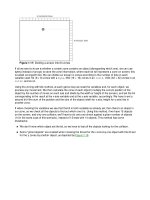
Figure 5.3, “Spreadsheet Showing Various Data Types” shows a simple spreadsheet
with the default language set to Dutch (Netherlands).
Figure 5.3. Spreadsheet Showing Various Data Types
Showing you the actual XML would be more confusing than illuminating. Instead,
we’ve boiled down the linkage to Figure 5.4, “Spreadsheet Showing Number Style
Linkages”, starting at a table cell.
Figure 5.4. Spreadsheet Showing Number Style Linkages
• If you have a table:style-name, then that’s the style for that cell.
• If you don’t have a table:style-name, then the column this cell is in
leads you indirectly to the style via its corresponding <table:table-
column>.
• In either case, you end up at a <style:style> element whose
style:data-style-name attribute leads you to …
• A <number:number-style> that tells you how the cell should be
formatted.
Using OASIS OpenDocument XML 105
Chapter 5. Spreadsheets
Formula Content in Table Cells
Formula cells contain a table:formula attribute. Within the table:formula
attribute, references to individual cells or cell ranges are enclosed in square
brackets. Relative cell names are expressed in the form sheetname.cellname.
Thus, a reference to cell A3 in the current spreadsheet will appear as [.A3], and a
reference to cell G17 in a spreadsheet named Sheet2 will appear as
[Sheet2.G17]. The range of cells from G3 to K7 in the current spreadsheet
appear as [.G3:.K7].
Absolute cell names simply have the preceding $ on them, much as you would enter
them in OpenOffice.org. Thus, an absolute reference to cell C4 in the current
spreadsheet would be written as [.$C$4].
Depending upon the return type of the formula, the table cell will contain
appropriate office:value and office:value-type attributes. Example
5.14, “Return Types from Formulas” shows the result of three formulas; the first
returns a simple number, the second returns a string showing roman numerals, and
the third produces a time value from the contents of three cells.
Example 5.14. Return Types from Formulas
<table:table-cell table:formula="oooc:=SUM([.A1:.C1])"
office:value-type="float" office:value="137">
<text:p>137</text:p>
</table:table-cell>
<table:table-cell table:formula="oooc:=ROMAN([.B4])"
office:value-type="string" office:string-value="CVII">
<text:p>CVII</text:p>
</table:table-cell>
<table:table-cell table:formula="oooc:=TIME([.E1];[.E2];[.E3])"
office:value-type="time" office:time-value="PT10H05M48S">
<text:p>10:05:48 AM</text:p>
</table:table-cell>
According to the specification, an OpenDocument-compatible application should
depend only upon the formula to generate its display. A program could generate a
spreadsheet that would display identically to the preceding example when opened in
OpenOffice.org, using only the information shown in Example 5.15, “Minimal
Formulas”.
Example 5.15. Minimal Formulas
<table:table-cell table:formula="oooc:=SUM([.A1:.C1])"/>
<table:table-cell table:formula="oooc:=ROMAN([.B4])"/>
<table:table-cell table:formula="oooc:=TIME([.E1];[.E2];[.E3])"/>
106 OASIS OpenDocument Essentials
Table Content
If you are using an array formula which would be represented in OpenOffice.org
within curly braces, such as {=B6:C6*B7:C7}, you must specify the number of
rows and columns that the result will occupy. The preceding formula is marked up
as follows:
<table:table-cell
table:number-matrix-columns-spanned="2"
table:number-matrix-rows-spanned="1"
table:formula="oooc:=[.B6:.C6]*[.B7:.C7]"
office:value-type="float" office:value="27">
<text:p>27</text:p>
</table:table-cell>
Merged Cells in Spreadsheets
Merging cells in spreadsheets is far easier than merging them in text tables. The first
cell in the merged area will have table:number-rows-spanned and
table:number-columns-spanned attributes. Their values give the number
of rows and columns that have been merged. Any of the cells which have been
covered by the merged cell will no longer be ordinary <table:cell> elements;
they will become <table:covered-table-cell> elements, but the rest of
their attributes and contents will remain unchanged.
Case Study: Modifying a Spreadsheet
We will use this information about spreadsheets to write a Python program that does
currency conversion. All cells that are stored in one currency (such as U.S. dollars)
will be converted to the equivalent values in a different currency (such as Korean
Won) and saved to a new spreadsheet.
To find and change the appropriate <number:currency-style> elements, the
program must know the values of number:country and number:language
for the source and destination currencies. To find and change the appropriate
<table:table-cell> elements, the program must know the three-letter
abbreviation found in table:currency for the source and destination
currencies.
Finally, we will need to provide format strings for positive and negative values in
the destination currency, the currency symbol for the destination currency, and a
conversion factor for multiplying the value of the numbers in the spreadsheet. We
will store all this information in an ad-hoc XML file of the form shown in Example
5.16, “Money Conversion Parameters”, which converts U.S. dollars to Korean Won.
[This is file currencyparam.xml in directory ch05 in the downloadable
example files.]
Using OASIS OpenDocument XML 107
Chapter 5. Spreadsheets
Example 5.16. Money Conversion Parameters
<convert>
<from language="en" country="US" abbrev="USD" />
<to language="ko" country="KR" abbrev="KRW"
symbol="₩"
positiveFormat="$#,##0.00"
negativeFormat="-$#,##0.00"
factor="1175.19"/>
</convert>
The symbols in the format string have the following meanings:
• $ represents the currency symbol (as described by the symbol attribute).
• # represents a digit other than a leading or trailing zero.
• , means that this number has a thousands separator.
• 0 represents a digit including leading and trailing zeros.
• . represents the decimal point (which will be displayed in the appropriate
locale within the application).
All the other characters in the format string are taken as text. This allows you to
place blanks and other characters in a format.
Main Program
Although Python requires functions to be defined before they are used, we are doing
a top-down explanation of this program, so we will present functions in conceptual
order rather than file order. Here’s the main program, which looks for three
arguments on the command line: the filename of the OpenDocument file, the
filename for the resulting document, and the filename of the parameter XML file.
[The main program is file currency_conversion.py in directory ch05 in the
downloadable example files.]
import xml.dom
import xml.dom.ext
import xml.dom.minidom
import xml.parsers.expat
import sys
import od_number
from zipfile import *
from StringIO import *
if (len(sys.argv) == 4):
# Open an existing OpenDocument file
#
inFile = ZipFile( sys.argv[1] )
# and a brand new output file
#
outFile = ZipFile( sys.argv[2], "w", ZIP_DEFLATED );
getParameters( sys.argv[3] )
#
# modify all appropriate currency styles
108 OASIS OpenDocument Essentials
Case Study: Modifying a Spreadsheet
#
fixCurrency( "styles.xml" )
fixCurrency( "content.xml" )
#
# copy the manifest
#
copyManifest( )
inFile.close
outFile.close
else:
print "Usage: " + sys.argv[0] + " inputfile outputfile
parameterfile"
The import statements give us access to various Python libraries. od_number is a
module that we have written to convert format strings to XML document fragments.
Getting Parameters
Here is the code that will open the parameter file and read the data into global
variables.
def getParameters( filename ):
global oldLanguage, oldCountry, oldAbbrev
global language, country, abbreviation, currencySymbol
global positiveFormatString, negativeFormatString, factor
paramFile = open( filename, "r" )
document = xml.dom.minidom.parse( paramFile )
node = document.getElementsByTagName( "from" )[0]
oldLanguage = node.getAttribute( "language" )
oldCountry = node.getAttribute( "country" )
oldAbbrev = node.getAttribute( "abbrev" )
node = document.getElementsByTagName( "to" )[0]
language = node.getAttribute( "language" )
country = node.getAttribute( "country" )
abbreviation = node.getAttribute( "abbrev" )
currencySymbol = node.getAttribute( "symbol" )
positiveFormatString = node.getAttribute( "positiveFormat" )
negativeFormatString = node.getAttribute( "negativeFormat" )
factor = float( node.getAttribute("factor") )
paramFile.close()
Creating a DOM tree is easy with Python; just open a file and feed it to the
parse function.
Even though there is only one <from> element and <to> element in the
parameter file, getElementsByTagName always returns a node list. No
problem—we’ll just grab item [0] from that list.
All the other parameters are string values, but the multiplication factor is a
number, so we use float to convert from string to numeric.
Using OASIS OpenDocument XML 109
Chapter 5. Spreadsheets
Converting the XML
Take a deep breath and hold on tight; this is the largest function in the program.
def fixCurrency( filename ):
#
# Read the styles.xml file as a string file
# and create a disk file for output
#
dataSource = StringIO (inFile.read( filename ))
tempFileName = "/tmp/workfile"
dataSink = open(tempFileName, "w")
#
# Parse the document
#
document = xml.dom.minidom.parse( dataSource )
#
# Create document fragments from the format strings
#
posXML = od_number.ODNumber( document, positiveFormatString,
language, country, currencySymbol )
posXML.createCurrencyStyle( )
negXML = od_number.ODNumber( document, negativeFormatString,
language, country, currencySymbol )
negXML.createCurrencyStyle( )
#
# Fix number style elements
#
currencyElements = document.getElementsByTagName►
("number:currency-symbol")
for element in currencyElements:
if (element.getAttribute( "number:language" ) == oldLanguage►
and
element.getAttribute( "number:country" ) == oldCountry):
element.setAttribute( "number:language", language )
element.setAttribute( "number:country", country )
parent = element.parentNode
children = parent.childNodes
i = len(children)-1
while (i >= 0):
if (children[i].nodeName == "number:number" or
children[i].nodeName == "number:text" or
children[i].nodeName == "number:currency-symbol" or
children[i].nodeType == xml.dom.Node.TEXT_NODE):
parent.removeChild( children[i] )
i = i - 1
# select the appropriate number format markup
if ((parent.getAttribute("style:name"))[-2:] == "P0"):
fragment = posXML.getFragment()
else:
fragment = negXML.getFragment()
110 OASIS OpenDocument Essentials
Case Study: Modifying a Spreadsheet
#
# and insert it into the <number:currency-style> element
for child in fragment.childNodes:
parent.appendChild( child.cloneNode(True) )
#
# Fix table cells (which only exist in content.xml)
#
rowElements = document.getElementsByTagName("table:table-row")
for row in rowElements:
cell = getChildElement( row, "table:table-cell" )
while (cell != None):
if (cell.getAttribute("table:currency") == oldAbbrev ):
# change the currency abbreviation
cell.setAttribute("table:currency", abbreviation )
# and the number in the cell, if there is one
valueStr = cell.getAttribute("office:value")
if (valueStr != ""):
result = float( valueStr ) * factor
cell.setAttribute("office:value", '%f' % result)
# remove any children of this cell
children = cell.childNodes
i = len(children)-1
while (i >= 0):
cell.removeChild( children[i] )
i = i - 1
# move to the next cell in the row
cell = getSiblingElement( cell, "table:table-cell" )
#
# Serialize the document tree to the output file
xml.dom.ext.Print( document, dataSink )
dataSink.close();
#
# Add the temporary file to the new .zip file, giving it
# the same name as the input file.
#
outFile.write( tempFileName, filename )
The input file is a member of a .zip file; we can’t pass the .zip file itself on to
the parser. Nor can we open a file descriptor for a member of the .zip archive,
so we are forced to read in the input file into a string, and use the StringIO
constructor to make it look like a file.
On the other hand, we can’t easily write a string to a member of the output file,
so we create a temporary file on disk. (The filename is a Unix filename;
change it as appropriate for your system.)
Using OASIS OpenDocument XML 111
Chapter 5. Spreadsheets
We will convert the format strings to document fragments so that we can just
copy the XML from the fragments into the DOM tree that we are modifying.
This is nontrivial code, so it’s separated out into another module altogether.
We don’t want to indiscriminately modify all the <number:currency-
symbol> elements; you may have multiple currencies in your document, and
you want to change only the ones specified in your parameters.
Before we put in the new format markup, we have to get rid of the old markup.
We don’t eliminate all the old stuff; we want to keep any
<style:properties> (for red text) and <style:map> elements (which
select positive or negative formats).
When removing the children, we have to go in reverse order; if we had started
by removing child number zero, then child number one would move into its
place and we would miss it on the next loop iteration.
This code presumes that you are using a file that has been created with
OpenOffice.org; currency formats for positive values always end with the
characters P0.
This code uses the cloneNode() function to make sure that all of the
fragment nodes’ descendants get copied into the document being modified.
Rather than retrieve all the <table:table-cell> elements at once, which
could strain memory with a large document, we get cells one row at a time.
We can’t just go to the first child of the table row; there may be intervening
whitespace text nodes. Thus, we have our own getChildElement()
function to find the node we really want. A similar
getSiblingElement() function finds the next sibling while avoiding
those pesky whitespace nodes.
Rather than try to update the value of the <text:p> inside the cell (which
would force us to do all the calculation and formatting that OpenOffice.org
does), we just eliminate it and let OpenOffice.org re-create it after a load and
save.
Copying the manifest also creates a temporary file:
def copyManifest():
#
# read the manifest.xml file as a string
# and create a disk file for transfer to the .zip output
dataSource = inFile.read( "META-INF/manifest.xml" )
tempFileName = "/tmp/workfile"
dataSink = open(tempFileName, "w")
dataSink.write( dataSource );
dataSink.close();
outFile.write( tempFileName, "META-INF/manifest.xml" )
112 OASIS OpenDocument Essentials
Case Study: Modifying a Spreadsheet
DOM Utilities
These are the utility functions that we mentioned in the preceding section. They
search for the first child or next sibling of a node that has the desired element name,
while avoiding any extraneous text nodes.
def getChildElement( node, name ):
node = node.firstChild;
while (node != None):
if (node.nodeType != xml.dom.Node.ELEMENT_NODE or
node.nodeName != name):
node = node.nextSibling
else:
break
return node
def getSiblingElement( node, name ):
node = node.nextSibling;
while (node != None):
if (node.nodeType != xml.dom.Node.ELEMENT_NODE or
node.nodeName != name):
node = node.nextSibling
else:
break
return node
Parsing the Format Strings
Finally, the code for parsing the format string to produce an XML document
fragment.
I put this into a module, even though it’s not something that would be useful for any
other program. I did it this way because I didn’t know of any other way to do an
“include.” Hey, this is my first Python program of any size greater than “Hello,
World!” [This module is file od_number.py in directory ch05 in the
downloadable example files.]
import xml.dom
import xml.dom.ext
import xml.dom.minidom
import re
class ODNumber:
def __init__(self, document, formatString, language, country,
currencySymbol ):
self.thousands = False; # thousands separator?
self.nDecimals = 0; # number of decimal places
self.minIntegerDigits = 0; # min. integer digits
self.textStr = "" # text string being built
self.fragment = None # fragment being built
self.document = document # copy parameters to class ►
attributes
self.language = language
self.country = country
self.currencySymbol = currencySymbol
self.formatString = formatString
Using OASIS OpenDocument XML 113
Chapter 5. Spreadsheets
def endStr( self ):
if (self.textStr != ""):
textElement = self.document.createElement( "number:text" )
textNode = self.document.createTextNode( self.textStr )
textElement.appendChild( textNode )
self.fragment.appendChild( textElement )
self.textStr = ""
def addCurrency( self ):
self.endStr()
node = self.fragment.appendChild(
self.document.createElement( "number:currency-symbol" ) )
node.setAttribute( "number:language", self.language )
node.setAttribute( "number:country", self.country )
node.appendChild( self.document.createTextNode( ►
self.currencySymbol ) )
def addNumber( self ):
node = self.fragment.appendChild(
self.document.createElement("number:number") )
node.setAttribute( "number:min-integer-digits",
"%d" % self.minIntegerDigits )
if (self.nDecimals > 0):
node.setAttribute( "number:decimal-places",
"%d" % self.nDecimals )
if (self.thousands):
node.setAttribute( "number:grouping", "true" )
def createCurrencyStyle ( self ):
"""Scan a format string, where:
$ indicates the currency symbol
# indicates an optional digit
0 indicates a required digit
, indicates the thousands separator (no matter your locale)
. indicates the decimal point (no matter your locale)
Creates a document fragment with appropriate OpenOffice.org
markup.
"""
self.fragment = self.document.createElement("number:fragment")
hasDecimal = False
numchars = re.compile( "[#,0.]" )
i = 0
while (i < len(self.formatString)):
char = self.formatString[i]
if (char == "$"):
self.addCurrency( )
elif (re.search( numchars, char )):
self.endStr( )
while (re.search( numchars, char )):
if (char == ","):
self.thousands = True
114 OASIS OpenDocument Essentials
Case Study: Modifying a Spreadsheet
elif (char == "0"):
if (hasDecimal):
self.nDecimals = self.nDecimals + 1
else:
self.minIntegerDigits = \
self.minIntegerDigits + 1
elif (char == "."):
hasDecimal = True;
if (i == len(self.formatString) - 1):
break;
i = i + 1
char = self.formatString[i]
self.addNumber( )
else:
self.textStr = self.textStr + char
i = i + 1
self.endStr( )
def getFragment( self ):
return self.fragment
As we parse a string, anything that isn’t part of the format string or currency
symbol gets accumulated into the textStr variable. This function dumps it
out to an <number:text> element.
If we have accumulated any text prior to the currency symbol (it could be a
minus sign), output it.
This function is called when we reach the end of the number part of the format
string.
We create a phony element to be the container for all the other elements that
we are going to create. Why should we go to the trouble of creating our own
tree structure to hold independently-created nodes when that’s part of the
DOM’s job?
This compiles a regular expression; matching against it is easier than doing a
large conditional expression to see if we have a character that’s part of the
number format.
As soon as we find one of those crucial characters, we output any pending text,
then gather the format information in the while loop.
If the character isn’t a currency symbol or part of a number format, it’s just
generic text to be accumulated.
If there’s any pending text when we hit the end of the string, we need to put it
into the output.
A utility function to return the fragment that’s been built. Truth in advertising:
Since this module wasn’t designed for object-oriented purity, it is here more
for appearance’s sake than anything else.
Using OASIS OpenDocument XML 115
Chapter 5. Spreadsheets
Print Ranges
If you wish to specify a print range for the sheet (corresponding to the dialog box
shown in Figure 5.5, “Spreadsheet Print Ranges” add a table:print-ranges
attribute to the <table:table> element. Its value will be in a form like
Sheet1.A1:Sheet1:F9.
Figure 5.5. Spreadsheet Print Ranges
The <table:table-column> elements that are to be repeated will be enclosed
in a <table:table-header-columns> element; the <table:table-
row> elements to be repeated will be enclosed in a <table:table-header-
rows> element.
Example 5.17, “Structure of Print Ranges” shows the skeleton of the XML markup
for the print ranges chosen in Figure 5.1, “Spreadsheet Page Options”.
Example 5.17. Structure of Print Ranges
<table:table table:name="Sheet1" table:style-name="ta1"
table:print-ranges="Sheet1.A1:Sheet1.F9">
<table:table-header-columns>
<table:table-column table:style-name="co1"/>
<table:table-column table:style-name="co2"/>
</table:table-header-columns>
<table:table-column table:style-name="co3"/>
<table:table-column table:style-name="co4"/>
<! remaining non-header columns >
<table:table-header-rows>
<table:table-row table:style-name="ro1">
<table:table-cell>
<text:p>Cell A1</text:p>
</table:table-cell>
<table:table-cell>
<! rest of row 1 >
</table:table-cell>
</table:table-row>
116 OASIS OpenDocument Essentials
Print Ranges
<table:table-row table:style-name="ro2">
<table:table-cell>
<text:p>Cell A2</text:p>
</table:table-cell>
<table:table-cell>
<! rest of row 2 >
</table:table-cell>
</table:table-row>
</table:table-header-rows>
<table:table-row table:style-name="ro3">
<table:table-cell><text:p>Cell A3</text:p></table:table-cell>
<table:table-cell> <! rest of row 1 > </table:table-cell>
</table:table-row>
<! remaining non-header rows >
</table>
Case Study: Creating a Spreadsheet
Our task in this case study is to use XSLT to transform data from an XML-based
student gradebook and convert it to an OpenDocument spreadsheet. This is the
actual markup that I use for the classes that I teach, and it is the actual
transformation that I use.
The source XML document’s root element is a <gradebook> element. It contains
a <task-list>, which gives information about each <task> that has been
assigned to a student. Each task has an id attribute, date the assignment was due,
a max (maximum) possible score, a type (lab, quiz, midterm, etc.), a weight
telling what percentage of the final score this task is worth, and a recorded
attribute that tells whether the scores for this task have been recorded or not. For
example, I always have a midterm exam which I enter in the task list at the
beginning of the semester; I just don’t set its recorded flag until the midterm has
been given.
Following the task list is a series of <student> elements, each of which has an id
attribute (the social security number preceded by a letter S. The <student>
element contains the student’s last and first names, email address, extra info, and a
series of <result> elements.
Each <result> element has a score attribute and a ref attribute. This last
attribute is a reference to a task id from the task list. If I have some comments about
the student’s work, that becomes the text content of the <result> element.
Example 5.18, “Sample Gradebook Data” shows part of a gradebook. No real
students or social security numbers were harmed in creating this data. [This is file
minigrades.xml in directory ch05 in the downloadable example files.]
Using OASIS OpenDocument XML 117