Tài liệu Thiết kế flash với flash cs5 part 85 doc
Bạn đang xem bản rút gọn của tài liệu. Xem và tải ngay bản đầy đủ của tài liệu tại đây (551.44 KB, 5 trang )
ptg
516
Chapter 21
In Flash, you can manage multiple document files within a Flash
Project. A Flash Projects lets you group multiple, and related files
together to help you keep track of complex applications. Flash lets you
apply version-control to ensure that the correct file versions are used
during editing and to prevent accidental overwriting. A Flash Project is
essentially a collection of any Flash or other file types, including Flash
SWF and FLA files and even other Flash projects. When you open an
existing project, the Project panel gives you instant access to all the
various parts of the project. The Flash Project panel is used to create
and manage projects. The Project panel displays the contents of a
Flash Project using a collapsible tree structure. Flash limits you to
opening or creating one project at a time. Any changes made to the
project are automatically saved to the project file, so it’s not necessary
to perform a Save operation.
Creating and
Managing a Project
Create and Manage a Project
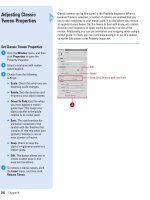
Click the Window menu, point to
Other Panels, and then click
Project to open the Project panel.
◆
Quick Project. You can create a
quick project. A quick project is
based on the currently open
FLA file. Click the Projects list
arrow in the Project panel, and
then click Quick Project.
Click the Projects list arrow, and
then click New Project.
Name the new project, locate and
select a root folder location for the
project file, and then click OK.
Any folders in the selected root
folder appear in the Project panel.
Click the ActionScript version list
arrow, and then click ActionScript
3.0 or ActionScript 2.0.
Click Create Project.
5
4
3
2
1
5
Did You Know?
You can open a project.
Click the
Projects list arrow in the Project panel,
and then click Open Project, browse to
the project folder, and then click OK.
1
2
3
4
From the Library of Wow! eBook
ptg
Chapter 21 Working with Projects and Other Programs
517
Manage a project using any of the
following options:
◆
Add Folder. Click the New
Folder button, type the folder
name, and then click Create
Folder.
◆
Delete Folder. Select the folder,
click the Delete button to
delete a selected project asset.
◆
Close Project. Click the Options
menu, and then click Close
Project.
◆
Delete Project. Open the
project, click the Options menu,
and then click Delete Project.
Select a delete content option,
and then click Yes.
◆
Rename Project. Click the
Options menu, click Rename
Project, type a name, and then
click OK.
◆
Switch Open Projects. Click the
Project list arrow, and then
click the open project name.
◆
Project Properties. Click the
Options menu, click Project
Properties, specify options on
the different tabs (Classes,
Locations, and Paths), and then
click OK.
Click the Close button on the
Project panel.
7
6
Did You Know?
You can convert previous projects to
the new project format.
In previous
versions of Flash, projects used an
XML file with a .FLP extension. To con-
vert it, simply open it in Flash CS4.
Open the Project panel, click the
Project list arrow, click Open Project,
navigate to the folder with the project,
and then click OK.
Delete button
Options menu
Project name
Create Class button
New File button
New Folder button
Create a
new folder
7
Project files
New folder
From the Library of Wow! eBook
ptg
518
Chapter 21
A project is a collection of files that you can manage directly from Flash.
The Project panel displays files by filename extension. By default, the
Project panel only shows Flash documents type (FLA, SWF, SWC, AS,
JSFL, ASC, MXML). If you want to display other types, you can change
settings in Panel Preferences. You can also hide files or folder by pre-
ceding the file or folder name with a special character, such as an
underscore, and enabling the option in Panel Preferences. When you
work with the same project, the Project Panel shows all recently
opened files in the Recent Files folder for easy access. You can create
files, including Flash and ActionScript, from the Project panel.
Managing Project
Files
Manage Project Files
Click the Window menu, point to
Other Panels, and then click
Project to open the Project panel.
Manage files using any of the
following options:
◆
Create File. Select the folder
where you want the file (no
selection is the root), click the
New File button, enter a name,
select a file type, and then click
Create File.
◆
Open File. Double-click the file
in the Project panel.
◆
Delete File. Select the file, click
the Delete button, and then
click Yes to delete a selected
project asset.
◆
Publish. Select or clear the file
check box on the right to add or
remove the file to/from the
publishing list.
◆
Pin a Directory. Select a folder,
and then click the Pin Directory
button; click again to unpin.
Click the Close button on the
Project panel.
3
2
1
Did You Know?
You can clear the Recent Files list.
In
the Project panel, click the Options
menu, and then click Clear Recent Files.
1
Delete button
Options menu
New File button
3
Options menu
Panel Preferences
From the Library of Wow! eBook
ptg
Chapter 21 Working with Projects and Other Programs
519
Change Project Properties
In the Project panel, click the
Options menu, and then click
Project Properties.
Click any of the following tabs:
◆
Classes. Specify the
ActionScript version, and class
file folder locations.
◆
Locations. Specify additional
source folder locations.
◆
Paths. Specify the location Flex
SDK files for use in Flash to
create skins and other visual
elements in Flex.
Click OK.
Change Panel Preferences
In the Project panel, click the
Options menu, and then click
Panel Preferences.
Click any of the following tabs:
◆
Classes. Specify the
ActionScript version, and class
file folder locations.
◆
Settings. Change defaults
filters, hide files or folders
based on the name, and show
or hide classes folder, hidden
files, or recent files.
◆
Locations. Specify additional
source folder locations.
Click OK.
3
2
1
3
2
1
3
1
2
3
1
2
From the Library of Wow! eBook
ptg
520
Chapter 21
Project
comes up
to test.
6
A project is a collection of files that constitute a complex project. For
example, you can create a Flash project that contains 5 Flash docu-
ments, with interactive buttons on the pages to call the other pages. If
all of the FLA files are located within the same project, it's an easy mat-
ter to test the entire project. You must first select one of the files as the
main file, and then simply click the Test Project button. Flash will auto-
matically publish all of the Flash documents in the project, display the
main file, and then allow you to test its operation. It's that simple.
Testing a Project
Test a Project
Click the Window menu, point to
Other Panels, and then click
Project to open the Project panel.
If the project you want to test is
not open, click the Project list
arrow, click Open Project in the
Project panel, and then select the
appropriate file.
Click Open.
IMPORTANT
Since testing a
project involves moving among
different Flash movies, your
published documents will have to
have interactive buttons linked to
all the other pages within the
project, or the test will not work.
Right-click (Win) or Control-click
(Mac) one of the FLA or HTML files
in the project.
Click Make Default Document
from the available options.
Click Test Project.
6
5
4
3
2
1
See Also
See Chapter 17, “Debugging a Movie”
on page 409 for more information on
how to perform debugging operations
on a running Flash movie.
5
1
4
2
From the Library of Wow! eBook