iPad visual quickstart guide covers the 3rd generation ipad
Bạn đang xem bản rút gọn của tài liệu. Xem và tải ngay bản đầy đủ của tài liệu tại đây (11.04 MB, 226 trang )
V I S UA L Q U I C K s ta r t G U I D E
iPad
Chris Fehily
Peachpit Press
Visual QuickStart Guide
iPad
Chris Fehily
Peachpit Press
1249 Eighth Street
Berkeley, CA 94710
510/524-2178
510/524-2221 (fax)
Find us on the Web at www.peachpit.com.
To report errors, please send a note to
Peachpit Press is a division of Pearson Education.
Copyright © 2012 by Chris Fehily
Executive editor: Clifford Colby
Editor: Kathy Simpson
Production editor: Cory Borman
Compositor: David Van Ness
Indexer: Valerie Haines Perry
Cover design: RHDG / Riezebos Holzbaur Design Group, Peachpit Press
Interior design: Peachpit Press
Logo design: MINE™ www.minesf.com
Notice of Rights
All rights reserved. No part of this book may be reproduced or transmitted in any form by any means,
electronic, mechanical, photocopying, recording, or otherwise, without the prior written permission of the
publisher. For information on getting permission for reprints and excerpts, contact
Notice of Liability
The information in this book is distributed on an “As Is” basis without warranty. While every precaution has
been taken in the preparation of the book, neither the author nor Peachpit shall have any liability to any
person or entity with respect to any loss or damage caused or alleged to be caused directly or indirectly by
the instructions contained in this book or by the computer software and hardware products described in it.
Trademarks
Many of the designations used by manufacturers and sellers to distinguish their products are claimed as
trademarks. Where those designations appear in this book, and Peachpit was aware of a trademark claim,
the designations appear as requested by the owner of the trademark. All other product names and services
identified throughout this book are used in editorial fashion only and for the benefit of such companies with
no intention of infringement of the trademark. No such use, or the use of any trade name, is intended to
convey endorsement or other affiliation with this book.
ISBN-13:978-0-321-84259-6
ISBN-10:0-321-84259-6
9 8 7 6 5 4 3 2 1
Printed and bound in the United States of America
Contents at a Glance
Chapter 1
Getting Started . . . . . . . . . . . . . . . . . . . . . . . 1
Chapter 2
Working with Text . . . . . . . . . . . . . . . . . . . . 33
Chapter 3
Online and Wireless Connections . . . . . . . . . . 51
Chapter 4
Managing Your Data . . . . . . . . . . . . . . . . . . . 69
Chapter 5
App Store . . . . . . . . . . . . . . . . . . . . . . . . . . 85
Chapter 6
Calendar . . . . . . . . . . . . . . . . . . . . . . . . . . . 93
Chapter 7
Camera . . . . . . . . . . . . . . . . . . . . . . . . . . . 99
Chapter 8
Contacts . . . . . . . . . . . . . . . . . . . . . . . . . . 107
Chapter 9
FaceTime . . . . . . . . . . . . . . . . . . . . . . . . . . 111
Chapter 10 Game Center . . . . . . . . . . . . . . . . . . . . . . . 115
Chapter 11 iBooks . . . . . . . . . . . . . . . . . . . . . . . . . . . . 119
Chapter 12 iTunes, Music, and Videos . . . . . . . . . . . . . . . 127
Chapter 13 Mail . . . . . . . . . . . . . . . . . . . . . . . . . . . . . 135
Chapter 14 Maps . . . . . . . . . . . . . . . . . . . . . . . . . . . . 147
Chapter 15 Messages . . . . . . . . . . . . . . . . . . . . . . . . . 153
Chapter 16 Newsstand . . . . . . . . . . . . . . . . . . . . . . . . . 157
Chapter 17 Notes . . . . . . . . . . . . . . . . . . . . . . . . . . . . 161
Chapter 18 Photo Booth . . . . . . . . . . . . . . . . . . . . . . . . 165
Chapter 19 Photos . . . . . . . . . . . . . . . . . . . . . . . . . . . 169
Chapter 20 Reminders . . . . . . . . . . . . . . . . . . . . . . . . . 177
Chapter 21 Safari . . . . . . . . . . . . . . . . . . . . . . . . . . . . 181
Chapter 22 Settings . . . . . . . . . . . . . . . . . . . . . . . . . . . 193
Chapter 23 YouTube . . . . . . . . . . . . . . . . . . . . . . . . . . 195
Chapter 24 App Gallery . . . . . . . . . . . . . . . . . . . . . . . . 199
Index . . . . . . . . . . . . . . . . . . . . . . . . . . . . 207
Contents at a Glance iii
This page intentionally left blank
Table of Contents
Chapter 1
Getting Started . . . . . . . . . . . . . . . . . . . . . . . . 1
Hardware and Specifications . . . . . . . . . . . . . . . . 2
Powering On and Off . . . . . . . . . . . . . . . . . . . . . 5
Using the Home Button . . . . . . . . . . . . . . . . . . . . 7
Using Multitouch Gestures . . . . . . . . . . . . . . . . . . 8
Setting Up Your iPad . . . . . . . . . . . . . . . . . . . . 10
Navigating the Home Screen . . . . . . . . . . . . . . . .13
Viewing the Status Bar . . . . . . . . . . . . . . . . . . . .15
Creating Home-Screen Folders . . . . . . . . . . . . . . 16
Opening and Switching Apps . . . . . . . . . . . . . . . 18
Closing Apps . . . . . . . . . . . . . . . . . . . . . . . . . 19
Adjusting Screen Brightness . . . . . . . . . . . . . . . . 20
Changing the Wallpaper . . . . . . . . . . . . . . . . . . 21
Changing Screen Orientation . . . . . . . . . . . . . . . 22
Adjusting the Volume . . . . . . . . . . . . . . . . . . . . 23
Charging the Battery . . . . . . . . . . . . . . . . . . . . 25
Cleaning the Screen . . . . . . . . . . . . . . . . . . . . . 27
Securing Your iPad . . . . . . . . . . . . . . . . . . . . . 28
Chapter 2
Working with Text . . . . . . . . . . . . . . . . . . . . . 33
Using the Onscreen Keyboard . . . . . . . . . . . . . . .
Setting Typing Options . . . . . . . . . . . . . . . . . . .
Splitting and Moving the Keyboard . . . . . . . . . . . .
Using a Wireless Keyboard . . . . . . . . . . . . . . . . .
Using International Keyboards . . . . . . . . . . . . . . .
Selecting and Editing Text . . . . . . . . . . . . . . . . .
Searching Your iPad . . . . . . . . . . . . . . . . . . . . .
Printing from Your iPad . . . . . . . . . . . . . . . . . . .
Chapter 3
34
37
39
41
44
46
49
50
Online and Wireless Connections . . . . . . . . . . . 51
Making Wi-Fi Connections . . . . . . . . . . . . . . . . .
Making Cellular Connections . . . . . . . . . . . . . . .
Using Personal Hotspot . . . . . . . . . . . . . . . . . . .
Using Virtual Private Networks . . . . . . . . . . . . . .
52
56
61
62
Table of Contents v
Using Bluetooth Devices . . . . . . . . . . . . . . . . . .
Streaming with AirPlay . . . . . . . . . . . . . . . . . . .
Screen Mirroring . . . . . . . . . . . . . . . . . . . . . . .
Using Location Services . . . . . . . . . . . . . . . . . .
Chapter 4
Managing Your Data . . . . . . . . . . . . . . . . . . . . 69
Using iCloud . . . . . . . . . . . . . . . . . . . . . . . . .
Syncing with iTunes . . . . . . . . . . . . . . . . . . . . .
Copying Files Between Your iPad and
Your Computer . . . . . . . . . . . . . . . . . . . . . .
Updating iOS . . . . . . . . . . . . . . . . . . . . . . . . .
Getting Information About Your iPad . . . . . . . . . . .
Getting Notifications . . . . . . . . . . . . . . . . . . . .
Chapter 5
70
74
78
80
81
82
App Store . . . . . . . . . . . . . . . . . . . . . . . . . . . 85
Finding Apps . . . . . . . . . . . . . . . . . . . . . . . . .
Downloading Apps . . . . . . . . . . . . . . . . . . . . .
Updating Apps . . . . . . . . . . . . . . . . . . . . . . . .
Deleting and Reinstalling Apps . . . . . . . . . . . . . .
Changing App Settings . . . . . . . . . . . . . . . . . . .
Chapter 6
63
65
66
67
86
88
90
91
92
Calendar . . . . . . . . . . . . . . . . . . . . . . . . . . . . 93
Viewing Your Calendars . . . . . . . . . . . . . . . . . . 94
Adding, Editing, and Searching Events . . . . . . . . . . 95
Syncing Calendars . . . . . . . . . . . . . . . . . . . . . 98
Chapter 7
Camera . . . . . . . . . . . . . . . . . . . . . . . . . . . . 99
Using the Camera Controls . . . . . . . . . . . . . . . . 100
Taking Photos and Recording Video . . . . . . . . . . . 101
Using Photo and Video Tools . . . . . . . . . . . . . . . 103
Chapter 8
Contacts . . . . . . . . . . . . . . . . . . . . . . . . . . . 107
Adding and Editing Contacts . . . . . . . . . . . . . . . 108
Syncing Contacts . . . . . . . . . . . . . . . . . . . . . . 109
Chapter 9
FaceTime . . . . . . . . . . . . . . . . . . . . . . . . . . . 111
Making a FaceTime Call . . . . . . . . . . . . . . . . . . 112
vi Table of Contents
Chapter 10 Game Center . . . . . . . . . . . . . . . . . . . . . . . . 115
Setting Up a Game Center Account . . . . . . . . . . . 116
Using Game Center . . . . . . . . . . . . . . . . . . . . . 117
Chapter 11 iBooks . . . . . . . . . . . . . . . . . . . . . . . . . . . . . 119
Stocking Your Library . . . . . . . . . . . . . . . . . . . . 120
Viewing and Organizing Your Library . . . . . . . . . . . 122
Reading Books . . . . . . . . . . . . . . . . . . . . . . . 124
Using the iBooks Controls . . . . . . . . . . . . . . . . . 125
Chapter 12 iTunes, Music, and Videos . . . . . . . . . . . . . . . 127
Shopping in the iTunes Store . . . . . . . . . . . . . . . 128
Playing Music . . . . . . . . . . . . . . . . . . . . . . . . 130
Playing Videos . . . . . . . . . . . . . . . . . . . . . . . 132
Chapter 13 Mail . . . . . . . . . . . . . . . . . . . . . . . . . . . . . . 135
Setting Up Email Accounts . . . . . . . . . . . . . . . . 136
Using Mail . . . . . . . . . . . . . . . . . . . . . . . . . . 138
Reading Mail . . . . . . . . . . . . . . . . . . . . . . . . . 140
Writing and Sending Mail . . . . . . . . . . . . . . . . . 142
Changing Mail Settings . . . . . . . . . . . . . . . . . . 144
Chapter 14 Maps . . . . . . . . . . . . . . . . . . . . . . . . . . . . . 147
Finding a Location . . . . . . . . . . . . . . . . . . . . . 148
Getting Directions . . . . . . . . . . . . . . . . . . . . . 151
Chapter 15 Messages . . . . . . . . . . . . . . . . . . . . . . . . . . 153
Setting Up Messages . . . . . . . . . . . . . . . . . . . . 154
Having a Conversation . . . . . . . . . . . . . . . . . . . 155
Chapter 16 Newsstand . . . . . . . . . . . . . . . . . . . . . . . . . 157
Using Newsstand . . . . . . . . . . . . . . . . . . . . . . 158
Managing Newsstand . . . . . . . . . . . . . . . . . . . 159
Chapter 17 Notes . . . . . . . . . . . . . . . . . . . . . . . . . . . . . 161
Reading and Writing Notes . . . . . . . . . . . . . . . . 162
Table of Contents vii
Chapter 18 Photo Booth . . . . . . . . . . . . . . . . . . . . . . . . 165
Taking and Viewing Photos . . . . . . . . . . . . . . . . 166
Chapter 19 Photos . . . . . . . . . . . . . . . . . . . . . . . . . . . . 169
Getting Photos onto Your iPad . . . . . . . . . . . . . . 170
Finding Photos on Your iPad . . . . . . . . . . . . . . . . 172
Working with Albums . . . . . . . . . . . . . . . . . . . . 173
Viewing Photos . . . . . . . . . . . . . . . . . . . . . . 174
Chapter 20 Reminders . . . . . . . . . . . . . . . . . . . . . . . . . . 177
Creating and Managing Reminders and Lists . . . . . . 178
Syncing Reminders . . . . . . . . . . . . . . . . . . . . . 180
Chapter 21 Safari . . . . . . . . . . . . . . . . . . . . . . . . . . . . . 181
Browsing the Web . . . . . . . . . . . . . . . . . . . . . 182
Bookmarking Web Pages . . . . . . . . . . . . . . . . . 188
Working with Links . . . . . . . . . . . . . . . . . . . . . 190
Managing Cookies, Privacy, and Security . . . . . . . . 191
Autofilling Forms . . . . . . . . . . . . . . . . . . . . . . 192
Chapter 22 Settings . . . . . . . . . . . . . . . . . . . . . . . . . . . 193
Viewing and Changing Settings . . . . . . . . . . . . . . 194
Chapter 23 YouTube . . . . . . . . . . . . . . . . . . . . . . . . . . . 195
Watching Videos in the YouTube App . . . . . . . . . . 196
Chapter 24 App Gallery . . . . . . . . . . . . . . . . . . . . . . . . . 199
iWork . . . . . . . . . . . . . . . . . . . . . . . . . . . . .200
GoodReader . . . . . . . . . . . . . . . . . . . . . . . . . 201
Google Earth . . . . . . . . . . . . . . . . . . . . . . . . 202
Trulia . . . . . . . . . . . . . . . . . . . . . . . . . . . . .203
Angry Birds . . . . . . . . . . . . . . . . . . . . . . . . . 204
Paper . . . . . . . . . . . . . . . . . . . . . . . . . . . . .205
Azul Media Player . . . . . . . . . . . . . . . . . . . . . .206
Index . . . . . . . . . . . . . . . . . . . . . . . . . . . . . 207
viii Table of Contents
1
Getting Started
You’ve seen the TV ads in which happy,
purposeful people use iPads to type
messages, watch movies, play games,
video-chat with grandchildren, and surf
the Web from hammocks. On the cuttingroom floor, however, is the footage where
those actors actually learned how to do
all that stuff. Despite its clean lines and
compact size, the iPad is a true computer
running complex programs on a modern
operating system. Happily, Apple’s engineers have painted a pretty face on all the
gee-whizzery. The iPad’s consistent, simple
design lets you wield a lot of power with
only a little learning. Even complete beginners can’t easily shoot themselves in the
foot. This chapter gets you up and running.
In This Chapter
Hardware and Specifications
2
Powering On and Off
5
Using the Home Button
7
Using Multitouch Gestures
8
Setting Up Your iPad
10
Navigating the Home Screen
13
Viewing the Status Bar
15
Creating Home-Screen Folders
16
Opening and Switching Apps
18
Closing Apps
19
Adjusting Screen Brightness
20
Changing the Wallpaper
21
Changing Screen Orientation
22
Adjusting the Volume
23
Charging the Battery
25
Cleaning the Screen
27
Securing Your iPad
28
Hardware and
Specifications
The iPad’s physical controls and ports
(A and B) are covered in detail later in
this chapter and beyond. You can refer to
these figures to jog your memory. Some
4G/3G models (for connecting to cellular
networks) have a micro-SIM card slot on
the left edge. The iPad 1 has no front and
back cameras.
Front camera
Status bar
App icons
Multi-Touch
display
Home button
A The iPad’s front controls.
2 Chapter 1
Sleep/Wake button
Microphone
Headphone jack
Back camera
Micro-SIM card
tray (on some
models)
Side switch
Volume
buttons
Speaker
B The iPad’s back controls.
Dock connector
Getting Started 3
At this writing, Apple sells the iPad 2 (discounted from its original list price) and the
iPad 3 (which Apple calls the “new iPad” or
“third-generation iPad”). Table 1.1 lists some
key specifications for these models. For a
complete list, see />kb/SP647.
The iPad also comes with:
n
n
A 10W USB power adapter, used to
provide power and charge the battery.
(Don’t use a different power adapter to
charge your iPad.)
A dock connector–to–USB cable, used
to connect your iPad to the 10W USB
power adapter or to your computer to
sync with iTunes.
The iPad’s operating system, called iOS,
is the same OS that also runs the iPhone, iPod
touch, and Apple TV.
Table 1.1 iPad Specifications
Specification
iPad 3
iPad 2
Dimensions
9.50" × 7.31" × 0.37"
(241.2mm × 185.7mm × 9.4mm)
9.50" × 7.31" × 0.34"
(241.2mm × 185.7mm × 8.8mm)
Weight
1.44 pounds (652 g)
1.33 pounds (601 g)
Display size
9.7" (246mm) diagonal
9.7" (246mm) diagonal
Display resolution
2048 × 1536 pixels
(264 pixels per inch)
1024 × 768 pixels
(132 pixels per inch)
Processors
1 GHz dual-core A5X with quad-core
graphics
1 GHz dual-core A5 with dual-core
graphics
Memory (RAM)
1 GB
512 MB
Storage
16, 32, or 64 GB
16 GB
Wireless
Wi-Fi only or Wi-Fi+4G
Wi-Fi only or Wi-Fi+3G
Battery life
Up to 10 hours Wi-Fi
Up to 9 hours 4G
Up to 10 hours Wi-Fi
Up to 9 hours 3G
Back camera
5 megapixels
0.92 megapixels
4 Chapter 1
A Use the Sleep/Wake
button at the iPad’s top
edge to blank the screen
and save power.
B The iPad locks itself because, as with any
touchscreen device, an unintended tap on the
screen while it’s in your bag or backpack can
launch a program and drain the battery.
Shorthand Instructions
Throughout this book, you’ll find shorthand instructions like “Tap Settings >
General > Wi-Fi > On,” which means this:
On the Home screen, tap the Settings
app, tap General (on the left), and then
slide Wi-Fi to On. Each name between
the > symbols refers to an app, icon,
button, link, or control; just look on the
screen for a matching label.
Powering On and Off
Putting an iPad to sleep locks it in standby
mode: The screen turns off and doesn’t
respond to taps, but audio keeps playing,
and the volume buttons still work. The battery drains slowly but noticeably. A sleeping iPad wakes instantly to where you left
off. You may also need to wake your iPad
if you leave it untended for a few minutes,
because it goes to sleep by itself to save
power.
Powering off an iPad shuts it down: No
power is used, though the battery still
drains imperceptibly over days or weeks.
A powered-off iPad takes a minute to
power on and show the Home screen.
In day-to-day use, you don’t need to
power off; sleep suffices in most cases.
To put your iPad to sleep:
n
Press the Sleep/Wake button A.
To wake your iPad:
n
Smart Covers
If you have an iPad Smart Cover, sold
separately by Apple, you can use it to
automatically sleep or wake an iPad 2
or later when you open or close the flap.
The cover interacts with magnets built
into the iPad’s case to align the cover
and provide the sleep/wake feature.
To change this behavior, tap Settings >
General > iPad Cover Lock/Unlock.
Press the Home button or the
Sleep/Wake button and then drag
the slider B.
To adjust how long your iPad screen
stays on before it turns itself off (and displays
the Lock screen when you wake it up), tap
Settings > General > Auto-Lock.
Getting Started 5
To power off your iPad:
n
Press and hold the Sleep/Wake button for a few seconds until a red slider
appears and then drag the slider.
To power on your iPad:
n
Press and hold the Sleep/Wake button
until the Apple logo appears.
To set a security passcode that you must
enter each time you wake or power on your
iPad, see “Securing Your iPad” later in this
chapter.
Quick Fixes
The iPad does a good job of fixing its
own problems, but it can accumulate
software baggage with time and use.
Restarting your iPad (powering it off
and then back on) can quickly solve
many common problems, including
unexpected app failure, short battery
life, odd hardware behavior, slow app or
iOS response, and iTunes sync issues.
A restart does all the following:
.. Safely quits all active applications
and processes and closes all open
files, preserving your data
.. Frees CPU and memory (RAM)
resources
.. Powers off all hardware components
A restart may fail on a crashed or frozen
iPad. If you can’t restart your iPad, reset
it: Press and hold the Sleep/Wake button
and the Home button at the same time
for at least 10 seconds, until the Apple
logo appears, and then release both
buttons. A reset halts all power briefly
and doesn’t close open files or save data
before rebooting your iPad (that is, you
lose any unsaved data).
6 Chapter 1
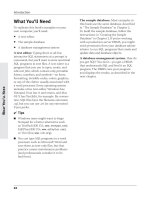
Home button
A You’ll probably use the Home button more than
any other iPad switch.
Using the Home
Button
The only physical control on the front of
the iPad is the Home button A. It’s the
round, indented switch at the b
ottom
center of the iPad frame (called the
bezel). The Home button handles a few
tasks. Most important, it always zips you
straight to the Home screen—the iPad’s
main screen, where you find all your apps
(programs).
Because the iPad displays only one app
at a time, you can use the Home button to
switch among apps. If you’re browsing the
Web in Safari, for example, when your iPad
chimes an incoming-email alert, press the
Home button to close Safari and go back
to the Home screen, where you can tap the
Mail icon to read your email.
Pressing Home always saves your work in
progress automatically. (Unlike Windows
and OS X programs, iPad apps have no
manual Save command.) If you’re typing a
list in the Notes app and then press Home,
you can return to Notes at any time, exactly
as you left off.
Double-clicking the Home button lets
you switch among your active apps quickly.
For details, see “Opening and Switching Apps”
later in this chapter.
Getting Started 7
Using Multitouch
Gestures
The iPad is designed for your fingertips.
You interact with the software on the
screen by performing the multitouch
gestures described in Table 1.2. If you’ve
used a computer mouse, learning these
gestures will be easy because tapping
and dragging correspond to similar mouse
actions. Unfamiliar motions like flicking and
pinching quickly become natural.
If you have vision, hearing, or mobility
problems, tap Settings > General > Accessibility to make your iPad easier to use.
Table 1.2 Multitouch Gestures
To
Do This
Tap
Gently tap the screen with one finger.
Double-tap
Tap twice quickly. (If you tap too slowly, your iPad interprets your action as two
single taps.) A double tap is a quick way to zoom in on a photo or Web page or to
toggle a video between full-screen and widescreen (letterbox) aspect ratios.
Touch and hold
Touch the screen with your finger, and maintain contact with the glass (typically,
until some onscreen action happens).
Drag
Touch and hold a point on the screen; then slide your finger across the glass to a
different part of the screen. A draglike slide moves a control along a constrained
path. You slide the iPad’s unlock and volume sliders, for example.
Flick (or swipe)
Fluidly and decisively whip your finger across the screen. If you’re on a Web page
or a list, a faster flick scrolls the screen faster.
Pinch
Touch your thumb and index finger to the screen; then pinch them together (to
zoom out) or spread them apart (to zoom in).
Rotate
Spread your thumb and index finger and touch them to the screen; then rotate
them clockwise or counterclockwise. (Or keep your fingers steady and rotate the
iPad itself.)
8 Chapter 1
Shake It
You can shake your iPad. The iPad’s
accelerometer recognizes an intentional
shaking motion. Shaking front to back
works better than shaking side to side.
Some apps recognize a shake and
respond to it. Shaking while you’re typing
in Notes, for example, opens a box that
lets you undo your last action.
The iPad’s capacitive screen contains a
dense grid of touch sensors that responds
to the electric field of your fingers. The
screen won’t respond to a stylus (and you
can’t wear gloves). Increasing finger pressure on a capacitive screen, as opposed
to a resistive screen, won’t increase
responsiveness.
Feel free to use two hands. You can use
both hands to type on the iPad’s onscreen
keyboard, for example. In some apps (such
as Apple’s iWork apps), you can touch and
hold an item with one hand and then use
your other hand to tap other items to select
them all as a group. If you’re having trouble
with a gesture, make sure that you’re not
touching the screen’s edge with a stray
thumb or finger (of either hand).
Some apps, such as Contacts, use index
lists (A, B, C,…) along an edge to help you navigate quickly. To scroll though an a index, drag
your finger along it, or tap a letter to jump to
items starting with that letter. Tap an item to
open it. In some apps, a back button in the
top-left corner takes you back to the index.
Getting Started 9
Setting Up Your iPad
The first thing to do with a new, out-of-thebox iPad is set it up. To do so, you need a
nearby wireless Internet connection. (Don’t
wander away from the Wi-Fi signal with
your iPad during setup.) Your iPad will also
need a significant battery charge if the
battery drained while sitting in the cargo
container or on the store shelf; see “Charging the Battery” later in this chapter.
You don’t need a computer and iTunes
to set up your iPad, as you did with iOS 4 or
earlier. If you do use iTunes, you’ll need to
connect your iPad to a Mac or Windows PC
running iTunes via the USB cable that came
with your iPad. The Setup Assistant will offer
you iTunes-specific sync and backup options.
See also “Syncing with iTunes” in Chapter 4.
Selling Your Old iPad
Before you sell or give away an iPad, erase all its content and settings so that the new owner can’t
access your stuff. Erasing an iPad lets you return it to its factory settings without reinstalling iOS.
To erase your iPad, tap Settings > General > Reset > Erase All Content and Settings. The process
takes a few minutes. The iPad supports hardware encryption, so it needs only to remove the
encryption key that protects your data. (It doesn’t need to overwrite all your data with garbage
data, which would take hours.)
If you want something less severe than a complete data wipe, you can change the iPad settings
back to their default factory values but not erase your content. To do so, tap Settings > General >
Reset > Reset All Settings. The affected settings include the Home-screen layout, built-in apps,
Settings app, passcode, network settings, keyboard dictionary, and other odds and ends. Settings
for third-party apps aren’t changed, and no data or media are deleted.
Charge the battery before a reset. To use iCloud or iTunes to back up your data before a reset,
see Chapter 4.
10 Chapter 1
To set up your new iPad, turn it on and then
follow the onscreen instructions. The Setup
Assistant steps you through the setup process. Along the way, you’re asked to:
n
n
n
n
A Location Services lets built-in apps such as
Maps and Safari and third-party apps such as
weather apps use your physical whereabouts
via the iPad’s built-in positioning service.
n
n
Choose your preferred language for the
iPad’s screens, keyboard, and interface.
Pick your country or region.
Turn on Location Services A. For
details, see “Location Services” in
Chapter 3.
Connect to a Wi-Fi network. A secured
home network is safer than a public network at a café or library, where miscreant geeks can sniff out your passwords
and personal information as you type.
For details, see “Making Wi-Fi Connections” in Chapter 3.
Choose whether to set up your device
as a new iPad or restore it from an
iCloud or iTunes backup. (For backups,
see the iCloud and iTunes sections in
Chapter 4.)
Sign in with or create an Apple ID B.
continues on next page
B Your Apple ID is a unique online user name
and password that lets you use iCloud, FaceTime,
Game Center, Apple online stores, Find My iPad,
and other Apple apps and services.
Getting Started 11
n
n
n
n
n
Set up iCloud C. For details, see
“Using iCloud” in Chapter 4.
Use dictation, which converts what you
say to text when you tap the microphone button on the keyboard (in any
app that uses a keyboard). For details,
see “Using the Onscreen Keyboard” in
Chapter 2.
Send daily diagnostics and use data
to Apple. (Don’t bother; save the
bandwidth.)
Register your iPad with Apple, if you
want to. (It’s unnecessary.)
Agree to terms and conditions for using
iPad, iCloud, and other services.
When you’re done, tap Start Using iPad
to go to the Home screen, where you can
see all the iPad’s built-in apps: Safari, Mail,
Calendar, Notes, Maps, and more.
If you change your mind or skip a step
during setup, you can change the setup
options later by using the Settings app. To
toggle Location Services, for example, tap
Settings > Location Services. To sign in to,
change, or create an Apple ID, tap Settings >
Store. To change iCloud settings, tap
Settings > iCloud. To set up Internet-based
mail and other accounts, tap Settings > Mail,
Contacts, Calendars.
12 Chapter 1
C Apple’s free iCloud service lets you
automatically sync contacts, calendars, email,
photos, and documents across your Mac, Windows
PC, iPad, and other iDevices (if you own more
than one). You can also use iCloud to back up
your apps, settings, and content to Apple’s online
servers, and restore your iPad from this backup.
Navigating the
Home Screen
After you unlock your iPad, the Home
screen appears, displaying icons for your
applications, or apps A. The iPad comes
with several built-in apps (Safari, Mail, and
Settings, for example), and you can download more from the App Store, Apple’s
online store for iOS applications. If you
install lots of apps, new Home screens
sprout automatically to display them.
Put your most frequently used apps in
the dock, which is visible at the bottom of
every Home screen and holds up to six
icons. The row of small dots above the
dock indicates how many screens you
have and which one you’re on. (You can
create up to 11 Home screens.) You can
customize the layout of app icons on the
Home screen and in the dock.
App icons
Home screen
Home-screen
indicator dots
Dock
Home button
A The Home screen.
Getting Started 13
To show the Home screen:
n
Press the Home button.
or
Use four or five fingers to pinch to the
Home screen.
To toggle the multitouch gesture for
the Home screen, tap Settings > General >
Multitasking Gestures.
To switch Home screens:
n
Flick left or right.
or
Tap to the left or right of the dots above
the dock.
or
To go to the first Home screen, press
the Home button.
To rearrange Home-screen icons:
1. Touch and hold any app icon for a few
seconds until all the icons wiggle.
2. Drag icons to new locations within a
screen or off the edge of one screen
and onto the next.
3. Press the Home button to stop the wiggling and save your arrangement.
You can also rearrange Home-screen
icons (as well as the order of the screens) in
iTunes on your computer. To do so, connect
your iPad to your computer via USB cable,
open iTunes on your computer, select your
iPad in the iTunes sidebar, and then click the
Apps tab.
14 Chapter 1
Viewing the Status Bar
The status bar is the narrow strip that runs
along the top of the Home screen, the Lock
screen, and many application screens A.
A A glance at the status bar can tell you whether
all is well with your iPad.
Date & Time
The time of day appears in the center
of the status bar (unless it’s replaced
by the screen-lock icon). By default, the
time and time zone are set automatically, based on your Internet connection.
By tapping Settings > General > Date &
Time B, you can switch between the
12-hour (AM/PM) or 24-hour clock. If
you’re traveling, you can choose a time
zone and set your iPad’s date and time
manually.
The status bar shows the current time and
displays icons that indicate the current
state of your iPad, including the following:
Airplane mode is on
Cellular network availability, including
icons for 3G, 4G, LTE, E (for EDGE),
and O (for GPRS)
Wi-Fi network connectivity and signal
strength
Personal hotspot provided
iTunes sync in progress
Network or other activity
VPN network connectivity
iPad is screen-locked (replaces clock)
Screen orientation is locked
Location Services is in use
Music, audiobook, or other media is
playing
Bluetooth is turned on and paired with
a device
B The Date & Time screen.
Battery level or charging status
Keep your iPad’s time accurate; apps use
it to time-stamp files and messages, schedule
tasks, and record events.
Getting Started 15
Creating HomeScreen Folders
If too many icons are crowding your Home
screens, you can group them into folders
rather than drag them around to different screens. Each folder can hold up to
20 icons. It’s a common practice to create
multiple folders, each holding similar types
of apps (games, music, travel, and so on).
Folders save a lot of screen space and
reduce excessive screen-switching.
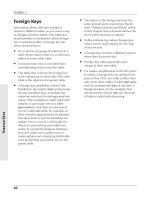
A The iPad automatically names a new folder
based on the icons that you use to create it.
To create a folder:
1. Touch and hold an icon until it wiggles;
then drag it on top of an icon that you
want to store in the same folder.
The iPad creates a new folder containing the two icons A.
2. Accept the default folder name, or tap
the name field to type a new name.
The onscreen keyboard appears when
you tap the name.
3. Tap outside the folder to close it B.
To open a folder:
n
Tap the folder; then tap an app icon in
the folder to open that app.
If you have lots of folders and forget
where you put an app, flick left to right as far
as you can go (to the Spotlight search screen)
and then search for the app.
16 Chapter 1
B A folder appears on the Home screen as a
black box containing tiny icons.