microsoft sharepoint workspace 2010 product guide
Bạn đang xem bản rút gọn của tài liệu. Xem và tải ngay bản đầy đủ của tài liệu tại đây (1.13 MB, 35 trang )
Microsoft SharePoint
Workspace 2010
Product Guide
Microsoft SharePoint Workspace 2010: An Overview 1
SharePoint Workspace: At-a-Glance 3
Sync with SharePoint 2010 sites 3
Take all or some of your SharePoint site content offline 3
Add content with Direct Folder Access 3
Search all available spaces 3
Simplified log-in 4
Microsoft SharePoint Mobile 2010 4
Groove workspaces 4
Get easier access to the right tools, at the right time 4
Work on documents knowing no one else can 4
Display your Launchbar to move between your workspaces with ease 5
Customize with Microsoft Office Backstage view 5
SharePoint Workspace 2010: A Closer Look 6
Save time syncing your SharePoint 2010 sites to SharePoint Workspace 6
SharePoint Workspace Synchronization Details 6
SharePoint Workspace and the ODC 7
SharePoint Workspace and Microsoft Sync Framework 8
Server Performance Support 8
InfoPath Forms easily synced from SharePoint Server 2010 sites 9
Support for check in and check out 10
Review SharePoint properties 11
Streamlined communications 11
Improved language settings 12
Simplified log-in 12
Windows Search 12
Improved Ribbon 15
New Microsoft Office Backstage View 15
Conclusion 19
Where to Find It 20
Version Comparison 23
SharePoint Workspace 2010 FAQ 24
Feature Requirements/Disclosures 32
Office Mobile 2010 32
Links provided in this product guide 32
1
Microsoft SharePoint® Workspace 2010 provides a desktop experience for Microsoft SharePoint
Server 2010 and Microsoft SharePoint Foundation 2010 that synchronizes content with
SharePoint document libraries and lists.
SharePoint Workspace expands the boundaries of effective collaboration by offering both online
and offline access to your SharePoint content. You can synchronize document libraries and lists
to your PC in a SharePoint workspace, work with the content locally, and then synchronize
effortlessly, and on a regular basis, with your SharePoint Server 2010 when connected online.
Working across teams is also much easier when you can create documents from SharePoint
Workspace and automatically synchronize changes to SharePoint Server 2010—ensuring that all
team members working with the SharePoint site have the latest versions.
When you are disconnected, or offline, from a SharePoint server, changes in your SharePoint
workspaces are stored locally (or cached) until the next time that you connect to the server.
Once connected, your changes are synchronized automatically.
SharePoint Workspace 2010 also lets you create ad hoc, Groove collaboration workspaces. With
Groove workspaces you can collaborate with internal and offsite team members as well as
external partners using a shared workspace. This feature doesn’t require SharePoint Server.
Groove workspaces continue to leverage the power of peer-to-peer features found in the earlier
release. Teams using Groove workspaces can bring together all team members, tools, and
information in one place. A Groove workspace can keep teams up to date automatically and
efficiently, and enable them to work anywhere, anytime, and with anyone, so they spend less
time coordinating and more time working.
In essence, you are getting two great products in one. With SharePoint Workspace, you access
the power and breadth of SharePoint Server-based collaboration along with ad-hoc, dynamic
small team peer collaboration.
SharePoint Workspace 2010 ushers in a new world of collaboration for you and your teams—
one that is backed by the power of SharePoint Server 2010 and the mobile ease of SharePoint
Workspace.
2
In changing the name of Microsoft Office Groove to Microsoft SharePoint Workspace in Office
2010, Microsoft sets the stage for all of the exciting new features and changes you will read
about in this Guide.
At the heart of the change are the new features that make it easy for you to work with
SharePoint document libraries and lists offline. The new name reflects these connections and
brings you a new work experience. You can access the value and the power of SharePoint Server
2010 in a SharePoint workspace instantly—it’s all there in the name.
In addition, you can continue to use the peer sharing features in Groove workspaces for ad-hoc
collaborative efforts.
3
SharePoint Workspace makes it easier to bring people together and increase work quality by
helping you effectively capture ideas across teams.
Sync with SharePoint 2010 sites
With just a few clicks, you can synchronize SharePoint libraries and lists to your computer. When
you update documents and lists in a SharePoint workspace while online, your updates are
synchronized with the server immediately.
Take all or some of your SharePoint site content offline
A SharePoint workspace allows you to access SharePoint site content on your local computer
even if you aren’t connected. Content can include document libraries as well as a number of list
types. A SharePoint workspace is your own personal, synchronized copy of a SharePoint site.
You can create a SharePoint workspace directly from the SharePoint site you want to
synchronize to your local computer. Or, you can create a SharePoint workspace from the
SharePoint Workspace Launchbar. Either way, you can configure the content to sync to your
computer.
Add content with Direct Folder Access
Using Windows® Explorer, you can work with your files from a SharePoint site, view them in
your local folders, or even save files from other applications into those same folders. SharePoint
Workspace captures the content and handles synchronizing the content back to your SharePoint
site.
Search all available spaces
Easily search through your SharePoint workspaces using Windows Search. You can customize
your search queries to pinpoint your results exactly.
4
Simplified log-in
When you start SharePoint Workspace 2010, you are automatically logged in to your SharePoint
Workspace account. SharePoint Workspace uses the same username and password credentials
that you supply when you start up your computer and log in to Windows.
Microsoft SharePoint Mobile 2010
Access SharePoint workspaces, browse through document libraries, and open, edit and save
documents with a familiar experience designed for mobile devices.
Groove workspaces
Groove workspaces enable you to collaborate directly with team members without SharePoint
Serve 2010.
Get easier access to the right tools, at the right time
New and improved features can help you be more productive, but only if you can find them
when you need them. Fortunately, the enhanced, customizable Ribbon in SharePoint Workspace
2010 makes it easy to uncover more commands so you can focus on the end product, not how
to get there.
Work on documents knowing no one else can
When you are working with others, it’s a good idea to check out the content in your SharePoint
workspace to avoid creating editing conflicts with other people who might have access to the
same content on the SharePoint site. SharePoint Workspace provides document-locking
capability with just a click on the Ribbon.
Check out content from your SharePoint Server 2010 site and let others know you are
working on it.
Review the version history for content at any time.
5
Check in updated content to the SharePoint site when you have finished your work or
release the content you have checked out without saving your changes.
Display your Launchbar to move between your workspaces with ease
Use the Launchbar to create new and manage existing workspaces. You can create SharePoint
workspaces or Groove workspaces right from the Launchbar. You can also search your content,
or even manage your Groove workspace contacts, without leaving the Launchbar.
Quickly view and determine what’s New and Unread.
When you choose to synchronize sites to your PC, they are automatically indexed locally by
Windows Search.
Customize with Microsoft Office Backstage view
The new Microsoft Office Backstage™ view can help you customize your SharePoint Workspace
2010 experience, all from one convenient location.
6
Save time syncing your SharePoint 2010 sites to SharePoint Workspace
There are many ways to set up and sync your SharePoint workspaces.
SharePoint Workspace is optimized to synchronize the content from a SharePoint 2010 site to
your local computer allowing you to choose from lists and libraries.
The layout of a workspace is similar to the SharePoint site. The Launchbar provides access to
and status information for all of your workspaces.
You can create a SharePoint workspace from a SharePoint site. Or, you can create a SharePoint
workspace from the Launchbar. When you use the Launchbar, you must specify the Web address
of the SharePoint site you want to synchronize to your local computer.
Content updates in a SharePoint workspace are automatically synchronized to the SharePoint
Server 2010 site. You can also manually synchronize content between the SharePoint workspace
and the SharePoint site at any time.
SharePoint Workspace Synchronization Details
When it comes to synchronizing your content, you can be sure that SharePoint Workspace will
get content where it needs to go, as your permissions, servers, and connectivity will permit.
The following sections provide important detail about where SharePoint Workspace stores data
and more detail about the synching process.
SharePoint Workspace has three locations where it can store data:
The Office Document Cache (ODC) for documents.
The SharePoint Workspace store for list items, views, and schemas, for example.
The Business Connectivity Service (BCS) store for external lists, virtual lists, and Business
Connectivity Services.
7
Each store uses a different protocol when synchronizing content. The ODC uses File
Synchronization via SOAP over HTTP (FSSHTTP). SharePoint Workspaces use the Microsoft Synch
Framework, and the Business Connectivity Services use their own protocol.
SharePoint Workspace and the ODC
SharePoint Workspace uses the Microsoft Office Document Cache to manage the documents
you download to your local PC. The Office Document Cache allows for efficient synchronization
of documents between a SharePoint workspace and the SharePoint server.
For documents stored in the ODC and synchronized using FSSHTTP, SharePoint Workspace uses
the store in combination with synchronization to provide the following:
Document incremental sync – Once a document is download to a SharePoint Workspace,
only changes are synched.
Documents are identified by their HTTP URL directly on your local PC. This prevents users
from getting multiple copies of the same document, with conflicts.
Auto-merge – If two users edit a Microsoft Word or Microsoft PowerPoint® document
offline, edits can be merged once they’re back online.
Co-authoring – Similar to Auto-merge in preventing conflicts, co-authoring allows two users
to edit a Microsoft Word or Microsoft PowerPoint document online, in an active, co-
authoring session.
Adaptive sync – If you are online, edits that you save are synched immediately. If you are
working offline, you changes are synched once you are back online.
To maintain performance, Microsoft limits the number of documents you can store in
SharePoint Workspace to approximately 500 documents (depending on document size). If you
exceed this limit, SharePoint Workspace displays a warning message on the Launchbar each
time you start SharePoint Workspace to remind you that you need to free up space. You can
ignore this message and continue to work; however, this may impact performance.
8
SharePoint Workspace and Microsoft Sync Framework
The Microsoft Sync Framework (MSF) synchronizes other content, including the structure of the
site, views, and list items that are also stored in SharePoint Workspace. .
The MSF provides a number of synch options depending on your activity in the workspace. For
example, when you open a workspace, SharePoint Workspace refreshed synchronized tools
immediately. If you continue to be active in the workspace, SharePoint Workspace syncs your
content with the server every ten minutes. If you have the workspace open but have not been
active for a while, SharePoint Workspace syncs the content every twenty minutes. If you do not
have the workspace open, SharePoint Workspace syncs the content every fifty minutes.
Server Performance Support
When implementing any system that downloads content from a server to clients, a key
requirement is to be sure that the requests from the clients do not overwhelm the server
causing a denial of service for other users.
SharePoint Workspace respects the health reported by the SharePoint server and will
automatically lengthen its sync interval if server indicates that it is busy.
9
InfoPath Forms easily synced from SharePoint Server 2010 sites
SharePoint workspaces enable you to automatically synchronize lists from SharePoint Server
2010. If those lists are upgraded with InfoPath forms, SharePoint Workspace automatically
downloads those forms as well for use on your PC. The forms contain all of the fields and
features available from the SharePoint list when you download them to SharePoint Workspace.
If the forms are subsequently updated on the server, SharePoint Workspace will synchronize the
latest versions of those forms as well.
Figure 1 - Sync InfoPath forms in SharePoint and SharePoint Workspace.
10
Support for check in and check out
When you are working with others, it’s a good idea to check out content in a SharePoint
workspace to avoid creating editing conflicts with other people who might have access to the
same content on the SharePoint site.
Figure 2 - Check out content from SharePoint to work on in SharePoint Workspace.
11
Review SharePoint properties
SharePoint Workspace 2010 automatically synchronizes a file’s properties from the SharePoint
Server 2010 site so you can review them with ease.
Figure 3 View SharePoint File Properties in SharePoint Workspace.
Streamlined communications
Presence information is available from the Launchbar or in Groove workspaces. You can view the
availability of contacts through rich presence information and initiate a conversation through
instant messaging or voice calls, all without leaving SharePoint Workspace.
1
Hover over a presence icon to display a contact card that can be used to initiate a
conversation.
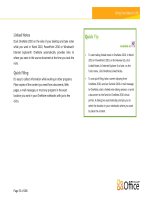
Quick Tip: The Groove 2007 messaging system is still available. Right-click any contact or workspace
member and then click Send Member Message.
1
Instant messaging requires one of the following: Office Communications Server 2007 R2 with Office Communicator 2007 R2,
Windows Live Messenger, or another instant messaging application that supports IMessenger. Voice calls require Office
Communicator 2007 R2 or an instant messaging application that supports IMessengerAdvanced.
12
Improved language settings
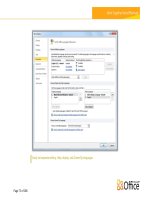
Simplify and customize your multilingual experience with Help, Display, and improved
translation tools. Multilingual users can easily access a single dialog box in SharePoint
Workspace 2010, where preferences can be set for editing, display, and Help languages.
Quickly modify your settings, no manual required. If you don't have the necessary software
or keyboard layout installed, you are notified, and links are provided to make it easier to
resolve such issues.
Access your SharePoint Server 2010 content wherever you are
Simplified log-in
When you start SharePoint Workspace 2010, you are automatically logged in to your SharePoint
workspace account. You use the same username and password credentials that you supply when
you start up your computer and log in to Windows.
Windows Search
When you choose to synchronize sites to your PC, they are automatically indexed locally by
Windows Search to facilitate finding content in your workspaces. SharePoint Workspace now
supports Windows Search, version 4.0 and indexes all SharePoint workspace data. You can also
search for content across these Groove workspace tools:
2010 Lists
2010 Documents
2010 Calendar
Notepad (in 2010 workspaces)
Search also finds results from your Groove Message History.
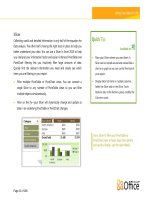
Search is fast and works offline. Search within all workspaces, by author, by date, by unread, for
example. You can also search from the Start Menu, which searches your entire desktop,
including SharePoint and Groove workspace tools. From your search results, you can either go
to the workspace containing the item or open it directly.
13
Figure 4 - Use Windows Search to search across all workspaces in SharePoint Workspace.
Groove workspaces enable you to collaborate directly between team members without
SharePoint Server.
Groove workspaces are the collaborative "peer" workspaces familiar to users of Microsoft Office
Groove. As before, Groove workspaces can have one or more members, and offer a variety of
productivity tools, such as Discussion, Calendar, and Documents.
You can choose between two versions of Groove workspaces: 2010 (which is the default), and
2007.
Each workspace version lets you add a different collection of tools. It’s important to note that
the workspace versions are mutually exclusive and that the following restrictions apply. All
members of a 2010 workspace must be running Microsoft SharePoint Workspace 2010. All
members of a 2007 workspace must be running Microsoft Office Groove 2007 or Microsoft
SharePoint Workspace 2010.
14
Figure 5 - Use Groove workspaces to collaborate without SharePoint Server.
Groove Workspace Calendar Tool
SharePoint Workspace 2010 introduces a new Calendar tool. Upgrading users who are familiar
with the Groove 2007 Calendar and Groove 2007 Meetings tools will recognize that the new
Calendar tool combines concepts and features from both of these tools.
The Calendar tool lets workspace members manage the lifecycle of a meeting, including
scheduling individual or recurring meetings, setting up meeting agendas, managing meeting
attendees, taking meeting notes, and recording a meeting summary.
Groove Workspace List Tool
SharePoint Workspace 2010 introduces the Lists tool, for designing and deploying custom data
collection tools. All form templates in the Lists tool are designed and updated in Microsoft
Office InfoPath and then imported. Once imported, tool developers do additional design tasks in
the Lists tool Designer, such as laying out views, and setting up sorts and filters .
15
Get easier access to the right tools, at the right time.
Improved Ribbon
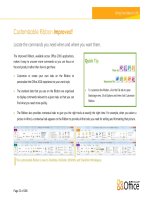
Locate the commands you need when you want them and where you want them. The improved
Ribbon, available in all Office 2010 applications, makes it easy to uncover more commands so
you can focus on the end product rather than how to get there.
The Ribbon replaces the menu and toolbars at the top of the main SharePoint Workspace
window to give you a more customized work experience. It’s designed to help you more easily
find and use the full range of features that SharePoint Workspace provides—so that you can get
more done in less time.
Customize or create your own tabs on the Ribbon to personalize your SharePoint Workspace
2010 experience to your work style.
The standard tabs that you see on the Ribbon are organized to display commands relevant
to a given task, so that you can find what you need more quickly. For example, click the Sync
tab and find the tools you need for keeping your workspaces in sync.
Figure 6 - The Ribbon helps you quickly find the commands that you need to complete a task.
New Microsoft Office Backstage View
On the left edge of the Ribbon you see the File tab. Just click that tab for an all-access pass that
makes it easier than ever to manage your accounts and customize your work in SharePoint
Workspace. The new Backstage view provides a single location for all of your account
management tasks. For example:
When you first open Microsoft Office Backstage view, you’re on the Info tab. From this one
location, you can change online connection settings, set alerts for workspace changes,
16
manage your account settings, and view and manage your Groove Message History and
Contacts.
From the New tab, shown in Figure 7, you can easily create new workspaces, create a shared
folder, and more.
The Print tab provides the print options you need.
The Save & Send tab enables you to share your account with another computer, invite
others to Groove workspaces you create, and share files on your PC with others.
The Ribbon helps you create your content. Microsoft Office Backstage view helps you manage it.
Figure 7 - Create new Workspaces from Microsoft Office Backstage view.
17
Take your SharePoint 2010 files offline on your phone with Microsoft® SharePoint® Workspace
Mobile 2010, a new application in Office Mobile 2010.
2
Browse document libraries and other lists
right from your Windows phone. Open documents directly from Microsoft SharePoint Server for
viewing or editing, in Word Mobile 2010, Excel® Mobile 2010, and PowerPoint Mobile 2010, and
save them directly back to the server. Easily sync documents on your smartphone with a single
touch—when a document is modified on the server, the copy on your Windows phone will be
synced automatically. Access SharePoint workspaces, browse through document libraries, and
open, edit and save documents with a familiar experience designed for mobile devices.
View Document Libraries & Lists – Quickly connect to your SharePoint server and access
content right from anywhere.
Access Documents Over the Air – Open documents using Office Mobile directly from
SharePoint; edit them and save back to the server easily.
Access Offline and Sync Changes – You can sync a document to your phone to access it
later—when you do, any changes get saved back to SharePoint automatically.
Stay Up to Date – Keep a document synced locally so when team members change it, you’ll
always be up to date.
2
An Internet connection and appropriate device is required. SharePoint Workspace Mobile 2010 is not included in Office 2010
applications, suites, or Web Apps. Office Mobile 2010 will be released on Windows
®
phones (Windows Mobile 6.5 or above) by the
general availability of Microsoft Office 2010.
18
Figure 8 - Take SharePoint content offline
on your phone with SharePoint Workspace
Mobile.
19
Microsoft SharePoint® Workspace 2010 provides a desktop experience for Microsoft SharePoint
Server 2010 and Microsoft SharePoint Foundation 2010 that synchronizes content with
SharePoint document libraries and lists.
By offering both online and offline access to your SharePoint content, SharePoint Workspace
makes working across teams so much easier. You also can create documents from SharePoint
Workspace and automatically synchronize changes to SharePoint Server 2010—ensuring that all
team members working with the SharePoint site have the latest versions.
SharePoint Workspace 2010 ushers in a new world of collaboration for you and your teams—
one that is backed by the power of SharePoint Server 2010 and the mobile ease of SharePoint
Workspace.
20
Features and Benefits
Where to Find
New!
Direct Folder Access
Access your SharePoint and Groove workspaces directly
from Windows folders.
On the Windows task bar, click the Windows Start
button and the click your name (profile).
Double-click to open the Workspaces folder. From
here you can navigate to your spaces where you
can open, add, or remove files as you need.
New!
Search
When you choose to synchronize content to your
PC, it is automatically indexed locally by Windows
Search.
On the Windows taskbar, click the Windows Start
button and then type your keywords in the Search
box.
New!
Ribbon
The Ribbon appears at the top of the screen.
To customize the Ribbon, in Microsoft Office
Backstage view, click Options and then click
Customize Ribbon.
New!
Microsoft Office
Backstage view
Click the File tab on the Ribbon to open Microsoft
Office Backstage view.
21
Features and Benefits
Where to Find
Improved!
Groove workspaces
Groove workspaces allow you to collaborate with
advanced security directly between team members
without SharePoint Server.
On the SharePoint Workspaces Launchbar, on the
Home tab of the Ribbon, click New and then click
Groove Workspace.
Type a name for your workspace and then click
Create to open the workspace.
You can then add content and invite others.
New!
64-bit edition
Note: This option can be installed only on 64-bit systems. For
more information, see
Features and Benefits
Where to Find
New!
Support for Check
Out and Check In
Check out and check in files from a SharePoint
Server 2010 site via the SharePoint Workspace
desktop application.
New!
InfoPath Forms easily
synced from
SharePoint Server
2010 sites
Add or delete records with data that will synchronize
with your SharePoint Server.
Open a SharePoint Server 2010 site in your
browser.
Click Site Actions and then click Sync to SharePoint
Workspace.
In the SharePoint Workspace 2010 dialog box, click
Configure to select a subset of content.
Select any SharePoint list that has been upgraded
with InfoPath Forms.
After synchronization completes, those forms will
display in SharePoint Workspace as well.
22
Features and Benefits
Where to Find
New!
Take a subset of
content from a
SharePoint Server
2010 site
Take only the SharePoint Server 2010 content you want
offline.
Open a SharePoint Server 2010 site in your
browser.
Click Site Actions and then click Sync to SharePoint
Workspace.
In the SharePoint Workspace 2010 dialog box, click
Configure to select the content you need.
New!
Support for
SharePoint Business
Connectivity Services
SharePoint’s Business Connectivity Services (BCS)
enables connections to external data sources –
including read and write access to line-of-business
applications. When combined with SharePoint
Workspace’s offline capability, you can review your
external data inside SharePoint Workspace and even
make changes to the data. SharePoint Workspace
synchronizes your changes directly to the external data
source.
Features and Benefits
Where to Find
New!
Simplified Log-in
Use the same username and password credentials
that you supply when you start up your computer
and log in to Windows to automatically log in to
your SharePoint Workspace account.
New!
SharePoint
Workspace Mobile
2010
Access SharePoint workspaces, browse document
libraries, and open, edit and save documents with a
familiar experience designed for mobile devices.
Improved!
Sync only changes
SharePoint Workspace now supports synchronizing
only changes in files—not the entire file.