Access 2007 VBA Programmer’s Reference phần 5 pptx
Bạn đang xem bản rút gọn của tài liệu. Xem và tải ngay bản đầy đủ của tài liệu tại đây (1.46 MB, 115 trang )
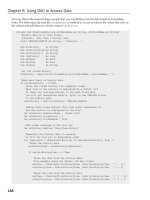
Next, implement the onLoad callback routine to store a copy of the Ribbon.
‘ This should appear in the module declarations section
Public gobjRibbon As IRibbonUI
Public Sub onRibbonLoad(ribbon As IRibbonUI)
‘ save a copy of the ribbon for future invalidation
Set gobjRibbon = ribbon
End Sub
To determine whether the tab should be made visible, implement the getVisible callback as shown.
This code uses the
Column property to check the third column in the combo box to determine whether
the user is a
Manager.
Public Sub OnGetVisible(ctl As IRibbonControl, ByRef Visible)
If ctl.id = “tabAdmin” Then
‘ check the login form to determine visibility.
‘ if the form is closed, just return false.
If Not CurrentProject.AllForms(“frmLogin”).IsLoaded Then
Visible = False
Exit Sub
End If
‘ The combo box on the login form contains the role:
‘ this can be either Manager or Employee. Show the tab
‘ if it is Manager, otherwise hide it.
If Forms!frmLogin!cboUsers.Column(2) = “Manager” Then
Visible = True
Else
Visible = False
End If
Else
Visible = True
End If
End Sub
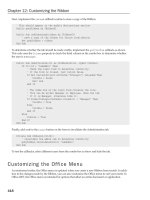
Finally, add code to the Login button on the form to invalidate the Administration tab.
Private Sub cmdLogin_Click()
‘ invalidate the admin tab to determine visibility
gobjRibbon.InvalidateControl “tabAdmin”
End Sub
To test the callbacks, select different users from the combo box to show and hide the tab.
Customizing the Office Menu
As mentioned earlier, the Office menu is updated when you create a new Ribbon from scratch. In addi-
tion to the changes made by the Ribbon, you can also customize the Office menu to suit your needs. In
Office 2007, the Office menu is intended for options that affect an entire document or application.
418
Chapter 12: Customizing the Ribbon
47033c12.qxd:WroxProgRef 3/30/07 12:26 AM Page 418
To customize the Office Menu, use the officeMenu node, which is a child of the Ribbon node as shown
below.
<customUI xmlns=” /><ribbon startFromScratch=”true”>
<officeMenu>
<button idMso=”FileNewDatabase” visible=”false”/>
<button idMso=”FileOpenDatabase” visible=”false”/>
<button idMso=”FileCloseDatabase” visible=”false”/>
<splitButton idMso=”FileSaveAsMenuAccess” visible=”false”/>
</officeMenu>
</ribbon>
</customUI>
This XML hides the built-in buttons for New, Open, Close, and the Save As group in the Office menu in
Access. You should provide another means of closing your application gracefully if you choose to hide
the Close button.
Let’s look at another scenario for which you might customize the Office menu. Say you have a list of
links you want to provide in your application. In the case of the travel agency application, you might
maintain a list of links to travel sites, airline websites, or mapping sites. You can display this list in the
Office menu so that it is available from anywhere in the application.
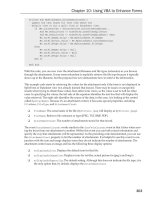
The following XML includes a
menu node in the Office menu.
<customUI xmlns=” /><ribbon>
<officeMenu>
<button idMso=”FileNewDatabase” visible=”false”/>
<button idMso=”FileOpenDatabase” visible=”false”/>
<button idMso=”FileCloseDatabase” visible=”false”/>
<splitButton idMso=”FileSaveAsMenuAccess” visible=”false”/>
<button idMso=”ApplicationOptionsDialog” visible=”false”/>
<! Links menu >
<menu id=”mnuLinks” label=”Links” imageMso=”HyperlinkInsert”>
<menuSeparator id=”mnuLinksSep1” title=”Travel Sites”/>
<button id=”btnLink1” label=””
tag=”” onAction=”OnSelectLink”/>
<button id=”btnLink2” label=””
tag=”” onAction=”OnSelectLink”/>
<button id=”btnLink3” label=””
tag=”” onAction=”OnSelectLink”/>
<menuSeparator id=”mnuLinksSep2” title=”Mapping Sites”/>
<button id=”btnLink4” label=””
tag=”” onAction=”OnSelectLink”/>
<button id=”btnLink5” label=””
tag=”” onAction=”OnSelectLink”/>
<menuSeparator id=”mnuLinksSep3” title=”Airline Sites”/>
<button id=”btnLink6” label=””
tag=”” onAction=”OnSelectLink”/>
<button id=”btnLink7” label=””
tag=”” onAction=”OnSelectLink”/>
<button id=”btnLink8” label=””
419
Chapter 12: Customizing the Ribbon
47033c12.qxd:WroxProgRef 3/30/07 12:26 AM Page 419
tag=”” onAction=”OnSelectLink”/>
<button id=”btnLink9” label=””
tag=”” onAction=”OnSelectLink”/>
<button id=”btnLink10” label=””
tag=”” onAction=”OnSelectLink”/>
</menu>
</officeMenu>
</ribbon>
</customUI>
Because the URL for the website is stored in the tag attribute, you can use the FollowHyperlink
method to open the link as shown in the following callback routine:
Public Sub OnSelectLink(ctl As IRibbonControl)
FollowHyperlink ctl.Tag
End Sub
This XML creates the Ribbon shown in Figure 12-35.
Figure 12-35
Customizing the Quick Access Toolbar
The Quick Access Toolbar, or QAT, is the small group of controls that appears next to the Office button.
You can also use this space to add buttons to your application. The QAT provides fast access to those
controls that are used most frequently. Add controls to the QAT for your application by adding the
qat
node as a child of the Ribbon node.
The following XML adds a button to the QAT. The
documentControls node adds controls only for the
current database.
<qat>
<documentControls>
<button id=”btnHello” onAction=”=MsgBox(‘Hello!’)“/>
</documentControls>
</qat>
420
Chapter 12: Customizing the Ribbon
47033c12.qxd:WroxProgRef 3/30/07 12:26 AM Page 420
More Ribbon Tips
Here are a few tips to keep for writing ribbon customizations. They can help you in creating your appli-
cations, as well as in providing additional polish to your solutions.
❑ Prevent the Ribbon from loading: You want to prevent the Ribbon from loading when testing
or developing. For instance, when you are developing a Ribbon from scratch but you are also
developing forms and reports. With a custom ribbon, the form design tools are not available.
You can hold down the Shift key as you would to prevent the startup form from loading to pre-
vent your custom ribbon from loading.
❑ Find existing controls: Office provides a lot of controls that you can use in your applications.
So many in fact it begs the question, how do you find them all? You can download the List of
Control IDs from the Microsoft website, but it turns out that Office provides this information for
you in the
Customize group of the Options dialog boxes. To get the control ID for the Toggle
Filter button, simply hover over an item in the list as shown in the Access Options dialog box
in Figure 12-36. The ID for the control appears in parentheses.
Figure 12-36
❑ Use
screenTip, superTip, and description: Use these additional attributes for controls to
customize the tooltip or descriptive information for a given control. The
description attribute
is only valid for controls in a
menu node with the itemSize attribute set to large.
❑ Set keyTips: A keyTip is the accelerator key or keys for a given control. If not set, the Ribbon
assigns keyTips for you such as
Y01 or Y02. For keyTips that are more user friendly, set the
keyTip attribute. You can also implement the getKeyTip callback for many controls, which
would enable you to create a mapping table for control IDs, and keyTips.
Additional Resources
There has been a lot of excitement generated about customizing the Ribbon, and Microsoft has provided
an incredible amount of documentation, including an entire MSDN developer center dedicated to the
421
Chapter 12: Customizing the Ribbon
47033c12.qxd:WroxProgRef 3/30/07 12:26 AM Page 421
Ribbon! There are examples, documentation, tools, and videos all related to building custom ribbons.
Here are some of the resources that the authors have found to be indispensable when writing customiza-
tions (all of these are available from the Ribbon Developer Center):
❑ Office Ribbon Developer Center:
/>default.aspx
❑ List of Control IDs: Provides the list of Office controls that you can use in the imageMso
attribute
❑ 2007 Office System: Schema Reference: Contains the XML Schema used by the Ribbon
❑ UI Style Guide for Solutions and Add-Ins
Summary
You can completely customize the Ribbon to suit the needs of your solutions. The tools described in this
chapter take full advantage of the new Ribbon user interface in Office 2007.
This chapter provided an in-depth look at customizing ribbons. You explored the controls that are avail-
able, as well as put them to use in building a couple solutions of your own. By customizing the Ribbon,
you can create new, innovative interfaces for your applications that are in line with today’s standards.
The extensibility story for the Ribbon is quite large, and there are several pieces to it. For Access, it starts
with the
USysRibbons table, and the XML that you store in there. From there, you can implement call-
back routines that give you the power of VBA that you’ve had in the past with controls and command
bars. You also learned how to display images in your customizations to give your interface a fresh look,
and how to dynamically use data from tables in a database to provide content to the Ribbon.
Now you can take some of these techniques and create reusable objects to encapsulate Ribbon controls
by using class modules. The next chapter provides an insight to working with objects, as well as new
techniques that you can apply to your programming style to help create reusable, extensible applications
of your own.
422
Chapter 12: Customizing the Ribbon
47033c12.qxd:WroxProgRef 3/30/07 12:26 AM Page 422
Creating Classes in VBA
The capability to create self-contained software objects was first conceived in about 1970 with the
development of SIMULA 67 (SIMUlation LAnguage), an extension of the scientific ALGOL 60
computer language.
It took quite a while before the programming community realized the implications of the break-
through that SIMULA represented. When they did, object-oriented programming (OOP) quickly
became the new buzzword, relegating structured programming to the realm of the lesser-informed
code cutters.
With the release of languages such as SmallTalk, C++ and, later, Java, OOP earned its place in the
software hall of fame as the new panacea to all your programming ills. When Visual Basic 4 was
released in 1993, Basic developers were tantalized by a new toy: the class module.
Long snubbed by C++ developers who had been using class modules for years, Basic developers
were finally able to hold their heads high with the new found capability to create fully self-
contained and reusable objects.
In OOP parlance, an object is a unique instance of a data structure, called a class, that has both prop-
erties (which define its characteristics), and executable procedures called methods (which define its
behavior in modifying those properties).
The properties of a class are completely isolated from the outside world and can be modified inter-
nally only by its own methods. This doesn’t mean that the programmer can’t do anything to them,
but that he can’t do anything to them directly; he must use those methods that are exposed for that
purpose. The properties and methods you create are termed its implementation, whereas the meth-
ods it exposes to the programming environment constitute its interface. Thus, an object is a com-
pletely self-contained programmatic entity, in that it contains both its own data and the program
code necessary to implement its own behavior.
This chapter examines VBA classes and class objects. You learn what a class actually is and the dif-
ference between it and a class object. Then you create your first class and figure out how it works.
After that, you learn to identify classes and then how to get them to communicate with the rest of
your application, before diving into the more advanced topics, such as building collection classes.
Some object-oriented theory concludes the chapter.
47033c13v6.5.qxd 3/30/07 12:39 AM Page 423
Classes are not as daunting as you might first think, and it’s my hope that after reading this chapter, you
will cast off any fears you may have had and happily find many uses for your new found skills.
There are many ways to do a single task in Access, and the examples in this book are intended to pro-
vide new perspective on programming with classes. Class modules in Access can be useful when
applied to complex problems, and the code examples reinforce that theory.
A Touch of Class
Classes have been likened to rubber stamps, cookie-cutters, and a raft of other everyday items in an
attempt to make the concept more easily understandable. Because you are reading a book on software
development, it seems fairly safe to assume that you understand the concept of a template, such as a
Microsoft Word template. That analogy succinctly describes the role of class modules and the distinction
between them and class objects.
Just as a class module is equivalent to a Word template, a class object is equivalent to a Word document
that is based on that template. Of course, with VBA class modules, you don’t define styles or boilerplate
text, but you do define a set of properties that includes their data types and read-write attributes. You
also define the methods of a class, the data types they return (if any), and the events the class exposes to
the calling procedure. It is these properties and methods that constitute the object’s interface to the pro-
gramming environment.
Each unique class object will be exactly the same as the class module it was based on, except of course,
for the data it contains. In fact, the class module never gets instantiated and never contains any data
because you don’t actually work on it. You can, however, create as many instances of it as you like, in the
form of class objects, each identified by a different name. To make a change to all the class objects, you
need change only the class module. Probably the easiest way to describe a class is to compare it to a stan-
dard VBA module.
VBA modules can contain many procedures, such as subs and functions, all of which were explained in
Chapter 2.
For instance, you may have a VBA module called
modClassroom that contains procedures to implement
a single property of a classroom — the number of students in the class:
Option Compare Database
Option Explicit
Private mintStudents As Integer
Public Sub AddStudent()
mintStudents = mintStudents + 1
End Sub
Public Function GetStudents() As Integer
GetStudents = mintStudents
End Function
Your property, the number of students, is stored in a module-level variable called mintStudents. To add a
student to the classroom, you call the
AddStudent() procedure, and to retrieve the current count you call
the
GetStudents() function. The potential problem with this approach is illustrated by Figure 13-1.
424
Chapter 13: Creating Classes in VBA
47033c13v6.5.qxd 3/30/07 12:39 AM Page 424
Figure 13-1
What if you have another module somewhere that also uses the
AddStudent() procedure? It would
change the value of
mintStudents. To ensure you can change the number of students for different class-
rooms, you would have to either create multiple
AddStudent procedures, or implement some other way
of doing it, such as arrays.
This is where class modules come in. Take a look at the following class module called
clsClassroom.
Don’t worry if you don’t quite understand it; all will be explained as you go along.
Option Compare Database
Option Explicit
Private mintStudents As Integer
Public Sub AddStudent()
mintStudents = mintStudents + 1
End Sub
Public Property Get Students() As Integer
Students = mintStudents
End Property
This class is virtually the same as modClassroom. The nifty part about it is the fact that the code used to
define the class is essentially a template that you can use to create as many classroom objects as you
wish. Further, if you had two different procedures that each called
AddStudent(), they would each
operate on a different copy, or instance, of the
clsClassroom class illustrated by Figure 13-2.
Figure 13-2
mintStudents
Class 1 Class 2
AddStudents()
Students()
AddStudents()
Students()
mintStudents
Module1 Module2
mintStudents
425
Chapter 13: Creating Classes in VBA
47033c13v6.5.qxd 3/30/07 12:39 AM Page 425
For example, the following VBA module contains two procedures, each of which creates a classroom
object called
myClassroom. The first one, TestClassroom1, adds one student to the classroom then
calls
TestClassroom2, which creates a second classroom instance and adds two students.
Option Compare Database
Option Explicit
Public Sub TestClassroom1()
Dim MyClassroom As clsClassroom
Set MyClassroom = New clsClassroom
MyClassroom.AddStudent
MsgBox “I have “ & MyClassroom.Students & “ student in my class.”
TestClassroom2
MsgBox “I still have only “ & MyClassroom.Students & “ student in my class.”
End Sub
Public Sub TestClassroom2()
Dim MyClassroom As clsClassroom
Set MyClassroom = New clsClassroom
MyClassroom. AddStudent
MyClassroom. AddStudent
MsgBox “I have “ & MyClassroom.Students & “ students in my class.”
End Sub
Both instances of the clsClassroom class are exactly the same in form and function, but are completely
different entities. Thus, the properties of each are completely distinct from each other.
Why Use Classes?
From a coding perspective, the only real difference between using the built-in Access or VBA objects and
the ones you write yourself, is that you have to instantiate your custom objects. Other than that, there’s
no difference at all.
There is a learning curve associated with creating your own class objects, but once learned, the major ben-
efit is much simpler and more manageable code. Let’s say you are using API functions in your applica-
tion. You can create your own interface that hides the complexity of the API functions with a class. By this
same token, classes are also very useful if you are writing code that will be used by other developers.
Also, while you can instantiate the built-in objects, using the
Dim construct, you don’t always have to.
For example, to expose the
Name property of a Table object, either of the following examples will work.
MsgBox DBEngine(0)(0).TableDefs(1).Name
Set tdf = DBEngine(0)(0).TableDefs(1)
Admittedly, if you’ve never written classes before, using them requires a different way of thinking at
first. Once you become familiar with the concepts, you’ll find great benefit in their usage. Once written,
classes provide increased reusability and a layer of abstraction that enables you to focus more on
426
Chapter 13: Creating Classes in VBA
47033c13v6.5.qxd 3/30/07 12:39 AM Page 426
business logic or rules. The end result is code that is easier to use. The Recordset class in DAO is an
example of a class that is used quite frequently. So why not write your own?
Now having just expounded the virtues of adopting modern OOP techniques, I most certainly wouldn’t
recommend writing a collection class where a simple array would suffice. You should still apply the
right tool to the right job! If a standard module is all you need, use one! In other words, don’t over-
engineer a project, just so you can use the latest technology.
Creating a Class Module
Everyone learns best by doing, so to learn the basics of creating a class module, you’ll create one. The
class module will model a classroom at a school. You’ll see this example throughout the chapter, show-
ing the different parts of a class module and how to model its relationships with other classes.
Adding a Class Module to the Project
The easiest way to add a new class module to your project is to press Alt+F11 to open the Visual Basic
Editor. Then, in the Visual Basic designer window, select Insert ➪ Class Module. You can also right-click
anywhere in the Project Explorer and select Insert ➪ Class Module from the context menu. In addition,
you can also create a class module from within Access by selecting Class Module under the Macro split
button in the Other group in the Ribbon’s Create tab.
VBA opens a new class module and adds a reference to it in the Project Explorer. Copy the
clsClassroom
code into the module as shown in Figure 13-3. That’s it! You’ve created your first class module!
Figure 13-3
427
Chapter 13: Creating Classes in VBA
47033c13v6.5.qxd 3/30/07 12:39 AM Page 427
A Brief Word on Naming the Class
All things have names, and class modules are no different. The name you give a class module, however,
is the name that is shown in both the Project Explorer and the Object Browser, so it should be something
relevant and meaningful. A more in-depth discussion on naming objects comes later in this chapter.
Open the Object Browser by selecting View ➪ Object Browser, or by pressing F2.
To name your class, display the Properties window by selecting it from the View menu, or by pressing F4.
Then enter a name in the (Name) property.
Access also enables you to create a hidden class (or module) by prefixing the name of your module with
an underscore. Figure 13-4 shows a class named
clsHidden that appears as hidden in the Object
Browser when Show Hidden Members is enabled.
Figure 13-4
Another property in the Properties box has not been covered:
Instancing. There are several other con-
cepts to introduce before discussing this property, but later in the chapter you’ll explore it and look at a
trick using the
Instancing property to allow for additional reusability.
Figure 13-5 shows the
clsClassroom class in the Object Browser.
428
Chapter 13: Creating Classes in VBA
47033c13v6.5.qxd 3/30/07 12:39 AM Page 428
Figure 13-5
Notice that details of the selected property or method are displayed under the Classes pane. You can fil-
ter the Classes pane by selecting a project or library from the Project/Library combo box, as shown in
Figure 13-6.
Figure 13-6
A more detailed explanation of the Object Browser is given in Chapter 4. You can’t do any damage by
experimenting in the Object Browser, however, so feel free to look around and click all the buttons.
Instantiating Class Objects
In Chapter 5, you saw how to declare and instantiate object variables, such as the Recordset object,
using the
Set keyword. Class objects are brought into existence in exactly the same way. The following
code segment demonstrates how to declare and instantiate an object variable.
Dim myClassroom As clsClassroom
Set myClassroom = New clsClassroom
As mentioned earlier, once you instantiate a class, it is referred to as an object instance of that class.
429
Chapter 13: Creating Classes in VBA
47033c13v6.5.qxd 3/30/07 12:39 AM Page 429
If you were declaring a variable to hold an integer value, you would declare it as an Integer data type using
the
Dim intMyVariable As Integer construct. But because you are declaring a variable to contain an
instance of a class object, you declare it as an object, but more specifically as an object of the
clsSomeClass
type, where clsSomeClass is the name you gave to your class. So when you declare a variable of that
type, Access allocates sufficient memory to hold a pointer to an instance of your object. That’s right, when
you instantiate the class object, the variable doesn’t contain the object itself, just a pointer to it.
Of course, you could save a line of code by instantiating the object on one line using the
New keyword,
but it’s not the recommended way of doing things. For example,
Dim myClassroom As New clsClassroom
The reason that using the New keyword isn’t a good idea is that although you might save a line of code,
programmers often need to know exactly when an object is instantiated, particularly when debugging
someone else’s code. By using one line to declare the variable and one to instantiate the object, it is quite
clear when things happen. The performance impact is negligible.
Using the
Dim myObject As New clsSomeClass construct, the object is not actually instantiated until
the first property or method of the object is accessed. Given the following example, the object is instanti-
ated on the call to
AddStudent.
Dim myClassroom As New clsClassroom
myClassroom.AddStudent
Creating Class Methods
Class modules have subs and functions, but to give the impression that they’re somewhat special,
they’re called methods. It makes some sense when you consider that a class’s procedures carry out
actions on its properties, and therefore, constitute the method by which those actions are executed.
In the same way that methods are executed against objects in the Access object model, class methods are
executed against class objects. For example, to move a DAO recordset cursor to the next record, you are
actually using a method exposed by the
Recordset class.
rst.MoveNext
There are three types of methods: sub(routine)s, functions, and properties. Subs and functions you know
about, but properties, which will be introduced a little later, are special types of methods that can exhibit
the characteristics of both.
Subs, functions, and properties of a class are also known as members of the class.
To create an external interface for your class, you need to add subs, functions, and properties. Let’s take
a closer look at the
clsClassroom class.
Option Compare Database
Option Explicit
Private mintStudents As Integer
430
Chapter 13: Creating Classes in VBA
47033c13v6.5.qxd 3/30/07 12:39 AM Page 430
Public Sub AddStudents(intHowMany As Integer)
‘Make sure we don’t receive a negative number
If intHowMany > 0 Then
mintStudents = mintStudents + intHowMany
End If
End Sub
Public Function GiveTest() As Boolean
‘Code to implement the GiveTest action.
If AllStudentsPresent() = True Then
‘code to administer a test
GiveTest = True
End If
End Function
Private Function AllStudentsPresent() As Boolean
‘Code to determine if all students are present.
‘For our example, we’ll just return True.
AllStudentsPresent = True
End Function
Public Property Let Students(intNewValue As Integer)
mintStudents = intNewValue
End Property
Public Property Get Students() As Integer
Students = mintStudents
End Property
In this class module, you have a private integer variable called mintStudents, declared at module-level
so all your procedures can access it. You also have a public sub procedure called
AddStudents, a public
function called
GiveTest(), a private function called AllStudentsPresent(), and two Property
Procedures
, both called Students (I’ll explain in a moment).
The
AddStudents method takes a single integer argument that specifies the number of students to add
to your classroom. Nothing special there. The
GiveTest method takes no arguments, but returns a
Boolean value indicating success or failure. You might also notice that GiveTest executes some code
to actually administer the test, but only if the
AllStudentsPresent() function returns True. Once the
students have had their test,
GiveTest returns True to the code that called it.
You’ve probably already noticed that you seem to have duplicate procedure names. You do, but prop-
erty procedures are a special type of procedure for which duplicate names are allowed. But before you
explore property procedures, it’s appropriate to first understand a term that is often used to describe the
object properties and methods that are visible and accessible to the VBA code that instantiated the object:
the interface.
Having already mentioned the class interface, it may be worthwhile digressing a little to offer an explana-
tion before you proceed with property procedures. Simply put, an interface is the set of
Public properties
and methods in a class. Much like any VBA procedure, the
Public members of the class are available to
other code running outside the class, whereas
Private members are only available inside the class. In
the example shown in the preceding section, the interface is defined by those methods and procedures
431
Chapter 13: Creating Classes in VBA
47033c13v6.5.qxd 3/30/07 12:39 AM Page 431
declared as Public. Code outside the class cannot see private members, and therefore, cannot execute
them. Therefore, properties and methods declared as
Private are not part the interface of your class.
In the following example, the
PrintPayraise() procedure is part of the object’s interface, while
GivePayraise() is not. It’s that simple!
Public Sub PrintPayraise()
‘Public methods are part of the object’s interface.
End Sub
Private Sub GivePayraise()
‘Private methods are not part of the object’s interface.
End Sub
When creating classes, it is very important that you maintain the integrity of its interface. That is, you
should avoid changing the names of properties, methods, or any arguments. Also, avoid changing the
number of arguments or their data types. Programmers go to a great deal of trouble to write VBA code
to instantiate and use a class object that has a specific interface, so if you change that interface, you break
the very thing that VBA code needs to make it all work.
On large software projects, where many developers are working on different parts of the system, a single
changed interface can result in many weeks of lost time while everyone changes their code. Rarely does
this make for a happy team.
The rule in most software development houses is “never break an interface!” If you need to make changes
that will result in the need to change large sections of VBA code, either create a new class or add new
methods to the existing one. Existing code continues to use the existing interface, whereas newer code
that needs to take advantage of any new or modified functionality can use the new ones.
Creating Property Procedures
A person’s name, height, weight, age and so on, can all be considered properties of the object known as
humans. That is, they are the attributes or defining characteristics of the object. In object-oriented pro-
gramming, this definition also holds true of class properties.
In a programming environment, it is unwise to allow a user to change the properties of an object without
validating the value, a task that is best left in the object’s capable hands. Additionally, other actions may
need to be taken when a property is changed. It is for these reasons that property procedures were
invented.
Property procedures come in three flavors:
Property Get, Property Let, and Property Set. They
provide a standardized way of setting and retrieving the properties of an object.
Property procedures are the only procedures that can share the same name within the same module.
The
Property Get procedure returns (or gets) the value of the property of the class. Alternatively, the
Property Let and Property Set procedures set (or change) their values. The difference between
them is that
Property Let procedures set scalar values (such as integers, strings and so on), whereas
Property Set is used for objects.
432
Chapter 13: Creating Classes in VBA
47033c13v6.5.qxd 3/30/07 12:39 AM Page 432
In the clsClassroom class example, mintStudents is the actual property, and the two Students
methods are its property procedures. The property itself is declared as Private, to ensure that VBA
code must access the property through one of the defined property procedures. In this way, your class
can always be assured of controlling how students are added to the classroom and knowing when a
property changes.
Using Property Get
The Property Get procedure retrieves the value of a class property. Its declaration is much the same as
a standard VBA function, but with the addition of the
Get keyword. As with a function, you declare its
return data type to that of the class property it returns. Whatever receives the return value of the proce-
dure must be declared with the same data type.
For example, the following code is the
Students Property Get procedure from the clsClassroom
class example.
Public Property Get Students() As Integer
Students = mintStudents
End Property
The name Students defines the name of the property of the class as far as VBA code is concerned. Its
return data type is declared as an integer, and when VBA code calls the property like so:
intNumberOfStudents = myClassroom.Students
VBA calls the procedure just as any standard function, and the code inside returns the privately declared
variable
mintStudents. Property procedures can do anything a standard procedure can do, even accept
arguments, but in practice, that is rarely done. Because methods act on data in ways that often depend on
other values or conditions, they tend to be used to accept arguments. Referring to an argument declared
in a
Property Get procedure is simple enough. For example, if you declare your procedure like so:
Public Property Get Students(strStreet As String) As Integer
‘ Code that uses the strStreet argument
Students = mintStudents
End Property
You can refer to it like this:
intSomeVariable = myClassroom.Students(“Main Street”)
Using Property Let
Whereas the Property Get retrieves the value of a class property, the Property Let procedure sets
the value. For example, the following code is the
Students Property Let procedure from the
clsClassroom class example. It is constructed in the same way as the Property Get procedure, but
using the
Let keyword.
Public Property Let Students(intNewValue As Integer)
If intNewValue > 0 Then
mintStudents = intNewValue
End If
End Property
433
Chapter 13: Creating Classes in VBA
47033c13v6.5.qxd 3/30/07 12:39 AM Page 433
You can declare the data types of its arguments according to your needs, and you can even rename the
argument as you would with any other procedure argument. In fact, you can declare more than one
argument if you need to — just as with any other procedure.
Property Let procedures work differently than standard procedures, and it may take a little getting
used to. When VBA code assigns a value to the property, like so:
myClassroom.Students = intSomeVariable
The code inside passes the argument to the privately declared property mintStudents. As with the
Property Get procedure, you can declare more than one argument in Property Let. For example, if
you declare your procedure like so:
Public Property Let Students(strStreet As String, intNewValue As Integer)
‘ Code that uses the strStreet argument
mintStudents = intNewValue
End Property
you can refer to it like this:
myClassroom.Students(“Main Street”) = intSomeVariable
Notice that the property value being passed must be the last argument in the list.
Using Property Set
The Property Set procedure is similar to Property Let, in that it sets the value of properties. But
where
Property Let populates scalar properties (integer, date, string, and so on), Property Set pop-
ulates object properties, that is, properties that are actually pointers to other objects!
For example, in the following
clsClassroom class module, the Property Set procedure sets the value
of the
Teacher property so the Property Get procedure can return a new clsTeacher object (for
clarity, the other properties and methods have been removed):
Option Compare Database
Option Explicit
‘Private variable that will contain a reference
‘to an instance of the clsTeacher object.
Private mobjTeacher As clsTeacher
Public Property Get Teacher() As clsTeacher
‘Return an instance of the mobjTeacher object that
‘was instantiated by the Property Set procedure
Set Teacher = mobjTeacher
End Property
Public Property Set Teacher(objTeacher As clsTeacher)
‘Instantiate the module-level object variable
‘using the object passed to the procedure
Set mobjTeacher = objTeacher
End Property
434
Chapter 13: Creating Classes in VBA
47033c13v6.5.qxd 3/30/07 12:39 AM Page 434
To use this construct, external VBA code must pass the clsTeacher object to the Property Set proce-
dure in a
Set statement, after which it can access its properties and methods through myClassroom’s
Teacher property.
Set myClassroom.Teacher = New clsTeacher
myClassroom.Teacher.Name = “Rob Cooper”
myClassroom.Teacher.GiveHomework
Although Teacher is a property of the myClassroom object, it has been instantiated as a clsTeacher
object in its own right. Because clsTeacher has its own properties and methods, they can now be accessed
through the object chain just created. This facility allows you the ability to create a basic object model.
The data type you pass as the argument to the
Property Let or Property Set procedure must be
the same as the data type returned by the
Property Get.
Declaring Property Read-Write Attributes
To declare an object’s property as readable (as far as external VBA code is concerned), you expose its
associated
Property Get procedure to the interface of the class. This makes the procedure visible and
accessible to VBA once the object is instantiated. You do this by declaring the property using the
Public
keyword.
To declare the property writable, you expose its
Property Let or Property Set procedures to the
interface in a similar fashion. If you want to make a property read-only, declare its
Property Let
or Property Set procedures as Private, or simply eliminate those procedures entirely. To make a
property write-only, do the same thing to the
Property Get procedure.
A balance on a bank account is a good example of a read-only property. True, you could create a
Property Let procedure that performs the necessary validation on the account. Using the Property
Let
, you would have to pass a positive number to deposit money into the account and a negative num-
ber to withdraw funds. In this example, separate methods such as
Withdraw or Deposit might be a
more natural approach to carry out these actions.
A password is a good example of when you might consider a write-only property. It is common practice
to be able to set the password using code, but not read it.
Using Enumerated Types with Properties and Methods
You often need to create a set of related constants, and Chapter 5 discussed using enumerated types, or
enums for that purpose. In class modules, you often use enumerated types in property procedures and
methods.
Recall that in the
clsClassroom class, provision was made for a clsTeacher class — after all, it
wouldn’t be much of a classroom if it didn’t have a teacher. To assign the grade level that a teacher will
teach and to provide some measure of automation and consistency in the assignment process, you’d set
up some enumerated types for specifying the grades to which you may want to assign the teachers.
Public Enum GradeLevel
glFreshman
glSophomore
glJunior
435
Chapter 13: Creating Classes in VBA
47033c13v6.5.qxd 3/30/07 12:39 AM Page 435
glSenior
End Enum
Notice that in the previous example, no values were specified for any of the constants. This is perfectly
acceptable because VBA automatically assigns a Long Integer value to each of them starting at zero and
incrementing by one for each member specified. Therefore,
glFreshman will have a value of 0,
glSophomore is 1, and so on. If you want to explicitly declare values, you can, like so:
Public Enum GradeLevel
glFreshman = 0
glSophomore = 1
glJunior
glSenior = 3
End Enum
In this code, the constants for which a value is specified will have that value, but notice that one of them
(
glJunior) has no value specified. Its value is determined by the value of its preceding member, so in
this case,
glJunior will have a value of 2. Try changing the value of glSophomore to 123 and test it to
see what
glJunior’s value will be.
Once you’ve defined the constants you need, simply use the enum as you would any other data type. As
you type your definition into the editor, IntelliSense displays your enum as one of the data type options,
as shown in Figure 13-7.
Figure 13-7
To use an enumerated value in your code, just begin typing the value assignment statement and
IntelliSense will do the rest, as shown in Figure 13-8.
436
Chapter 13: Creating Classes in VBA
47033c13v6.5.qxd 3/30/07 12:39 AM Page 436
Figure 13-8
Keep in mind that VBA allows you to specify values other than those listed by IntelliSense, so your code
needs to account for that possibility, perhaps using
If Then or Select Case End Case constructs.
For example,
Public Property Let GradeLevel(lngLevel As GradeLevel)
Select Case lngLevel
Case glFreshman, glSophomore, glJunior, glSenior
mlngLevel = lngLevel
Case Else
‘ Do something when the wrong grade is assigned
End Select
End Property
Because enum values are numbers, you can also perform numeric comparisons using named values. For
example:
Public Property Let GradeLevel(lngLevel As GradeLevel)
If lngLevel >= glFreshman And lngLevel <= glSenior Then
mlngLevel = lngLevel
Else
‘ Do something when the wrong grade is assigned
End If
End Property
Creating Flags
Let’s say that you are designing a class named clsAccount to model a bank account. In this class, you
want to know whether an account has certain features. For example, you might want to know whether
an account has overdraft protection, includes free checks, includes a debit card, or offers direct deposit.
You could use separate Boolean properties for each of these or you can use flags.
A flag is a combination of numeric values that can be used to determine whether one or more attributes
is set. Because these values are numbers, enumerations provide an excellent mechanism for working
with flags. The trick is to use a power of 2 for the flag values. For example:
Private mlngFeatures As AccountFeatures
Public Enum AccountFeatures
None = 0 ‘ no flags set
OverdraftProtection = 1 ‘ 2 ^ 0
FreeChecks = 2 ‘ 2 ^ 1
DebitCard = 4 ‘ 2 ^ 2
DirectDeposit = 8 ‘ 2 ^ 3
End Enum
437
Chapter 13: Creating Classes in VBA
47033c13v6.5.qxd 3/30/07 12:39 AM Page 437
Let’s add a property that uses this enum:
Public Property Get Features() As AccountFeatures
Features = mlngFeatures
End Property
Public Property Let Features(lngFeatures As AccountFeatures)
mlngFeatures = lngFeatures
End Property
To determine whether a flag has been set in the enum value, use the And operator. To set a flag in an enum
value, use the Or operator. To remove a flag from an enum value, use the And Not operators. The follow-
ing example demonstrates:
Public Sub TestAccountFeatures()
‘ Create a clsAccount object
Dim myAccount As clsAccount
Set myAccount = New clsAccount
‘ Set some features on the account
myAccount.Features = (myAccount.Features Or OverdraftProtection)
myAccount.Features = (myAccount.Features Or FreeChecks)
‘ Determine whether the account offers direct deposit
If (myAccount.Features And DirectDeposit) = DirectDeposit Then
Debug.Print “The account offers direct deposit”
Else
Debug.Print “This account does not offer direct deposit”
End If
‘ Remove the free checking feature
myAccount.Features = (myAccount.Features And Not FreeChecks)
‘ Verify that it was removed
If (myAccount.Features And FreeChecks) = FreeChecks Then
Debug.Print “The account offers free checking”
Else
Debug.Print “This account does not offer free checking”
End If
‘ cleanup
Set myAccount = Nothing
End Sub
Because flags are simply enums, which are simply Long Integer values, you might use a helper routine
in a standard module to determine whether a flag is set:
Function IsFlagSet(Flag As Long, Flags As Long) As Boolean
IsFlagSet = ((Flags And Flag) = Flag)
End Function
438
Chapter 13: Creating Classes in VBA
47033c13v6.5.qxd 3/30/07 12:39 AM Page 438
If you’re working with many flags, you could create a wrapper function to set flag values as well:
Sub SetFlag(Flag As Long, Flags As Long)
Flags = (Flags Or Flag)
End Sub
And, to remove a flag:
Sub RemoveFlag(Flag as Long, Flags As Long)
Flags = Flags And Not Flag
End Sub
Another approach would be to combine the use of flags and Boolean properties. You can use Boolean
properties to determine whether a feature is included on the account, but use the value in
mlngFeatures to make the determination. Here’s what that might look like:
Public Property Get HasOverdraftProtection() As Boolean
HasOverdraftProtection = IsFlagSet(OverdraftProtection, mlngFeatures)
End Property
Public Property Let HasOverdraftProtection(blnProtect As Boolean)
If blnProtect Then
SetFlag OverdraftProtection, mlngFeatures
Else
RemoveFlag OverdraftProtection, mlngFeatures
End If
End Property
As you can see, you can design a lot of flexibility into your classes. Thinking about how you would want
to use the class can be helpful when you are designing your classes.
Exiting Property Procedures
In Chapter 4, you exited a procedure using the Exit Sub and Exit Function constructs. Similarly,
you can exit a
For Next loop or Do While loop, using the Exit For and Exit Do constructs respec-
tively. When your property procedure has done what it was supposed to do, there is no need to continue
executing any more code. You can use the
Exit Property construct to immediately stop processing
any more code and exit the property procedure.
As with other procedures, it is always better to have a single point of exit, so use
Exit Property sparingly.
Procedure Attributes
When declaring class properties and procedures, you can set a number of attributes that modify the pro-
cedure’s behavior. These attributes are declared on the same line as the property or procedure declara-
tion. The following examples demonstrate the possible declarations:
[Public | Private | Friend] [Static] Sub name [(arglist)]
[Public | Private | Friend] [Static] Function name [(arglist)] [As type]
[Public | Private | Friend] [Static] Property Get name [(arglist)] [As type]
[Public | Private | Friend] [Static] Property Let name ([arglist,] value)
[Public | Private | Friend] [Static] Property Set name ([arglist,] reference)
439
Chapter 13: Creating Classes in VBA
47033c13v6.5.qxd 3/30/07 12:39 AM Page 439
The Static keyword ensures that all the procedure-level variables retain their values between calls.
Variables declared outside the procedure are unaffected. For more information on
Static, refer to
Chapter 5.
You’re already familiar with
Public and Private attributes, so the following section focuses on Friend
attributes.
Friendly Procedures
Let’s say you wanted to create a teacher management system that others will reference in their data-
bases. Of course, you want your own database to be able to see and execute its own class properties and
methods, but you don’t want consumers of your database to execute them directly.
To protect the properties and methods of your class, you can declare them using the
Friend keyword.
Procedures declared as
Friend are public within the project in which they are defined, but invisible to
other projects. The
Friend keyword can only be used in class modules, and can’t be late bound. Because
modules behind Access forms and reports are also class modules, you can use the
Friend keyword
there as well.
For example, suppose you want to prevent other databases from changing the salary for your teachers;
the following code illustrates the principle. The
mcurSalary property is accessible to all consumers
of the class; any procedure that instantiates the object can read the property’s value, but only code
within the project can assign a value to it.
Private mcurSalary As Currency
Public Property Get Salary() As Currency
Salary = mcurSalary
End Property
Friend Property Let Salary(curNewValue As Currency)
mcurSalary = curNewValue
End Property
Naming Objects
In the early days of programming, you were limited in the number of characters you could use to name
objects and variables. Thus, you gave such meaningful names as x, cbw, or A1. Thanks to long filenames
in 32-bit Windows, you are now able to identify objects using truly meaningful names, which in Access
2007 means 64 characters: plenty for most purposes. With such flexibility comes a dilemma: How do
you name a class?
The name you assign to any database object will have an impact on its perceived purpose, and ulti-
mately, its usability. It doesn’t much matter whether it’s a form, table, control, or class method; program-
mers will respond differently to it according to the name you give it. Ultimately it’s up to you, but this
section seeks to provide a few guidelines to help in the decision-making process.
440
Chapter 13: Creating Classes in VBA
47033c13v6.5.qxd 3/30/07 12:39 AM Page 440
What Does the Object Do?
Probably, the most important aspect of object naming is to describe what it is or what it does. For exam-
ple, Access has many built-in objects that are, in my opinion, aptly named. These include the
Database
object, TableDef, Collection, Error, and so on. These names unambiguously describe the object to
which they refer.
Other names describe the object’s purpose, such as the
Add, Count, and Remove methods; and let’s not
forget the
OpenRecordset method. Fairly obvious what they do, wouldn’t you say?
It is always good practice to keep the names as short as possible. The reason is that really long names are
difficult to read and make for terribly difficult and painstaking coding. The worst thing, in my opinion,
is writing SQL against long table and field names.
SELECT tblTheStudentsInThisClassroom.FirstNameOfStudent,
tblTheStudentsInThisClassroom.FreshmanSophomoreJuniorOrSenior,
tblTheStudentsInThisClassroom.FirstAndLastNameOfStudentsParent,
tblTheStudentsInThisClassroom.TheStudentsPermanentAddress
FROM tblTheStudentsInThisClassroom
WHERE tblTheStudentsInThisClassroom.FirstNameOfStudent <> “Rob Cooper” AND i
tblTheStudentsInThisClassroom.FirstAndLastNameOfStudentsParent <> “Rob Cooper”
With just a little thought, this could have been simplified like so:
SELECT tblStudents.Name, tblStudents.GradeLevel, tblStudents.ParentName,
tblStudents.Address
FROM tblStudents WHERE tblStudents.Name <> “Rob Cooper”
AND tblStudents.ParentName <> “Rob Cooper”
A great deal easier to read! You can make good use of abbreviations, acronyms, numbers, and so on, but
ensure they are meaningful, rather than cryptic. What may be meaningful or obvious to you, may not
mean a thing to someone else.
I frequently do not use the
cls prefix when naming a class object. Because the classes you create become
part of the object model for the database, leaving off the prefix seems more natural.
Verbs, Nouns, and Adjectives
As mentioned earlier, using names that describe an object’s purpose and function is arguably the best
strategy, but the decision about whether to use verbs, nouns, or adjectives is equally important.
Most programmers use nouns and adjectives to describe properties, and use verbs to describe functions
and methods. For example, typical properties might be called
Color, Name, and Width, whereas func-
tions and methods might have names like
Add, Calculate, Show, and so on.
Naming variables is often a confusing decision, but they should follow the same naming strategy as
property names. An exception might be variables of the
Boolean data type. Because they denote a true
or false condition, you can use one of two stratagems. You can prefix them with “Is” or “Has” (for
441
Chapter 13: Creating Classes in VBA
47033c13v6.5.qxd 3/30/07 12:39 AM Page 441
example, IsOpen or HasPermissions), or where they are used to indicated an authority to carry out
some action, use verbs, for example,
ShowDialog.
Events are often named in two ways. First, name events by using verbs to denote the fact that some
action has or is about to occur, for example,
BeforeUpdate or Finished. Second, as is done in Web
applications, name events by prefixing the name with
on, as in onupdate or onopen (Web projects often
exclusively use lowercase for event names).
Whichever strategy you choose, try to be consistent throughout the application.
Case
The judicious use of case can be a highly effective means of naming an object. Traditionally, many objects
are named with sentence case, that is, the first character of every word is uppercase. For example:
AddNewObject
Often to distinguish them from other objects, constants (described in Chapter 5) are named using all
uppercase, for example:
ERR_NOT_FOUND
Underscores
Underscores ( _ ) can also be used to great effect and clarity when naming objects. For example:
ERR_NOT_FOUND
A word of caution, however: Access and other applications sometimes prefix built-in objects with an
underscore, so be aware of potential conflicts when naming your objects.
Prefixes and Suffixes
The Reddick object-naming convention is used throughout this book. It involves prefixing object names
with acronyms that describe their type and attributes. Refer to Appendix L for a complete list.
Plurality
In code, and particularly with regard to classes, plural object names are best reserved for collections,
such as the
TableDefs collection. Singular objects are therefore named in the singular, as with the
TableDef object. This strategy unambiguously describes the actual state of the object.
Many people apply a plural naming convention to tables. Although this may make some sense in
terms of the fact that tables can contain many records, my preference is to use the singular, for example,
tblAddress and tblPerson. This is just personal preference; you can use plural if you like — just be
consistent.
Except in the case of collections, applying plural names to some objects and singular to others of the
same type is a definite no-no. Consistency is important, as object names are sometimes all a programmer
has to determine the purpose and function of objects in the applications you create.
442
Chapter 13: Creating Classes in VBA
47033c13v6.5.qxd 3/30/07 12:39 AM Page 442