mcts training kit 70 - 652 server virtualization phần 10 docx
Bạn đang xem bản rút gọn của tài liệu. Xem và tải ngay bản đầy đủ của tài liệu tại đây (556.2 KB, 65 trang )
Lesson 1: Working with VM High Availability CHAPTER 10 563
Host
Servers
Guest Cluster
1
Guest Cluster
application failed over
3
Host fails and
Guest Cluster detects failure
2
Host
Servers
Host
Servers
FIGURE 10-9 Guest application failover during a host failure
564 CHAPTER 10 Configuring Virtual Machine High Availability
VLAN tagging is based on the Institute of Electrical and Electronics Engineers (IEEE) standard
802.1Q and is designed to control traffic flow by isolating traffic streams from one another. (See
for more information.) Isolated streams cannot connect with each other
unless a router is linked to each stream and the router includes a route that links both together.
In this way, you can have a machine linked to VLAN_1 and another linked to VLAN_2, and if
there is no route between the two, neither machine will be able to view the other’s traffic.
VLANs can be set up in two ways:
n
Static VLANs In a static VLAN, you assign static VLAN IDs to each port in a network
switch. All traffic that flows through a specific port is then tagged with the VLAN
attached to that port. This approach centralizes VLAN control; however, if you move a
computer connection from one port to another, you must make sure the new port uses
the same VLAN ID or the computer’s traffic will no longer be on the same VLAN.
n
Dynamic VLANs In a dynamic VLAN, you assign VLAN IDs at the device level. To do
so, your devices must be 802.1Q aware; that is, they must support VLAN tagging at the
device level.
Hyper-V supports dynamic VLAN tagging. This allows Hyper-V to support traffic isolation
without requiring a multitude of physical adapters on the host server. Note, however, that the
physical adapters on the host server must support 802.1Q even if you don’t assign a VLAN to
the adapter itself.
VLANs can be assigned at three different levels in Hyper-V:
n
You can assign a VLAN ID to the physical adapter itself. If the adapter supports 802.1Q,
you can assign a VLAN ID as part of the driver configuration for the adapter. You do
this by clicking the Configure button in the driver’s Properties dialog box and using the
values available on the Advanced tab (see Figure 10-10). This isolates the traffic on the
physical adapter.
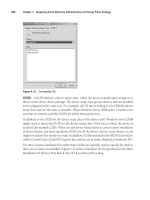
FIGURE 10-10 Configuring a VLAN ID on a physical adapter
Lesson 1: Working with VM High Availability CHAPTER 10 565
n
You can assign a VLAN ID to the parent partition when configuring either external or
internal virtual network adapters (see Figure 10-11). You do this by setting the value
as a property of the virtual adapter in the Virtual Network Manager. This isolates the
traffic for the parent partition.
FIGURE 10-11 Configuring a VLAN ID for the parent partition on an external adapter
n
You can assign a VLAN ID to child partitions by setting the value as part of the
configuration of the virtual network adapter the VM is attached to (see Figure 10-7,
shown earlier in the chapter). You do this by setting the VLAN ID as part of the virtual
machine’s attached network adapter settings. This isolates the traffic for the VM itself.
Each virtual network adapter can be assigned to a different VLAN ID.
In all three cases, the switch ports that the physical adapters are attached to must support
the VLAN ID you assigned; otherwise, the traffic will not route properly.
VLAN tagging is very useful in Hyper-V because it can be used to segregate traffic at
multiple levels. If you want to segregate parent partition and utility domain traffic (as discussed
in Chapter 8) and you do not have a separate physical adapter to assign to the process, you
can use VLAN tagging for the parent partition and the virtual machines that are part of the
resource pool. If you want to create a guest failover cluster and you want to isolate the traffic
566 CHAPTER 10 Configuring Virtual Machine High Availability
for the private network, you can assign a VLAN ID to one of the virtual network adapters in the
VM. Make sure, however, that your entire infrastructure can support the process.
Ideally, you will focus on only parent partition VLAN tagging and virtual machine VLAN
tagging and omit using physical adapter VLAN tagging when you work with Hyper-V. This
simplifies VLAN use and keeps all VLAN values within the Hyper-V configuration environment.
In addition, all VLAN traffic is then managed by the Hyper-V virtual network switch.
More Info VLAN TAGGING IN HYPER-V
For more information on VLAN tagging in Hyper-V, look up Microsoft Consulting Services
Adam Fazio’s blog at />understanding-hyper-v-vlans.aspx.
exaM tIp VLAN TAGGING IN HYPER-V
Remember that for a VLAN to work in Hyper-V, the physical adapter must support the
802.1Q standard; otherwise, the traffic will not flow even if you set all configurations
properly at the VM level.
As a best practice, you should rely on the network address you assign to the adapters—
physical or virtual—as the VLAN ID for the network. For example, if you assign IPv4 addresses
in the 192.168.100.x range, use 100 as the VLAN ID; if you use addresses in the 192.168.192.x
range, assign 192 as the VLAN ID, and so on. This will make it easier to manage addressing
schemes in your virtual networks.
Configuring iSCSI Storage
When you work with iSCSI storage, you rely on standard network adapters to connect remote
storage to a machine. All storage traffic moves through the network adapters. Storage is
provisioned and offered for consumption to endpoint machines by an iSCSI target—a storage
container running an iSCSI interpreter so that it can receive and understand iSCSI commands.
An iSCSI target can be either the actual device offering and managing the storage, or it can
be a bridge device that converts IP traffic to Fibre Channel and then relies on Fibre Channel
Host Bus Adapters (HBAs) to communicate with the storage container. iSCSI target storage
devices can be SANs that manage storage at the hardware level or they can be software
engines that run on server platforms to expose storage resources as iSCSI targets.
More Info iSCSI TARGET EVALUATION SOFTWARE
You can use several products to evaluate iSCSI targets as you prepare to work with highly
available VMs. Microsoft offers two products that support iSCSI targets: Windows Storage
Server 2003 R2 and Windows Unified Data Storage Server 2003. Both can be obtained as
evaluations for use as iSCSI targets from />aspx?PromoCode=WSREG096&PromoName=elbacom&h=elbacom. A registration process
is required for each evaluation product you select.
Lesson 1: Working with VM High Availability CHAPTER 10 567
You can also obtain an evaluation version of StarWind Server from Rocket Division
Software to create iSCSI targets for testing virtual machine clustering. Obtain the free
version from The retail version of
StarWind Server lets you create iSCSI targets from either physical or virtual machines
running Windows Server software and including multiple disks. This greatly simplifies
cluster constructions in small environments because you do not require expensive storage
hardware to support failover clustering.
iSCSI clients run iSCSI Initiator software to initiate requests and receive responses from
the iSCSI target (see Figure 10-12). If the iSCSI target is running Windows Server 2003, you
must download and install the iSCSI Initiator software from Microsoft. If the client is running
Windows Server 2008, the iSCSI Initiator software is included within the operating system.
Because iSCSI storage traffic is transported over network adapters, you should try to install
the fastest possible adapters in your host servers and reserve them for iSCSI traffic in VMs.
More Info iSCSI INITIATOR SOFTWARE
You can also obtain the Windows Server 2003 iSCSI Initiator software from
/>befd1319f825&displaylang=en. Also, look up the iSCSI Initiator User’s Guide at
92D824B871AF/uGuide.doc.
Virtual Machine
Clients
IP Switch
iSCSI
Target
Storage Array
TCP/IP
Protocol
iSCSI client
contains Microsoft
iSCSI Initiator
FIGURE 10-12 iSCSI Clients initiate requests that are consumed by iSCSI targets.
Installing and configuring the iSCSI Initiator is very simple. If you are using Windows Server
2003, you must begin by downloading and installing the Microsoft iSCSI Initiator, but if you
are working with Windows Server 2008, the iSCSI Initiator is already installed and ready to
run. You can find the iSCSI Initiator shortcuts in two locations on Windows Server 2008: in
568 CHAPTER 10 Configuring Virtual Machine High Availability
Control Panel under Classic View or in Administrative Tools on the Start menu. To configure
a machine to work with iSCSI storage devices, begin by configuring an iSCSI target on the
storage device and then use the following procedure on the client. Note that you need local
administrator access rights to perform this operation.
1. Launch the iSCSI Initiator on the client computer. If this is the first time you are running
the Initiator on this computer, you will be prompted to start the iSCSI service. Click Yes.
This starts the service and sets it to start automatically.
2. You are prompted to unblock the iSCSI service (see Figure 10-13). Click Yes. This opens
TCP port 3260 on the client computer to allow it to communicate with the iSCSI target.
This launches the iSCSI Initiator Properties dialog box and displays the General tab.
FIGURE 10-13 Unblocking the iSCSI Service on the client computer
3. Click the Discovery tab, click Add Portal, type in the IP address of the iSCSI target,
make sure port 3260 is being used, and click OK.
4. Click the Targets tab. The iSCSI target you configured should be listed. Click Log On,
select Automatically Restore This Connection When The Computer Starts, and then
click OK. Note that you can also configure Multi-Path I/O (MPIO) in this dialog box
(see Figure 10-14). MPIO is discussed later in the chapter. Leave it as is for now. Repeat
the logon process for each disk you want to connect to. Each disk is now listed with a
status of Connected.
FIGURE 10-14 Logging on to the remote disk
5. Click the Volumes And Devices tab and then click Autoconfigure. All connected disks
now appear as devices. Click OK to close the iSCSI Initiator Properties dialog box.
Lesson 1: Working with VM High Availability CHAPTER 10 569
6. Reboot the cluster node to apply your changes. Repeat the procedure on the other
node(s) of the cluster.
7. When the nodes are rebooted, expand the Storage node and then expand the Disk
Management node of the Tree pane in Server Manager. The new disks appear offline.
Right-click the volume names and click Online to bring the disks online.
You can now proceed to the creation of a cluster. Follow the steps outlined in Lesson 1 of
Chapter 3.
More Info CREATING iSCSI CLUSTERS IN HYPER-V
For a procedure outlining how to create an iSCSI cluster in Hyper-V, see the Ireland Premier
Field Engineering blog at />how-to-create-a-windows-server-2008-cluster-within-hyper-v-using-simulated-iscsi-
storage.aspx. For more information on iSCSI in general, see the Microsoft TechNet iSCSI
landing page at />default.mspx. For a discussion on how to use the Windows Unified Data Storage Server
evaluation as an iSCSI target for the creation of virtual machine clusters, see http://blogs.
technet.com/josebda/archive/2008/01/07/installing-the-evaluation-version-of-wudss-2003-
refresh-and-the-microsoft-iscsi-software-target-version-3-1-on-a-vm.aspx.
exaM tIp THE iSCSI INITIATOR
Make sure you understand how to work with the iSCSI Initiator because it is an important
part of the exam. If you do not have access to iSCSI target devices, you can always download
the evaluation copy of StarWind Server from Rocket Division Software, as mentioned earlier.
More Info USING THE INTERNET STORAGE NAME SERVICE (iSNS)
Windows Server also includes support for iSNS. This service is used to publish the names of
iSCSI targets on a network. When you use an iSNS server, then the iSCSI Initiator will obtain
target names from the list the iSNS server publishes instead of having them statically
configured in each client once the address of the iSNS server has been added to the iSCSI
Initiator configuration.
Understanding iSCSI Security
Transferring storage data over network interface cards (NICs) can be a risky proposition on
some networks. This is one reason the iSCSI Initiator includes support for several security
features that allow you to encrypt the data between the iSCSI client and the target. You can
use three methods to secure client/target communications:
n
CHAP The Challenge-Handshake Authentication Protocol (CHAP) is a protocol that
authenticates peers during connections. Peers share a password or secret. The secret
must be entered in each peer of the connection along with a user name that must
570 CHAPTER 10 Configuring Virtual Machine High Availability
also be the same. Both the secret and the user name are shared when connections are
initiated. Authentication can be one-way or mutual. CHAP is supported by all storage
vendors supporting the Microsoft iSCSI implementation. If targets are made persistent,
the shared secret is also made persistent and encrypted on client computers.
n
IPsec The IP Security Protocol (IPsec) provides authentication and data encryption at
the IP packet layer. Peers use the Internet Key Exchange (IKE) protocol to negotiate the
encryption and authentication mechanisms used in the connection. Note that not all
storage vendors that support the Microsoft iSCSI implementation provide support for
IPsec.
n
RADIUS The Remote Authentication Dial-In User Service (RADIUS) uses a
server-based service to authenticate clients. Clients send user connection requests
to the server during the iSCSI client/target connection. The server authenticates the
connection and sends the client the information necessary to support the connection
between the client and the target. Windows Server 2008 includes a RADIUS service
and can provide this service in larger iSCSI configurations.
Because CHAP is supported by all vendors, it tends to be the security method of choice for
several iSCSI implementations.
More Info iSCSI SECURITY MODES
For more information on supported iSCSI security modes, go to rosoft.
com/en-us/library/cc754658.aspx.
In the case of CHAP and IPsec, however, the configuration of iSCSI security is performed
on the General tab of the ISCSI Initiator Properties dialog box (see Figure 10-15). To enter
the CHAP secret, click Secret. To configure IPsec settings, click Set Up. Make sure the same
settings have been configured on the iSCSI target; otherwise, your iSCSI connections will
fail. Note that the General page of the iSCSI Properties dialog box also lets you change the
name of the Initiator. In most cases, the default name is fine because it is based on a generic
name followed by the server name that differentiates it from other iSCSI Initiator names.
Note, however, that the Internet Qualified Name (IQN) used by initiators and targets must be
unique in all instances.
You can configure more advanced security settings on the Targets tab under the Log On
button when you click Advanced (see Figure 10-16). Both CHAP and IPsec advanced settings
are available in this dialog box. This is also where you can enable the use of RADIUS servers.
When you implement iSCSI storage for virtual machines, make sure you secure the
traffic—these machines are running public end-user services and the storage traffic carries
valuable information over the network. Also keep in mind that you can combine the
security features of iSCSI for more complete protection. For example, you can use CHAP for
authentication and IPsec for data encryption during transport.
Lesson 1: Working with VM High Availability CHAPTER 10 571
FIGURE 10-15 The General page of the iSCSI Initiator properties
FIGURE 10-16 Using advanced CHAP or IPsec configurations
572 CHAPTER 10 Configuring Virtual Machine High Availability
IMportant ENABLING iSCSI ON SERVER CORE
When you work with Server Core, you do not have access to the graphical interface for
iSCSI configuration. In this case, you must use the iscsicli.exe command to perform iSCSI
configurations. You can type iscsicli /? at the command prompt to find out more about this
command. In addition, you will need to enable iSCSI traffic through the Windows Firewall
on client servers. Use the following command to do so:
netsh advfirewall firewall set rule “iSCSI Service (TCP-Out)” new enable=yes
Understanding Guest Network Load Balancing
Network Load Balancing is not a high-availability solution in the same way as failover clustering.
In a failover cluster, only one node in the cluster runs a given service. When that node fails, the
service is passed on to another node and at that time that node becomes the owner of the
service. This is due to the shared-nothing cluster model that Windows Server Failover Clustering
relies on. Because of this model, only one node can access a given storage volume at a time and
therefore the clustered application can only run on a single node at a time.
Update alert CLUSTER SHARED VOLUMES
It is precisely the shared-nothing model that is changed in Windows Server 2008 R2
to support live virtual machine migrations in Hyper-V. CSVs use a shared-everything
model that allows all cluster nodes to “own” the shared storage volume. Note that this
shared-everything model through CSVs is only available for clusters running Hyper-V. All
other clustered applications will continue to use the shared-nothing model.
In NLB clusters, every single member of the cluster offers the same service. Users are directed
to a single NLB IP address when connecting to a particular service. The NLB service then redirects
users to the first available node in the cluster. Because each member in the cluster can provide
the same services, services are usually in read-only mode and are considered stateless.
IMportant CREATING GUEST NLB CLUSTERS
When you create a guest NLB cluster, you should apply a hotfix to the guest operating
system otherwise the NLB.sys driver may stop working. Find out more on this issue at
/>NLB clusters are fully supported in Hyper-V virtual machines because the Hyper-V
network layer provides a full set of networking services, one of which is NLB redirection.
This means that you can create multi-node NLB clusters (up to 32) to provide high availability
for the services you make available in your production virtual machines. Note, however,
that each computer participating in an NLB cluster should include at least two network
adapters: one for management traffic and the other for public traffic. This is very simple to
do in virtual machines—just add another virtual network adapter. Enlightened machines can
Lesson 1: Working with VM High Availability CHAPTER 10 573
include up to 12 network adapters: 8 enlightened network adapters and 4 legacy network
adapters. Keep in mind, however, that for performance reasons you should avoid mixing
machines using legacy network adapters with machines using enlightened network adapters
on the same host. Or at the very least, you should connect all of your legacy network
adapters to a separate physical adapter to segregate legacy network traffic from enlightened
network traffic.
Determining Which High Availability Strategy to Use for VMs
As you can see, you can use three different high-availability strategies for VMs. Each is a valid
approach and each provides sound support for making your VMs highly available. However, it
is not always evident which method you should use for which application. Table 10-2 outlines
some considerations for choosing and implementing a high-availability solution for your
production VMs.
TABLE 10-2 Choosing a High Availability Method for a VM
VIRTUAL MACHINE
CHARACTERISTICS
HOST SERVER
CLUSTERING FAILOVER CLUSTERING NLB
Windows
Server 2008
edition
Web
Standard
Enterprise
Datacenter
Enterprise
Datacenter
Web
Standard
Enterprise
Datacenter
Number of guest
nodes
Single nodes
only
Usually 2, but up to 16 Up to 32
Required
resources
At least one
virtual
network
adapter
iSCSI disk connectors
Minimum of three
virtual network
adapters: Cluster
Public, Cluster Private,
and iSCSI
Minimum of two virtual
network adapters
Potential
server role
Any server
role
Application servers
(stateful)
File and print servers
Collaboration servers
(storage)
Network infrastructure
servers
Application servers
(stateless)
Dedicated Web servers
Collaboration servers
(front end)
Terminal servers
(front end)
Internal VM
application
Any
application
SQL Server computers
Exchange mailbox
servers
Message queuing
servers
Web Farms
Exchange Client Access
Servers
Internet Security and
Acceleration Server (ISA)
574 CHAPTER 10 Configuring Virtual Machine High Availability
VIRTUAL MACHINE
CHARACTERISTICS
HOST SERVER
CLUSTERING FAILOVER CLUSTERING NLB
Message queuing
servers
File servers
Print servers
Virtual Private Network
(VPN) servers
Streaming Media servers
Unified Communications
servers
App-V servers
The guidelines in Table 10-2 will assist you in your selection of a high-availability solution
for your production virtual machines. However, keep in mind that you should always aim to
create host failover clusters at the very least. This is because each host runs a vast number of
production VMs and if that host fails and there is no high-availability solution, each and every
one of the VMs on the host will fail. This is a different situation than when you run single
workloads in individual physical machines. Nothing prevents you from running a host-level
cluster and at the same time running a guest-level high-availability solution such as failover
clustering or Network Load Balancing.
You can use the guidelines in Table 10-2 as well as your existing organization’s service-level
requirements to determine which level of high availability you want to configure for each VM.
You also need to take into account the support policy for the application you intend to run in
the VM. Support policies are discussed later in this chapter.
Configuring Additional High-Availability Components for VMs
Even though you create high-availability configurations for your VMs at both the host and
the guest level, you should also consider which additional components you need to run a
problem-free (or at least as problem-free as possible) virtual workload network. In this case,
consider the following:
n
Configure VM storage redundancy. Use the following best practices:
•
Make sure your storage array includes high-availability configurations such as
random arrays of independent disks (RAID). Apply this at both the host and the VM
level whenever a computer needs to connect to shared storage.
•
Try to use separate pools of spindles for each storage or iSCSI target to provide the
best possible I/O speeds for your host servers.
•
If you are using iSCSI at the host or the guest level, you can also rely on MPIO to
ensure high availability of data by using multiple different paths between the CPU
on the iSCSI client and the iSCSI target where the data is physically located. This
ensures data path redundancy and provides better availability for client virtual
machines. When you select this option in the iSCSI Initiator, the MPIO files and the
iSCSI Device Specific Module will be installed to support multi-pathing.
n
Configure VM networking redundancy. Use the following best practices:
Lesson 1: Working with VM High Availability CHAPTER 10 575
•
Make sure your host servers include several network adapters. Dedicate at least one
to host management traffic.
•
Use the highest-speed adapters available on your host servers to provide the best
level of performance to VMs.
•
Create at least one of each type of virtual network adapter on your host servers.
•
Use VLAN tagging to protect and segregate virtual networking traffic and to
separate host-management traffic from virtual networking traffic. Make sure the
VLANs you use on your host servers and VMs are also configured in your network
switches; otherwise, traffic will not flow properly.
n
Configure VM CPU redundancy. Use host servers that include multiple CPUs or CPU
cores so that multiple cores will be shareable between your VMs.
n
Configure VMs for RAM redundancy. Use host servers that include as much RAM as
possible and assign appropriate amounts of RAM to each VM.
n
Finally, monitor VM performance according to the guidelines provided in Lesson 3 of
Chapter 3. Adjust VM resources as required as you discover the performance levels
they provide.
If you can, rely on SCVMM and its PRO feature to continuously monitor VM performance
and obtain PRO tips on VM reconfiguration. Remember that the virtual layer of your resource
pool is now running your production network services and it must provide the same or better
level of service as the original physical network; otherwise, the gains you make in reduced
hardware footprints will be offset by the losses you get in performance.
Creating Supported VM Configurations
When you run production services in virtual machines, you want to make sure that the
configuration you are using is a supported configuration; otherwise, if issues arise, you might
need to convert the virtual machine into a physical machine before you can obtain support
from the product’s vendor. As a vendor of networking products and services, Microsoft
publishes support articles on acceptable virtual machine configurations for its products. As
a resource pool administrator, you should take these configurations into consideration when
you prepare your virtual machines.
Table 10-3 outlines the different Microsoft products, applications, and server roles that are
supported to run in virtual environments. Three environments are supported:
n
Windows Server with Hyper-V Hyper-V supports 32-bit or 64-bit guest operating
systems.
n
Microsoft Hyper-V Server Also runs 32-bit or 64-bit guest operating systems.
However, Hyper-V Server does not support failover clustering.
n
Server Virtualization Validation Program (SVVP) certified third-party
products Third-party hypervisors that have been certified through the SVVP can run
either 32-bit or 64-bit VMs. This includes VMware and Citrix hypervisors, among others.
576 CHAPTER 10 Configuring Virtual Machine High Availability
More Info
SVVP
For more information on the Server Virtualization Validation Program, go to
/>In some cases, Microsoft also supports running the application in a Virtual Server 2005 R2
environment. Note, however, that only 32-bit applications can run on this platform. This is
why Hyper-V is the preferred virtualization platform.
Specific articles outlining the details of the supported configuration are listed in Table 10-3
if they are available.
More Info SUPPORTED MICROSOFT APPLICATIONS IN VMs
The information compiled in Table 10-3 originates from Microsoft Knowledge Base article
957006 as well as other sources. This article is updated on a regular basis as new products
are added to the support list. Find this article at />TABLE 10-3 Microsoft Applications Supported for Virtualization
PRODUCT COMMENTS KB ARTICLE
Active Directory Domain Controllers can run
in VMs.
See article number 888794:
/>kb/888794
Application
Virtualization
Management Servers,
Publishing Servers, Terminal
Services Client, and Desktop
Clients from version 4.5 and
later can run in VMs.
BizTalk Server Versions 2006 R2, 2006, and
2004 are supported.
See article number 842301:
/>kb/842301
Commerce Server Versions 2007 with SP2 and
later are supported. Version
2002 can also run in a VM.
See article number 887216:
/>kb/887216
Dynamics AX Versions 2009 and later
server and client
configurations are supported.
Dynamics GP Versions 10.0 and later are
supported.
See article number 937629:
/>kb/937629
Dynamics CRM Versions 4.0 and later are
supported.
See article number 946600:
/>kb/946600
Lesson 1: Working with VM High Availability CHAPTER 10 577
PRODUCT COMMENTS KB ARTICLE
Dynamics NAV Versions 2009 and later are
supported.
Exchange Server Versions 2003, 2007 with SP1,
and later are supported.
See article number 320220:
/>kb/320220 or see the Microsoft
TechNet Web page at http://
technet.microsoft.com/en-us/
library/cc794548.aspx
Forefront Client
Security
Service pack 1 and higher are
supported.
Forefront Security for
Exchange
Service Pack 1 or higher are
supported.
Forefront Security for
SharePoint
Service Pack 2 or higher are
supported.
Host Integration
Server
Versions 2006 and later are
supported.
Intelligent
Application Gateway
2007 with SP2 and later are
supported.
Internet Security and
Acceleration Server
Versions 2006 and later are
supported.
See the Microsoft TechNet Web
page at http://technet.
microsoft.com/en-us/library/
cc891502.aspx
Office Groove Server Versions 2007 with SP1 and
later are supported.
Office
PerformancePoint
Server
Versions 2007 with SP2 and
later are supported.
Office Project Server Versions 2007 with SP1 and
later are supported.
See article number 916533:
/>kb/916533
Office SharePoint
Server
Versions 2007 with SP1 and
later are supported.
See article number 909840:
/>kb/909840
Operations Manager Only the agents from version
2005 with SP1 are supported.
See System Center OpsMgr
for other supported versions.
See article number 957559:
/>kb/957559
Search Server Versions 2008 and later are
supported.
578 CHAPTER 10 Configuring Virtual Machine High Availability
PRODUCT COMMENTS KB ARTICLE
SQL Server Versions 2005, 2008, and
later are supported.
See article number 956893:
/>kb/956893
System Center
Configuration
Manager
All components from version
2007 with SP1 and later are
supported.
See the Microsoft TechNet Web
page at rosoft.
com/en-us/library/bb680717.aspx
System Center Data
Protection Manager
Versions 2007 and later are
supported, but for agent-side
backup only.
System Center
Essentials
Versions 2007 with SP1 and
later are supported.
System Center
Operations Manager
All components from version
2007 and later are supported.
See the Microsoft TechNet Web
page at rosoft.
com/en-us/library/bb309428.
aspx. Also see article number
957568: rosoft.
com/kb/957568
Microsoft System
Center Virtual
Machine Manager
All components from version
2008 and later are supported.
Systems Management
Server
Only the agents from version
2003 with SP3 are supported.
See System Center
Configuration Manager for
other supported versions.
See the Microsoft TechNet Web
page at rosoft.
com/en-us/library/
cc179620.aspx
Visual Studio Team
System
Versions 2008 and later are
supported.
Windows 7 Windows 7 is supported.
Windows Essentials
Business Server
Versions 2008 and later are
supported.
Windows HPC Server Versions 2008 and later are
supported.
Windows Small
Business Server
Versions 2008 and later are
supported.
Windows Server
Web edition
Versions 2003 with SP2, 2008,
and later are supported.
Windows Server,
other editions
2000 Server with SP4, 2003
with SP2, and 2008 or later
are supported.
Lesson 1: Working with VM High Availability CHAPTER 10 579
PRODUCT COMMENTS KB ARTICLE
Windows Server
Update Services
Versions 3.1 and later are
supported.
Windows SharePoint
Services
Versions 3.0 with SP1 and
later are supported.
See article number 909840:
/>kb/909840
Windows Vista Vista is supported.
Windows XP XP with SP2 (x86 and x64
editions) and XP with SP3
(x86 editions) are supported.
As you can see, the list of products Microsoft supports for operation in the virtual layer is
continually growing. Products that do not have specific configuration articles are supported
in standard configurations as per the product documentation. This also applies to the vast
majority of Windows Server roles—all roles are supported because Windows Server itself is
supported. However, only Active Directory Domain Services rates its own support policy.
Supported configurations run from standalone implementations running on host failover
clusters to high-availability configurations at the guest level. Remember, however, that you
need to take a product’s licensing requirements into account when creating virtual machine
configurations for it. For example, both Small Business Server and Essential Business Server can
run in virtual configurations, but they will not run on host failover clusters unless you acquire
a different license for the host server because the license for these products is based on the
Standard edition of Windows Server. The license for the Standard edition includes support for
installation of Windows Server 2008 on one physical server and one virtual machine, but it
does not include support for failover clustering. Read the support articles closely if you want
to create the right configurations for your network. If a support article does not exist, read the
product’s configuration documentation to determine how best to deploy it in your network.
In addition, Microsoft has begun to use virtualization technologies at two levels for its own
products:
n
Virtual labs allow you to go to the Microsoft Web site and evaluate a given technology
online.
n
Evaluation VHDs include a preconfigured version of an application in a downloadable
VHD file.
Table 10-4 outlines the evaluation VHDs that are available for Microsoft products. As you
have seen throughout the exercises you performed in this guide, evaluation VHDs make it
much simpler to deploy a networking product into your environment because you do not
need to install the product. All you need to do is configure a VM to use the VHD and then
configure the product within the VHD to run in your network. Then, if you choose to continue
working with the product, all you need to do is acquire a license key for it and add it to the
configuration to turn it into a production machine.
580 CHAPTER 10 Configuring Virtual Machine High Availability
In addition, Table 10-4 points you to online virtual labs if they exist for the same product.
More Info MICROSOFT APPLICATIONS AVAILABLE IN VHDs
Some of the information in Table 10-4 was compiled from the evaluation VHD landing
page at Watch this page to find more
VHDs as they become available.
TABLE 10-4 Microsoft Evaluation VHDs
PRODUCT EVALUATION VHD VIRTUAL LAB
Exchange 2007
with SP1
/>details.aspx?FamilyID=
44C66AD6-F185-4A1D-A9AB-
473C1188954C&displaylang=en
rosoft.
com/en-us/exchange/
bb499043.aspx
Office SharePoint
Server 2007
/>details.aspx?FamilyID=
67f93dcb-ada8-4db5-a47b-
df17e14b2c74&displaylang=en
http://technet. microsoft.
com/en-us/office/
sharepointserver/
bb512933.aspx
System Center
Configuration
Manager 2007 R2
/>details.aspx?FamilyID=
e0fadab7-0620-481d-a8b6-
070001727c56&displaylang=en
http://msevents.
microsoft.com/cui/
webcasteventdetails.aspx
?eventid=1032343963&e
ventcategory=3&culture
=en-us&countrycode=us
System Center
Essentials 2007 SP1
/>details.aspx?familyid=
e6fc3117-48c5-4fd1-a3d2-
927eab397373&displaylang=en
System Center
Virtual Machine
Manager 2008
/>details.aspx?FamilyID=
4a27e89c-2d73-4f57-a62c-
83afb4c953f0&displaylang=en
rosoft.
com/systemcenter/
virtualmachinemanager/
en/us/default.aspx
Windows 2003 R2
Enterprise edition
/>details.aspx?FamilyID=
77f24c9d-b4b8-4f73-
99e3-c66f80e415b6&displaylang=en
rosoft.
com/en-us/virtuallabs/
bb539981.aspx
Windows Server
2008 Enterprise
Server Core
windowsserver2008/en/us/
virtual-hard-drive.aspx
rosoft.
com/en-us/virtuallabs/
bb512925.aspx
Windows Vista />details.aspx?FamilyID=
c2c27337-d4d1-4b9b-926d-
86493c7da1aa&displaylang=en
rosoft.
com/en-us/virtuallabs/
bb539979.aspx
Lesson 1: Working with VM High Availability CHAPTER 10 581
More Info MICROSOFT APPLICATIONS AVAILABLE IN VIRTUAL LABS
For more information on Microsoft virtual labs, go to />virtuallabs/default.aspx.
More and more products will be available in VHDs as time goes by. In fact, the VHD
delivery mechanism is likely to become the delivery mechanism of choice for most products
as Microsoft and others realize how powerful this model is.
You are now running a virtual infrastructure—production VMs on top of your resource
pool—and this infrastructure is the way of the future. Eventually, you will integrate
all new products using the VHD—or virtual appliance—model. This will save you and
your organization a lot of time as you dynamically add and remove products from your
infrastructure through the control of the VMs they run in.
More Info VIRTUAL APPLIANCES
Virtual appliances have been around for some time. In fact, virtual appliances use the Open
Virtualization Format (OVF), which packages an entire virtual machine—configuration files,
virtual hard disks, and more—into a single file format. Hyper-V does not yet include an
import tool for OVF files, but you can use Project Kensho from Citrix to convert OVF files to
Hyper-V format. Find Kensho at />Practice Assigning VLANs to VMs
In this practice, you will configure VMs to work with a VLAN to segregate the virtual machine
traffic from your production network. This practice involves four computers: ServerFull01,
ServerCore01, Server01, and SCVMM01. Each will be configured to use a VLAN ID of 200. This
practice consists of three exercises. In the first exercise, you will configure the host servers to use
new VLAN ID. In the second exercise, you will configure the virtual machines to use the VLAN
ID. In the third exercise, you will make sure the machines continue to connect with each other.
exercise 1 Configure a Host Server VLAN
In this exercise you will use ServerFull01 and ServerCore01 to configure a VLAN. Perform this
activity with domain administrator credentials.
1. Begin by logging on to ServerFull01 and launching the Hyper-V Manager. You can use
either the standalone console or the Hyper-V Manager section of Server Manager.
2. Click ServerFull01 in the Tree pane and then click Virtual Network Manager.
3. Select the External virtual network adapter and select the Enable Virtual LAN
Identification For Parent Partition check box. Type 200 as the VLAN ID and click OK.
582 CHAPTER 10 Configuring Virtual Machine High Availability
4. Repeat the operation for ServerCore01. Click ServerCore01 in the Tree pane and then
click Virtual Network Manager.
5. Select the External virtual network adapter and select the Enable Virtual LAN
Identification For Parent Partition. Type 200 as the VLAN ID and click OK.
Your two host servers are now using 200 as a VLAN ID. This means that you have
configured the virtual network switch on both host servers to move traffic only on VLAN 200.
exercise 2 Configure a Guest Server VLAN
In this exercise you will configure two virtual machines to use the 200 VLAN as well. Perform
this exercise on ServerFull01 and log on with domain administrator credentials.
1. Begin by logging on to ServerFull01 and launching the Hyper-V Manager.
2. Click ServerFull01 in the Tree pane. Right-click Server01 and choose Settings.
3. Select the virtual network adapter for Server01 and select the Enable Virtual LAN
Identification check box. Type 200 as the VLAN ID and click OK.
4. Repeat the operation for SCVMM01. Click ServerCore01 in the Tree pane, right-click
SCVMM01, and choose Settings.
5. Select the virtual network adapter for SCVMM01 and select the Enable Virtual LAN
Identification check box. Type 200 as the VLAN ID and click OK.
Your two virtual machines are now moving traffic only on VLAN 200.
exercise 3 Test a VLAN
In this exercise you will verify that communications are still available between the host servers
and the resource pool virtual machines. Perform this exercise from ServerFull01. Log on with
domain administrator credentials.
1. Log on to ServerFull01 and launch a command prompt. Click Start and then choose
Command Prompt.
2. Use the Command Prompt window to ping each of the machines you just moved to
VLAN 200. Use the following commands:
ping Server01.contoso.com
ping SCVMM01.contoso.com
ping ServerCore01.contoso.com
3. You should get a response from each of the three machines. This means that all
machines are now communicating on VLAN 200.
As you can see, it is relatively easy to segregate traffic from the resource pool using VLAN
IDs. You can use a similar procedure to configure VLAN IDs for guest virtual machines when
you configure them for high availability.
Lesson 1: Working with VM High Availability CHAPTER 10 583
Quick Check
1. What are the two types of cluster modes available for host servers?
2. What are the three different options to make workloads contained in virtual
machines highly available?
3. What process does the Quick Migration feature use to move a virtual machine
from one host cluster node to another?
4. Where can you set the startup delays for virtual machines, and what is the
default setting?
5. What is the best tool to use for automatic VM placement on hosts?
6. What type of VLAN does Hyper-V support?
7. What are iSCSI target storage devices?
8. What is the most common protocol used to secure iSCSI implementations?
9. What is the major difference between failover clustering and Network Load
Balancing?
10. How many network adapters (both enlightened and legacy network adapters)
can be included in enlightened virtual machines?
11. Why is it important to create host failover clusters?
Quick Check Answers
1. The two types of cluster modes available for host servers are single-site clusters
and multi-site clusters.
2. The three different options to make workloads contained in virtual machines
highly available are:
n
Create host failover clusters
n
Create guest failover clusters
n
Create guest NLB clusters
3. The Quick Migration process moves a VM by saving the state of the VM on one
node and restoring it on another node.
4. To set the startup delays for virtual machines, go to the VM configuration
settings under the Automatic Start Action settings. By default the startup delay
for VMs is set to zero.
5. The best tool to use for automated VM placement is the Performance and
Resource Optimization (PRO) with Intelligent Placement feature in SCVMM.
6. Hyper-V supports dynamic VLAN tagging to support traffic isolation without
requiring a multitude of physical adapters on the host server.
584 CHAPTER 10 Configuring Virtual Machine High Availability
7. iSCSI target storage devices can be SANs that manage storage at the hardware
level or they can be software engines that run on server platforms to expose
storage resources as iSCSI targets.
8. CHAP is supported by all vendors; as such, it tends to be the security method of
choice for several iSCSI implementations.
9. In a failover cluster, only one node in the cluster runs a given service. In NLB
every single member of the cluster offers the same service.
10. Enlightened virtual machines can include up to 12 network adapters:
8 enlightened network adapters and 4 legacy adapters.
11. You create host failover clusters because each host runs a vast number of
production VMs and if the host fails and you have no high-availability solution,
each VM on the host will also fail.
Suggested Practices CHAPTER 10 585
Case Scenario: Protecting Exchange 2007 VMs
In the following case scenario, you will apply what you have learned about creating supported
VM configurations. You can find answers to these questions in the “Answers” section on the
companion CD which accompanies this book.
You are the resource pool administrator for Lucerne Publishing. You have recently moved
to a virtual platform running on Windows Server Hyper-V and you have converted several
of your physical machines to virtual machines. You are now ready to place your Microsoft
Exchange 2007 servers on virtual machines. You want to create a supported configuration for
the product so you have read the information made available by Microsoft at http://technet.
microsoft.com/en-us/library/cc794548.aspx. This article outlines the Microsoft support policy
for Exchange Server 2007 in supported environments.
Basically, you have discovered that you need to be running Exchange Server 2007 with
SP1 on Windows Server 2008 to virtualize the email service. Microsoft supports standalone
Exchange machines in VMs as well as single-site cluster (Single-Site Cluster) and multi-site
cluster (Cluster Continuous Replication) configurations. Exchange VMs must be running on
Hyper-V or a supported hardware virtualization platform. Lucerne does not use the Unified
Messaging role in Exchange; therefore, you don’t need to worry about the fact that you
should not virtualize this role.
Exchange is supported on fixed-size virtual disks, pass-through disks, or disks connected
through iSCSI. Other virtual disk formats are not supported and neither are Hyper-V
snapshots. When you assign resources to the VMs, you must maintain no more than a 2-to-1
virtual-to-logical processor ratio. And most important, the Microsoft Exchange team does not
support the Hyper-V Quick Migration feature. Therefore, you should not place an Exchange
VM on a host cluster—or if you do, you should not make the VM highly available.
Given all of these requirements, your management has asked you to prepare a report on
Exchange virtualization before you proceed to the implementation. Specifically, this report
should answer the following three questions. How do you proceed?
1. How do you configure the disk targets for your Exchange VMs?
2. Which failover clustering model would you use for the Exchange VMs?
3. How do you manage Exchange high-availability operations after the VMs are
configured?
Suggested Practices
To help you successfully master the exam objectives presented in this chapter, complete the
following tasks.
586 CHAPTER 10 Configuring Virtual Machine High Availability
Guest Failover Clusters
n
Practice 1 If you do not have access to iSCSI target hardware, take the time to
download one of the evaluation software products that let you simulate iSCSI targets.
Then use these targets to generate iSCSI storage within VMs.
n
Practice 2 Use the iSCSI targets you created to create a guest failover cluster. This
will give you a better understanding of the way VMs behave when they are configured
for high availability at the VM level.
n
Practice 3 Assign VLAN IDs to the network adapters you apply to VMs in your
failover cluster to gain a better understanding of how VLAN tagging works in Hyper-V.
Guest NLB Clusters
n
Practice 1 Take the time to create guest NLB clusters. NLB is fully supported in
Hyper-V and is a good method to use to provide high availability for applications you
run inside virtual machines.
Supported VM Configurations
n
Practice 1 Take the time to look up the support policies listed in Table 10-3 before
you move your own production computers into virtual machines. This will help you
create a fully supported virtual infrastructure and ensure that you can acquire support
from the vendor if something does go wrong.
Chapter Summary
n
Clustered host servers make the virtual machines created on them highly available, but
not the applications that run on the virtual machine.
n
Host clusters support the continuous operation of virtual machines and the operation
of virtual machines during maintenance windows. When a cluster detects that a node is
failing, the cluster service will cause the VMs to fail over by using the Quick Migration
process, but when a node fails the cluster service will move the VM by restarting it on
the other node.
n
When you create single-site guest cluster you should consider the following:
•
Use anti-affinity rules to protect the VMs from running on the same node.
•
Rely on VLANs to segregate VM cluster traffic.
•
Rely on iSCSI storage to create shared storage configurations.
n
VLANs can be set in two different manners: static or dynamic. Hyper-V supports
dynamic VLANs but the network adapters on the host server must support the 802.1Q
standard. In Hyper-V VLANs can be assigned to the physical adapter itself, to the
parent partition when configuring either external or internal virtual network adapters,
Chapter Summary CHAPTER 10 587
or to child partitions by setting the value as part of the configuration of the virtual
network adapter the VM is attached to.
n
An iSCSI target can be an actual device offering and managing the storage or it can
be a bridge device that converts IP traffic to Fibre Channel and relies on HBA to
communicate with the storage container.
n
iSCSI clients run iSCSI Initiator software to initiate requests and receive responses for
the target.
n
iSCSI security includes three methods to secure client/target communications: CHAP,
IPsec, and RADIUS.
n
Network Load Balancing clusters are fully supported in Hyper-V and can support up to
32 NLB nodes in a cluster, but each computer participating in the NLB cluster should
include at least two network adapters—one for management traffic and the other for
public traffic.
n
You can use three different high-availability strategies for VMs: host server clustering,
guest failover clustering, and guest NLB. However, you should always aim to create
host failover clusters at the very least.
n
Several Microsoft products are supported to run in virtual environments like Windows
Server with Hyper-V, Microsoft Hyper-V Server, and SVVP Certified Third-Party
products. More will be supported as time goes on.