Crystal Reports For Visual Studio 2005 phần 10 pot
Bạn đang xem bản rút gọn của tài liệu. Xem và tải ngay bản đầy đủ của tài liệu tại đây (277.2 KB, 59 trang )
Walkthroughs
Copyright © 2004 Business Objects
Page 532
What Needs to be Installed?
You need to install Crystal Reports for Visual Studio 2005 before you can create Web or
Windows applications that use Crystal reports.
Click the appropriate link to jump to that section:
Visual Studio Versions
Crystal Reports Versions
Visual Studio Versions
Crystal Reports is available for purchase as a separate application, or as a version that is
installed as part of most versions of Microsoft Visual Studio (commonly known as Crystal
Reports for Visual Studio).
If you intend to use Crystal Reports for Visual Studio, you must verify that the version of
Visual Studio that you have installed ships with Crystal Reports for Visual Studio.
Visual Studio is available in the following versions:
Version Crystal Reports included?
Visual Studio .NET 2002, Standard (C#, Visual
Basic, or C++)
No
Visual Studio .NET 2002, Professional or higher Yes
Visual Studio .NET 2003, Standard (C#, Visual
Basic, or C++)
No
Visual Studio .NET 2003, Professional or higher Yes
Visual Studio 2005 Express Edition (C#, Visual
Basic, C++, SQL, J#, Web Developer)
No
Visual Studio 2005, Professional or higher Yes
The Crystal Reports Component
By default, the Crystal Reports component is installed as part of your Visual Studio
installation. If you must install the Crystal Reports component, relaunch the Visual Studio
installer and follow directions to add enterprise development tools.
Crystal Reports Versions
Multiple versions of Crystal Reports are available. Many of the procedures in this
document are version-specific. To best use this document to your advantage, determine
first which version of Crystal Reports you have installed.
To determine which version you are currently using
1. Go to the GAC (Global Assembly Cache) at:
C:\WINNT\assembly
or
C:\Windows\assembly
Walkthroughs
Copyright © 2004 Business Objects
Page 533
2. Look for files in this assembly folder whose prefix begins with CrystalDecisions.
3. Locate the CrystalDecisions.CrystalReports.Engine file.
Note If you have installed more than one version of Crystal Reports, you have
multiple versions of these files in the Global Assembly Cache. The
CrystalDecisions.CrystalReports.Engine file is selected, because this file is included
with every version of Crystal Reports.
4. Note the Version column shown in the window.
This is the "Assembly version."
5. Locate the highest number for a particular assembly.
6. Right-click the file, select Properties, and then click the Versions tab within the
Properties window.
7. Compare the file version against the version number in the chart below.
Note If you are using Crystal Reports version 9.0 with Microsoft Visual Studio
.NET 2003, the maintenance release CR 9.2 (available as the CR 9.2 upgrade CD)
must be installed. Crystal Decisions supports only CR 9.2 in Visual Studio .NET
2003.
If Borland C# is installed after Visual Studio .NET 2003, it updates the assembly
versions.
Walkthroughs
Copyright © 2004 Business Objects
Page 534
Product Hot Fix
Applied?
Optional
Add-Ons
Assembly
Version
File Version
Crystal Reports for Visual
Studio .NET 2002
no none 9.1.3300 9.1.9360
Crystal Reports for Visual
Studio .NET 2002 (patched)
yes none 9.1.3300 9.1.9466
Crystal Reports 9 no RAS 9 9.2.3300 9.2.9466
Crystal Reports 9.2
(maintenance release)
yes RAS 9 9.2.3300 9.2.9500
Crystal Reports for Visual
Studio .NET 2003
no none 9.1.5000 9.1.9800.0
Crystal Reports for Visual
Studio .NET 2003 (patched)
yes none 9.1.5000 9.1.9800.0
Crystal Reports 10 no RAS 10 10.0.3300.
0
10.0.9500.0
Crystal Reports 11 no RAS 11 11.0.3300.
0
11.0.9500.0
Crystal Reports for Visual
Studio 2005
no none 10.2.3600.
0
10.2.51014.0
Crystal Reports for Borland
C#
no none 9.1.5000 9.1.9800.0
Walkthroughs
Copyright © 2004 Business Objects
Page 535
What Needs to be Verified?
Verification needed to develop projects using Crystal Reports for Visual Studio
.NET
To develop a project that uses Crystal Reports for Visual Studio .NET, verify the following:
Add New Item Dialog Box Includes Crystal Reports
Sample Reports' Directory
Tutorials' Sample Code Directory
Viewers' Virtual Directory
Verification needed to work with tutorials
If you also want to work with the tutorials that are provided in this documentation, you
must verify that the following additional items are in place:
Location of Xtreme Sample Database
ODBC DSN Entry for Xtreme Sample Database
Optional verification needed to work with SQL Server/MSDE tutorials
If you want to work with the SQL Server/MSDE-specific tutorials that are provided in this
documentation, verify that the following SQL Server/MSDE-specific items are in place:
MSDE Installation with Windows or SQL Server Authentication
Northwind Database Installation
Walkthroughs
Copyright © 2004 Business Objects
Page 536
Add New Item Dialog Box Includes Crystal
Reports
In an earlier section, you learned which Visual Studio version to install and how to install
the Crystal Reports component manually, if you did not install it by default during your
Visual Studio installation.
To verify that the Crystal Reports component of Visual Studio is installed, check that
Crystal Reports appears in the Add New Item dialog box in Visual Studio.
To verify that Crystal Reports is installed
1. Launch Visual Studio.
2. Create a new Web or Windows project (in any language), or open an existing Web or
Windows project.
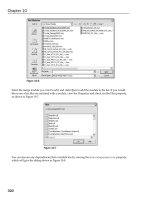
3. On the Project menu, click Add New Item.
4. In the Add New Item dialog box, scroll down and verify that Crystal Reports is one
of the available items.
Walkthroughs
Copyright © 2004 Business Objects
Page 537
64-Bit Development Configuration
Note This section contains information specific to users with a 64-Bit development
machine.
Crystal Reports for Visual Studio 2005 projects can be built on a 32-bit or a 64-bit
machine. In addition, the projects' code can be ported to and updated on a 64-bit
machine. Itanium (IA64) processors are supported for run-time only.
On a 64-bit machine, the 32-bit Crystal Reports for Visual Studio 2005 IDE will run under
WOW64 (the x86 emulator that runs 32-bit applications on a 64-bit machine).
Before you can run an application on a 64-bit machine you must install the Crystal Reports
64 bit configuration application for your 64-bit environment.
If you have installed Visual Studio into the default installation directory, the configuration
application can be found in the below directory.
x64
C:\Program Files\Microsoft Visual Studio 8\Crystal
Reports\CRRedist\X64\CRRedist2005_x64.msi
Walkthroughs
Copyright © 2004 Business Objects
Page 538
Optional Installation: MSDE
If you want to work with the SQL Server/MSDE-specific tutorials that are provided in this
documentation, install the following SQL Server/MSDE-specific items:
MSDE Installation with Windows or SQL Server Authentication
Northwind Database Installation
Security: Creating a Limited Access Database Account
Walkthroughs
Copyright © 2004 Business Objects
Page 539
MSDE Installation with Windows or SQL
Server Authentication
Some of the tutorials in this documentation show how to display a Crystal report whose
data configuration requires a programmatic logon to a secure SQL database.
These tutorials include the following:
Logging onto a Secure SQL Server Database (CrystalReportViewer Object Model)
Logging onto a Secure SQL Server Database Using SQL Authentication
(ReportDocument Object Model
Logging onto a Secure SQL Server Database Using Integrated Security
(ReportDocument Object Model)
Reduced-Code Secure Database Logon in a Web Site
Connecting to IDataReader
To work with these tutorials, you need Microsoft SQL Server (or its free version, MSDE)
installed and configured with either Windows Authentication (if you wish to use Integrated
Security) or SQL Server Authentication (if you wish to use SQL Security).
Note Microsoft recommends Integrated Security as the most secure approach.
If you already have Microsoft SQL Server or MSDE installed with either Windows or
SQL Server Authentication, proceed to Northwind Database Installation to verify that
the sample database "Northwind" is installed.
If you do not have either server installed, this section shows you how to install MSDE
with Windows or SQL Server Authentication.
Note To configure your project to connect to Oracle or other SQL database
servers, see the knowledge database at:
Alternate versions of MSDE
You now have two alternate ways to install MSDE, depending on whether you are using
the MSDE shipped with Visual Studio .NET 2002, or MSDE Release A from the Microsoft
web site.
Installing MSDE shipped with Visual Studio
.NET 2002
You can install the version of MSDE provided with Visual Studio .NET 2002. This version is
located in the following file directory:
C:\Program Files\Microsoft Visual Studio
.NET\FrameworkSDK\Samples\Setup\msde\setup\sql2000.msi
However, if you use this version, you must upgrade to the latest service pack for MSDE.
Go to
This version uses the sql2000.msi installer.
Note In this step procedure, you install MSDE in Mixed Mode, allowing you to use
either Windows Authentication or SQL Server Authentication.
Walkthroughs
Copyright © 2004 Business Objects
Page 540
To install MSDE in Mixed Mode using the sql2000.msi installer
1. Go to the command prompt.
Note Run this installer from the command prompt, to include a command
parameter.
2. Change to the directory that contains the installer file, as shown in the table above.
3. Type the command with the following command parameter:
sql2000.msi SECURITYMODE=SQL
4. After the installer has finished, restart your computer.
5. Once the computer is restarted, go to the command prompt again.
6. At the prompt, type this command to log in to the server:
osql -U sa
7. Press ENTER.
8. When asked for a password, press ENTER (at this point, the password is null).
A prompt appears with the number 1.
9. Decide on a password and enter it with the following command (include all characters
shown). In this example, the password 1234 is used.
sp_password null, '1234', 'sa'
10. Go to the next line and type the following:
go
That word indicates to osql that the command is complete.
11. Press ENTER to execute the command.
This message appears:
Password changed.
12. Type
exit
, and then press ENTER.
Finally, you must upgrade to the latest service pack for MSDE.
13. Download the service pack from
14. Install the service pack.
This completes your installation of MSDE using the sql2000.msi installer. In the next
section, you verify that the Northwind database is installed.
Installing MSDE Release A from the Microsoft web
site
You can download MSDE Release A from the Microsoft website. Go to
This version uses a setup.exe installer.
Note In this step procedure, you install MSDE in Mixed Mode, allowing you to use
either Windows Authentication or SQL Server Authentication.
To install MSDE Release A in Mixed Mode using the setup.exe installer
1. Unzip the MSDE Release A download zip file to a file directory on your hard drive.
2. Launch the command prompt.
Walkthroughs
Copyright © 2004 Business Objects
Page 541
Note Run this installer from the command prompt, to include a command
parameter.
3. Change to the file directory that you have just unzipped.
Note This directory contains the setup.exe installer file.
4. Type the command with the security mode command parameter set to SQL and the
password set to a password of your choice.
Note In this example, the password 1234 is used.
setup.exe SECURITYMODE=SQL SAPWD="1234"
5. After the installer has finished, restart your computer.
This completes your installation of MSDE using the setup.exe installer. In the next section,
you verify that the Northwind database is installed.
Walkthroughs
Copyright © 2004 Business Objects
Page 542
Northwind Database Installation
Some of the tutorials in this documentation show you how to display a Crystal report
whose data configuration uses a programmatic logon to the Northwind database on a
secure SQL Server.
These tutorials include the following:
Logging onto a Secure SQL Server Database (CrystalReportViewer Object Model)
Logging onto a Secure SQL Server Database Using SQL Authentication
(ReportDocument Object Model
Logging onto a Secure SQL Server Database Using Integrated Security
(ReportDocument Object Model)
Reduced-Code Secure Database Logon in a Web Site
Connecting to IDataReader
In this section, you verify that you have installed the Northwind sample database that is
provided with SQL Server or MSDE for use with these tutorials. Before you start, check the
following:
If you use SQL Server, Northwind may already be installed. To verify this, check that
Northwind is one of the databases installed on your system.
If you have just installed MSDE by following the instructions in the previous section,
see the instructions in this section to install Northwind.
Visual Studio
version
Path to instnwnd.sql installer script
Visual Studio .NET
2002
C:\Program Files\Microsoft Visual Studio
.NET\FrameworkSDK\Samples\Setup\instnwnd.sql
Visual Studio .NET
2003
Install a copy of the instnwnd.sql installer script to your file
directory, by following the instructions in this section. See "To
download the latest version of the instnwnd.sql installer script."
Visual Studio 2005 Install a copy of the instnwnd.sql installer script to your file
directory, by following the instructions in this section. See "To
download the latest version of the instnwnd.sql installer script."
To download the latest version of the instnwnd.sql installer script
1. Go to the Microsoft SQL download website:
2. Locate the latest version of the Northwind database installer script
(SQL2000SampleDb.msi).
3. Download and run the SQL2000SampleDb.msi installer. That creates a copy of the
instnwnd.sql installer script on your local hard drive in the following file directory:
C:\Program Files\Microsoft SQL Server 2000 Sample Database Scripts\
You now have a copy of the instnwnd.sql installer script. Proceed to the next step
procedure for installation instructions.
Walkthroughs
Copyright © 2004 Business Objects
Page 543
To install the Northwind database in MSDE
1. Go to the command prompt.
2. Locate the Northwind installer script named instnwnd.sql (see table).
3. From the command prompt, change directory to the path of the installer script.
Type the following command to install the database.
osql -U sa -P [password] -i instnwnd.sql
Note For [password], type the system administrator password that you created
earlier in MSDE Installation with Windows or SQL Server Authentication.
4. Press ENTER.
The Northwind database installs.
Note The install process may take several minutes.
To verify the connection to the Northwind database
1. Launch Visual Studio 2005.
2. From the View menu, click Server Explorer.
3. In Server Explorer, right-click Data Connections, and then click Add
Connection
You can now test either Windows Authentication or SQL Server Authentication.
4. If this is the first time you have added a connection in Visual Studio 2005 the Change
Data Source window will appear. Select Microsoft SQL Server and click Continue.
a) To test Windows Authentication, do the following:
Type the name of your MSDE server (typically your computer name).
Select the "Use Windows NT Integrated security" option.
Click the Select the database on the server dropdown list, and then select
"Northwind."
b) To test SQL Server Authentication, do the following:
Type the name of your MSDE server (typically your computer name).
Select the "Use a specific name and password" option.
Type the following user name:
sa
.
Type the system administrator password that you created earlier in MSDE
Installation with Windows or SQL Server Authentication.
Click the Select the database on the server dropdown list, and then select
"Northwind."
5. Click Test Connection, to verify that your installation of Northwind with either
Windows Authentication or SQL Server Authentication is successful.
If you have chosen to use SQL Server Authentication, for security you should not use the
system administrator account. Instead, to address security concerns, create a database
account with more limited access for use by your web application. In the following section
you learn how to create this limited access account for addressing the Northwind
database.
Walkthroughs
Copyright © 2004 Business Objects
Page 544
Security: Creating a Limited Access Database
Account
Note This information applies to database configurations that use only SQL Server
Authentication. Windows Authentication does not require a limited access database
account, because it uses Integrated Security.
When you access a database from a web application, you need to address security issues.
In particular, it is important that the account used to access the database is limited in
scope to only those functions that are strictly required by the web application.
For example, the Northwind database is used in the Crystal Reports documentation
tutorials to display reports that are based on its Customers table and Orders table.
Therefore, the limited access database account that is required to connect to the
Northwind database would need only two permissions:
Permission to access the Customers and Orders table of the Northwind database.
Within these two tables, permission to SELECT records (but not INSERT, UPDATE, or
DELETE).
In this section, you learn how to create limited access database account.
Note The creation of this limited access database account does not prevent you from
accessing this database with the 'sa' system administrator account for full control.
Instead, you create a secondary account for use only by your web application.
These instructions are equally applicable to both MSDE and SQL Server.
To create a limited access database account for the Northwind database
1. Type the following command to logon to your MSDE or SQL Server.
Customize the following values in your command line arguments:
Use the system administrator password where you see this placeholder:
[password].
Use the database server name where you see this placeholder: [serverName]
osql -U sa -P [password] -S [serverName]
2. Type "USE master" to switch to the master database, then on the following line type
"GO", and then press Enter.
USE master
GO
Note "GO" alerts the server to process all instructions on the preceding line or
lines.
3. Run the database script "sp_addlogin" and include as command line arguments the
name that you want to use for your limited access database account, the password,
and the database to which it applies.
Customize the following values in your command line arguments:
Create a limited access database account name, such as
"limitedPermissionAccount".
Walkthroughs
Copyright © 2004 Business Objects
Page 545
Create a new password to be used by the limited access account, where you see
this placeholder: [new_password]. Write down this password, as you will need it
for some of the tutorials.
sp_addlogin 'limitedPermissionAccount','[new_password]','Northwind'
GO
4. Switch to the Northwind database.
USE Northwind
GO
5. Run the database script "sp_grantdbaccess" and pass in the name of the new limited
access database account that you have created.
sp_grantdbaccess 'limitedPermissionAccount'
GO
6. For the Customers table, grant the SELECT privilege for the new limited access
database account that you have created for two tables, Customers and Orders.
GRANT SELECT ON Customers
TO limitedPermissionAccount
GO
GRANT SELECT ON Orders
TO limitedPermissionAccount
GO
7. Type exit to exit the osql command line, and then press Enter.
exit
You have successfully created a limited access account and granted it SELECT access
only, for the Customers and Orders table only, of the Northwind database.
To verify the connection to the Northwind database through the limited access
account
1. Launch Visual Studio 2005.
2. From the View menu, click Server Explorer.
3. In Server Explorer, right-click Data Connections, and then click Add
Connection
4. If this is the first time you have added a connection in Visual Studio 2005 the Change
Data Source window will appear. Select Microsoft SQL Server and click Continue.
On the Connection tab, do the following:
Type the name of your MSDE server (typically your computer name).
Select the "Use SQL Server Authentication" option.
Type the name of the limited access account that you created in the previous step
procedure.
Type the password for the limited access account that you created in the previous
step procedure.
Walkthroughs
Copyright © 2004 Business Objects
Page 546
Click the Select the database on the server dropdown list, and then select
"Northwind."
5. Click Test Connection, to verify that your installation of Northwind succeeded.
This completes the setup of your limited access account to connect to the Customers
table of the Northwind database.
Walkthroughs
Copyright © 2004 Business Objects
Page 547
Sample Reports' Directory
Some of the tutorials rely on sample reports that are installed with Crystal Reports for
Visual Studio .NET.
If you have installed Crystal Reports with the default settings and file paths, sample
reports are in the directories shown below.
Crystal Reports Version Path to Sample Reports
Crystal Reports for Visual Studio
.NET 2002
C:\Program Files\Microsoft Visual Studio
.NET\Crystal Reports\Samples\Reports\Feature
Examples\
and
C:\Program Files\Microsoft Visual Studio
.NET\Crystal Reports\Samples\Reports\General
Business\
Crystal Reports 9 C:\Program Files\Crystal Decisions\Crystal Reports
9\Samples\En\Reports\Feature Examples\
and
C:\Program Files\Crystal Decisions\Crystal Reports
9\Samples\En\Reports\General Business\
Crystal Reports for Visual Studio
.NET 2003
C:\Program Files\Microsoft Visual Studio
.NET\Crystal Reports\Samples\Reports\Feature
Examples\
and
C:\Program Files\Microsoft Visual Studio
.NET\Crystal Reports\Samples\Reports\General
Business\
Crystal Reports 10 C:\Program Files\Crystal Decisions\Crystal Reports
10\Samples\En\Reports\Feature Examples\
and
C:\Program Files\Crystal Decisions\Crystal Reports
10\Samples\En\Reports\General Business
Crystal Reports 11 C:\Program Files\Business Objects\Crystal Reports
11\Samples\En\Reports\Feature Examples\
and
C:\Program Files\Business Objects\Crystal Reports
11\Samples\En\Reports\General Business
Crystal Reports for Visual Studio
2005
C:\Program Files\Microsoft Visual Studio 8\Crystal
Reports\Samples\En\Reports\Feature Examples\
and
C:\Program Files\Microsoft Visual Studio 8\Crystal
Reports\Samples\En\Reports\General Business\
Walkthroughs
Copyright © 2004 Business Objects
Page 548
Walkthroughs
Copyright © 2004 Business Objects
Page 549
Tutorials' Sample Code Directory
In this online help, the tutorials provide detailed step procedures that guide you through
the completion of complex tasks. The tutorials are also available as completed sample
code
If you have installed Crystal Reports with the default settings and file paths, sample code
is in the directories shown below.
Crystal Reports for Visual Studio 2005 includes a sample code installer. When you run the
installer file, the sample code will be extracted to the directory of your choice, and the
English version of the Xtreme sample database will be installed on your system.
Crystal Reports version Path to tutorials' sample code
Crystal Reports for Visual Studio
.NET 2002
Go to the support website for Crystal Reports and
locate the "Download product documentation" link.
Navigate to the page and download the tutorials'
sample code for Crystal Reports .NET SDK.
Crystal Reports 9 Go to the support website for Crystal Reports and
locate the "Download product documentation" link.
Navigate to the page and download the tutorials'
sample code for Crystal Reports .NET SDK.
Crystal Reports for Visual Studio
.NET 2003
Go to the support website for Crystal Reports and
locate the "Download product documentation" link.
Navigate to the page and download the tutorials'
sample code for Crystal Reports .NET SDK.
Crystal Reports 10 Go to the support website for Crystal Reports and
locate the "Download product documentation" link.
Navigate to the page and download the tutorials'
sample code for Crystal Reports .NET SDK.
Crystal Reports 11 C:\Program Files\Business Objects\Crystal Reports
11\Developer
Files\Help\En\CR_NET_SDK_Tutorial_Sample_Code
.zip
Crystal Reports for Visual Studio
2005
C:\Program Files\Microsoft Visual Studio 8\Crystal
Reports\Samples\en\Code\TutorialSampleCodeProj
ects.msi
Note In Visual Studio .NET 2002 or 2003, Web projects from external sources need
to be imported.
Walkthroughs
Copyright © 2004 Business Objects
Page 550
Viewers' Virtual Directory
Crystal Reports relies on a virtual directory to access viewers for display. The virtual
directory and its underlying file path are unique for each version of Crystal Reports; that
way, succeeding versions of Crystal Reports on the same machine work without conflict.
To locate the viewers' virtual directory
1. In Control Panel, double-click Administrative Tools, and then double-click Internet
Services Manager.
2. In the Internet Information Services dialog box, expand the top nodes, and then
expand the Default Web Site node.
3. Locate the virtual directory folder as specified on the table below.
4. Right-click on the virtual directory folder to select Properties.
5. In the Properties dialog box, confirm that the Local Path is correctly configured for
your version of Crystal Reports or Visual Studio.
If you have installed Crystal Reports with the default settings and file paths, the viewers'
virtual directory is configured as shown below.
Version Viewers' virtual directory
name
File path
Crystal Reports for
Visual Studio .NET
2002
CrystalReportWebFormViewer C:\Program Files\Microsoft
Visual Studio .NET\Crystal
Reports\Viewers
Crystal Reports 9 crystalreportviewers C:\Program Files\Common
Files\Crystal
Decisions\2.0\crystalreportvie
wers
Crystal Reports for
Visual Studio .NET
2003
CrystalReportWebFormViewer2 C:\Program Files\Microsoft
Visual Studio .NET 2003\Crystal
Reports\Viewers
Crystal Reports 10 crystalreportviewers10 C:\Program Files\Common
Files\Crystal
Decisions\2.5\crystalreportvie
wers10
Crystal Reports 11 crystalreportviewers11 C:\Program Files\Common
Files\Business
Objects\3.0\crystalreportviewe
rs11
Crystal Reports for
Visual Studio 2005
CrystalReportWebFormViewer3 File path when using
ASP.NET Development
Server
[Windows
folder]\Microsoft.NET\Framewo
rk\v2.0.51014\ASP.NETClientFi
Walkthroughs
Copyright © 2004 Business Objects
Page 551
les\CrystalReportWebFormView
er3
File path when using IIS
C:\Inetpub\wwwroot\aspnet_cl
ient\system_web\2_0_50526\
CrystalReportWebFormViewer3
Walkthroughs
Copyright © 2004 Business Objects
Page 552
Location of Xtreme Sample Database
Some of the tutorials rely on the xtreme.mdb Microsoft Access database that is installed
with Crystal Reports for Visual Studio.
The database is stored in your file directory, and is accessed through ODBC by an ODBC
DSN configuration in the Data Sources (ODBC) control panel.
If you have installed Crystal Reports with the default settings and file paths, the
xtreme.mdb database is located in the directory shown below.
Crystal Reports version Path to xtreme.mdb
Crystal Reports for Visual Studio
.NET 2002
C:\Program Files\Microsoft Visual Studio
.NET\Crystal
Reports\Samples\Database\xtreme.mdb
Crystal Reports 9 C:\Program Files\Crystal Decisions\Crystal Reports
9\Samples\En\Databases\xtreme.mdb
Crystal Reports for Visual Studio
.NET 2003
C:\Program Files\Microsoft Visual Studio .NET
2003\Crystal
Reports\Samples\Database\xtreme.mdb
Crystal Reports 10 C:\Program Files\Crystal Decisions\Crystal Reports
10\Samples\En\Databases\xtreme.mdb
Crystal Reports 11 C:\Program Files\Business Objects\Crystal Reports
11\Samples\En\Databases\xtreme.mdb
Crystal Reports for Visual Studio
2005
C:\Program Files\Microsoft Visual Studio 8\Crystal
Reports\Samples\En\Databases\xtreme.mdb
Walkthroughs
Copyright © 2004 Business Objects
Page 553
ODBC DSN Entry for Xtreme Sample Database
A number of tutorials, which are found both in this documentation and in other help
materials on the Business Objects Website, rely on the xtreme.mdb Microsoft Access
database that is installed with Crystal Reports for Visual Studio.
The database is stored in your file directory, and it is accessed through ODBC by an ODBC
DSN configuration in the Data Sources (ODBC) control panel.
In the previous section, you verified the location of the database. In this section, you
verify the DSN configuration.
To verify the ODBC DSN configuration for connecting to the xtreme.mdb
database
1. In Control Panel, select Administrative Tools.
2. Select Data Sources (ODBC).
3. Select the tab System DSN.
4. Locate the corresponding System DSN entry for your version of Crystal Reports from
the table below.
5. Confirm that the DSN entry exists on your system, and that it contains the correct
name and path to the database.
6. If the DNS entry does not exist, create a new System DSN entry according to the table
below.
Crystal Reports
version
System DSN name Path to xtreme.mdb
Crystal Reports for
Visual Studio .NET
2002
Xtreme Sample Database C:\Program Files\Microsoft
Visual Studio .NET\Crystal
Reports\Samples\Database\xtr
eme.mdb
Crystal Reports 9 Xtreme Sample Database 9 C:\Program Files\Crystal
Decisions\Crystal Reports
9\Samples\En\Databases\xtre
me.mdb
Crystal Reports for
Visual Studio .NET
2003
Xtreme Sample Database 2003 C:\Program Files\Microsoft
Visual Studio .NET\Crystal
Reports\Samples\Database\xtr
eme.mdb
Crystal Reports 10 Xtreme Sample Database 10 C:\Program Files\Crystal
Decisions\Crystal Reports
10\Samples\En\Databases\xtre
me.mdb
Crystal Reports 11 Xtreme Sample Database 11 C:\Program Files\Business
Objects\Crystal Reports
11\Samples\En\Databases\xtre
me.mdb
Walkthroughs
Copyright © 2004 Business Objects
Page 554
Crystal Reports for
Visual Studio 2005
Xtreme Sample Database 2005 C:\Program Files\Microsoft
Visual Studio 8\Crystal
Reports\Samples\En\Database
\xtreme.mdb
Walkthroughs
Copyright © 2004 Business Objects
Page 555
Project Setup
This section is a key learning point for both advanced and intermediate developers. It
demonstrates the recommended best practices to follow to create and configure a new
Windows project or Web project/site with Crystal Reports for Visual Studio .NET 2002 or
2003, and Crystal Reports for Visual Studio 2005.
The new project that you create also serves as a prerequisite for the tutorials that are
provided with this online help.
Project Setup in Visual Studio 2005
In Crystal Reports for Visual Studio 2005, the structure of Web and Windows applications
is no longer parallel:
Web applications are no longer built as projects. They are now built as Web Sites.
This means that for Web applications the project metaphor is gone. The contents of a
Web Site folder are now simpler than that of a Windows project. In particular, the
configuration information previously spread across project and global files has either
been removed altogether or else relocated to the Web.config file.
Windows applications continue to be built as projects.
Web Site Setup in Visual Studio 2005
This section is a key learning point for both advanced and intermediate developers. It
demonstrates the recommended best practices to follow when you create and configure a
new Web Site with Crystal Reports for Visual Studio 2005.
This section demonstrates Web Site Setup using a coding model. As part of this setup, you
will go into the code-behind class and enter code. This code-based Web Site that you
create serves as a prerequisite for the coding tutorials that are provided with this online
help.
The procedures in this section must be completed in succession:
Creating a New Web Site
Preparing the Web Form
Adding a CrystalReportViewer Control
Note If you do not plan to use the coding model, but want to learn instead how to
build a Web Site using the reduced-code, tag-based development model provided
with Visual Studio 2005, go to the tutorial Reduced-Code Web Site Setup with
Crystal Reports Using Smart Tasks.
Creating a New Web Site in Visual Studio 2005
Before you create a Web Site, verify that Crystal Reports for Visual Studio 2005 has been
installed on your system.
To set up a Web Site in Crystal Reports for Visual Studio 2005
1. Launch Visual Studio 2005.
2. From the File menu, click New Web Site.
3. In the New Web Site dialog box, click ASP.NET Web Site.
Walkthroughs
Copyright © 2004 Business Objects
Page 556
4. In the Location dropdown, select File System.
5. In the Language dropdown, select the coding language that you wish to use.
6. In the Location text field enter the directory path "C:\WebSites\", followed by the
name of your project.
C:\WebSites\MyProjectName
Note In Project Setup for Visual Studio .NET 2002 or 2003 a Pascal naming
convention was recommended (setting the first letter of the project name to
uppercase). In Visual Studio 2005, because the namespace is no longer related to
the Web Site name, you may use any case that you prefer.
7. Click OK.
Preparing the Web Form in Visual Studio 2005
In this section you configure the code-behind class for the Web form.
Note The terms "Web form", "ASPX page" and "Default.aspx" are used
interchangeably.
To prepare the Web Form in Crystal Reports for Visual Studio 2005
1. From the Solution Explorer, double click on Default.aspx to open the Web form.
Note In Visual Studio .NET 2002 or 2003, the .aspx file would open in Design
View by default. In Visual Studio 2005, an .aspx file will expose the markup by
default instead of the designer.
2. From the View menu, click Code.
The code-behind class opens. The class is named _Default class. The class file is
named Default.aspx.cs or Default.aspx.vb.
Note If your Default.aspx page was created with inline code, it did not place its
code into a separate file. In that case, delete the ASPX page and recreate it. When
creating the ASPX page, select the "Place code in separate file" checkbox.
3. If you are writing this class in Visual Basic, type "Option Strict On" at the top of the
class.
Note As a best practice, it is recommended that you set Option Strict On at the
start of every Visual Basic class in your Web Site. When you write code, it forces
the use of best practices with strongly typed variable declarations and valid
casting, both of which are checked at compile time. Compile-time checks that are
strictly enforced can reduce run-time exceptions.
Next, you add a private helper method that is used as the designated location for all code
that configures Crystal Reports for the class.
To add a private helper method for Crystal Reports configuration code
1. Within the class, add a new private scope helper method, with no return value, named
ConfigureCrystalReports()
.
[Visual Basic]
Private Sub ConfigureCrystalReports()
End Sub