Tìm Hiểu về Wordpress - part 18 pdf
Bạn đang xem bản rút gọn của tài liệu. Xem và tải ngay bản đầy đủ của tài liệu tại đây (1.41 MB, 10 trang )
157
Each post now includes its own custom icon that links directly to the single view of
the post itself, as seen in this screenshot of a recent post:
At this point, everything is set up, configured, and working great. We are
successfully displaying custom thumbnails that link to their associated posts.
Now, to demonstrate the usefulness of WordPress custom fields, let’s remove our
thumbnails from their respective posts and display them as a consecutive gallery
within the sidebar. So instead of displaying something like this in the main
posts column:
first post title
first post content
first thumbnail
second post title
second post content
second thumbnail
third post title
third post content
third thumbnail
…and so on…
158
Instead of using that layout, we’ll display the thumbnails separately in the sidebar:
first thumbnail
second thumbnail
third thumbnail
Without using custom fields, it is practically impossible to segregate intra-post data
in this way. In other words, if we were to have included the custom-image URL
along with the main post content, there would be no practical way of separating
the information from the remainder of the post; they would always need to be
displayed together.
By placing the URL data within a custom field, we are able to display the custom
data wherever and however we wish. In our current example, we have sequestered
the thumbnail images into the sidebar.
The catch here is that our get_post_meta() function requires the loop in order
to work. Thus, to display our thumbnails in the sidebar, we will need to create a
secondary loop within the sidebar itself. Fortunately, we have a number of tools at
our disposal.
For this tutorial, let’s go with everybody’s favorite loop function, query_posts.
Without going into detail about the query_posts() function, suffice it to say that
it is an excellent way to create multiple, customized loops just about anywhere in
your design.
Here is the basic structure of our second loop:
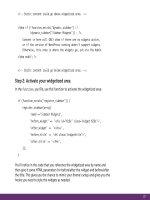
<?php query_posts(); ?>
<?php if (have_posts()) : while (have_posts()) : the_post(); ?>
// content goes here
<?php endwhile; endif; ?>
So, after placing that secondary loop into our sidebar, we embellish it as follows:
159
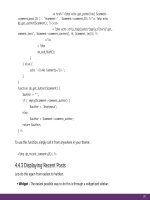
<?php query_posts('showposts=10&offset=0'); ?>
<?php if (have_posts()) : while (have_posts()) : the_post(); ?>
<a href="<?php the_permalink() ?>" title="<?php the_title(); ?>">
<img src="<?php echo get_post_meta($post->ID, 'thumbnail', true); ?>"
alt="Icon for Post #<?php the_ID(); ?>" />
</a>
<?php endwhile; endif; ?>
As you can see, in the first line, we added two
parameters – the first specifies the total number of
loop cycles (ten, in our example), and the second
indicates that we want the loop to begin with the
most recent item (i.e., no offset). Beyond that bit
of voodoo, we simply copy-&-paste our previously
marked-up get_post_meta() function to replace the
line that says:
// content goes here
Once we upload our newly edited sidebar.php file
to the server, our web pages will feature the desired
result: a nice thumbnail image gallery respectively
linked to the ten most recent posts.
Of course, custom fields may be used to associate any
type of information with your posts. Custom field
functionality greatly facilitates the use of WordPress
as a CMS. Rather than placing all of the information
associated to a post into the “Write” field, Custom
Fields enable you to segregate and subsequently
display different types of content according to any
organizational structure.
160
5.5.4 Users, Roles and Permissions
WordPress provides excellent support for multiple users. Any WordPress-powered
blog is capable of supporting a wide range of different users, each capable of
performing a different set of roles. Users are basically anyone who has registered
for your site and has a user account. What actually defines a user, however, are the
different things that they are permitted to do. The things that users can do are
called “roles,” which by default include the following:
• Administrators - Admins have full access and privileges to everything.
• Editors - Editors may publish and edit posts and manage the posts of others.
• Authors - Authors may publish and edit their own posts, but not the posts
of others.
• Contributors - Contributors may write and manage their posts, but not
publish them.
• Subscribers - Subscribers are visitors who have registered with your site. Their
privileges are no different than those of the common visitor, but subscribers
have shown extra interest in your site by providing their information while
registering for your site.
Each of these roles may be given any number of specific permissions, or
“capabilities.” When applied to a specific role, capabilities enable all users of that
particular role to do things like post content, edit posts, moderate comments, and
so on. There is no limit as to which capabilities may be enabled for any particular
role. For example, you could give subscribers more capabilities than administrators.
The entire user-management system is extremely flexible, enabling you to
customize and configure your WordPress installation for the most complex
CMS applications. The multiple-user functionality is an essential component of
WordPress’ CMS capabilities, and may be enhanced further with a variety of
plugins, which we will explore a little later in the chapter.
True Subscribers
Even though subscribers don’t
have any real admin privileges,
they are still logged in and thus
the function is_user_logged_
in() will return TRUE.
This could be a way to give
registered users extra content.
161
5.5.5 Categorizing, Tagging, and Custom Taxonomies
WordPress also provides extensive organizational capabilities through the use of a
highly flexible system of categorizing and tagging. In a nutshell, categories may be
used to define content that is broadly associated, such as “movies,” “music,” and
“food,” while tags are used to associate finer distinctions, such as “tacos,” “pizza,”
and “cheeseburgers.”
Posts may belong to any number of categories, and then tagged along more
specific characteristics. For example, a post categorized under “movies” may be
tagged with “sci-fi,” “space,” “future,” and “aliens.” This level of organization
provides much more power over the structure of your site.
In WordPress 2.3, WordPress implemented a new “Taxonomy API” that changed
the way content is categorized and organized. Since then, users have been able
to create custom taxonomies to organize their content as effectively as possible.
The concept is a little difficult to grasp at first, but if you think of taxonomies as
“groups of tags” then you’ve pretty much got it. By default, WordPress organizes
your content with the following three taxonomies:
• category - used for classifying posts into categories
• post_tag - used for tagging posts with various tags
• link_category - used to classify links into categories
As you can see, the tags used for your posts belong to the “post_tag” taxonomy.
Likewise, the categories used for your posts belong to the “category” taxonomy,
and link categories belong to the “link_category” taxonomy. In general, the tags
and categories that belong to a taxonomy are called “terms.” Thus, your post
tags are all terms of the “post_tag” taxonomy, your categories are all terms of the
“category” taxonomy, and so on.
That’s great, but how does all of this new taxonomy mumbo-jumbo help us
use WordPress as a CMS? Basically, taxonomies provide yet another level of
Custom Taxonomies
We cover the “how” of custom
taxonomies in Chapter 2.4.7.
Update: also check out Chapter
12.2.6 for more information
on the new custom-taxonomy
functionality included in
WordPress 3.0.
162
classification and organization for your content. Once you create a new taxonomy,
you can add as many terms (tags or categories) for it as desired. Here is an example
of how this type of organization would be useful:
For a Web-development tutorial site, you could create taxonomies for “topics,”
“languages,” and “applications.” Then, each of these taxonomies would be given
a series of terms that applies to each post. So for example, a post on Ajax-powered
contact forms could be classified with something like this:
• Topics - ajax, forms, wordpress
• Languages - javascript, php, sql
• Applications - blogs, e-commerce
As you can imagine, this ability to organize your tags into taxonomies opens the
doors to new possibilities, and greatly increases your ability to structure your site in
elaborate, complex ways.
5.5.6 Page Templates
Page Templates enable you to apply custom design and functionality to your
different WordPress pages. This feature enables you to craft special pages that
will process and display content according to your specific needs. Consider the
following page types and how Page Templates are used with each:
• Search Page - display results in title-only list format and include a
search-term heading
• Archives Page - organize vast amounts of archived content with template tags
and multiple loops
• Tag Archives Page - display a tag cloud along with popular and recently
updated tags
Implementing custom Page Templates is easy. The default Page template in your
Custom Post Types
Update: for even more
exibility in creating,
organizing, and displaying
custom-types of content, check
out WordPress’ new Custom
Post-Types functionality.
Learn more in Chapters
11.2.10 and 12.2.8.
163
theme is called “page.php”. If no custom page templates have been created, all of
your WordPress Pages will be displayed according to the default page.php template.
To create and use a new type of page template – for example, a template with no
sidebar and no title – simply create a file within your theme directory named
“page-nosidebar-notitle.php” and place the following code at the top:
<?php
/*
Template Name: No Sidebar No Title
*/
?>
Then, navigate to the Search Page in the WordPress Admin
and select your custom Page Template as seen in the
screenshot to the right.
This new custom Search Page may now include any code
you desire – custom loops, search listings, and so on. This
same technique for creating a custom Search Page may
be used to create any number of unique page templates,
thereby facilitating a more flexible system for managing
your online content.
5.5.7 Page, Category, and Tag Hierarchies
Another awesome CMS-enabling feature of WordPress involves the ability of users
to create page, category, and even tag hierarchies (via “taxonomies”) whereby any
number and level of “child” items may be created for any given “parent” item.
You may create any number of first-level, “child” items, as well as any number of
subsequent-level items.
164
For example, for a page named “Contact” that is used for a sports-related website
may feature a parent-child page hierarchy that organizes contact data into logical
sections:
Contact [rst-level page]
Swim Team [second-level page]
Mary Poppins [third-level page]
Tom Thumb [third-level page]
Jack Horner [third-level page]
Daisy Chain [third-level page]
Soccer Team [second-level page]
Nick Mason [third-level page]
Rick Wright [third-level page]
David Gilmour [third-level page]
Roger Waters [third-level page]
Chess Team [second-level page]
Anakin Skywalker [third-level page]
Han Solo [third-level page]
Obi-Wan Kenobi [third-level page]
Chewbacca [third-level page]
This parent-child functionality provides extremely flexible organizational
capabilities to WordPress users, enabling them to manage thousands of pages of
content quickly and easily.
This same logic is also available to the creation of subordinate categories and tags
(see previous section on “Categorizing, tagging, and custom taxonomies” for more
information).
165
5.5.8 Dynamic Menus
Every site needs a solid, well-structured navigational system, and for CMS-type
sites this is especially true. Fortunately, WordPress provides a number of powerful
functions that help users create just about every type of menu imaginable. Some
examples include:
• <?php wp_list_pages(); ?>
Automatically lists pages in just about every possible configuration imaginable.
You can control which pages are shown, limit the appearance of child pages, as
well as format page titles, customize links, specify sort order, and much more.
• <?php wp_get_archives(); ?>
Automatically lists yearly, monthly, and even daily archives for your blog.
Provides parameters to limit maximum number of items displayed, display
associated post count, and control the formatting of the list itself.
• <?php wp_list_categories(); ?>
Displays a list of categories that is completely customizable. There are
parameters for everything from excluding specific categories and specifying sort
order to inclusion of feed links control over category depth. Powerful stuff!
• <?php wp_tag_cloud(); ?>
Displays a collection of links, known as a “cloud,” for each tag used on your
blog. The relative size of each tag may be set based on popularity, or it may
be kept static for a more uniform-looking cloud. Several other customizable
features include displaying the tag links in random versus alphabetic order,
inclusion and exclusion of specific tags, and more.
As useful as some of this built-in navigational functionality happens to be, there is
always room for improvement. Here are a few of the many freely available plugins
that help improve and enhance WordPress’ default navigational system:
• WP-PageNavi
Transforms archived page navigation into a row of links to all of your pages,
enabling users (and search engines) to access any archive page with a click.
Easy Custom Menus
Update: with version 3.0,
WordPress now provides
complete control over the
creation and display of your
menus, all from within the
comfort of the WP Admin.
See Chapter 12.2.7 for details.
166
• Breadcrumb NavXT
Generates locational breadcrumb trails to help visitors where they are in the
grand scheme of things. The breadcrumb trails are highly customizable.
• Pagebar
Adds a customizable menu bar to your blog posts, multi-paged posts and paged
comments. Automatic or manual configurations possible.
• Wordpress Navigation List Plugin NAVT
Enables complete control over the creation, styling and contents of your site’s
navigation. Easy drag-n-drop interface makes menu customization a breeze.
• WP-dTree
Generates navigation trees for your posts, pages, links and categories. Uses
WordPress’ built-in Scriptaculous library for awesome display effects.
• Sub Pages widget
Displays the pages which are children from the current root page.
For more great navigational plugins, the WordPress Codex is a great place to start:
/>5.6.1 Extending CMS Functionality
As we’ve seen, the built-in CMS functionality is great, but there are many ways to
improve upon it by implementing a few choice plugins. In this section, we’ll explore
some key plugins and explain how they may be used to take WordPress’ CMS
functionality to the next level.
5.6.2 CMS-Related Plugins
There are a ton of awesome CMS plugins available for WordPress. Here are some of
the best:
Breadcrumbs Rock
For large or complex sites,
breadcrumb navigation can
be a hugely benecial part
of your site’s navigational
system. They help users orient
themselves within the site while
enabling quick and easy links
to other parts of the site.