Hands-On Microsoft SQL Server 2008 Integration Services part 56 pptx
Bạn đang xem bản rút gọn của tài liệu. Xem và tải ngay bản đầy đủ của tài liệu tại đây (384.32 KB, 10 trang )
528 Hands-On Microsoft SQL Server 2008 Integration Services
If Not Row.LastName_IsNull Then
.Write(Row.LastName)
End If
.Write(columnDelimiter)
If Not Row.Title_IsNull Then
.Write(Row.Title)
End If
.Write(columnDelimiter)
If Not Row.SalesAmount_IsNull Then
.Write(Row.SalesAmount)
End If
.Write(columnDelimiter)
If Not Row.IsBonusPaid_IsNull Then
.Write(Row.IsBonusPaid)
End If
.Write(columnDelimiter)
If Not Row.BonusAmount_IsNull Then
.Write(Row.BonusAmount)
End If
.WriteLine()
End With
Close the VSTA IDE and the Script Transformation Editor. We will now move
on to create a script destination to write into a nonstandard text file.
Nonstandard Text File Destination
In this part you will write the asynchronous output to a nonstandard text file. Considering
that you can now do some of the configurations yourself, this section is kept short and
quick.
52. Add a File Connection Manager to create a SalesSummary.txt file in the
C:\SSIS\RawFiles folder.
53. Add a Script destination component, rename it as Script Non Standard
Destination, and join it with the asynchronous output from the Script
Transformation component.
54. Perform the following in the editor:
Change the language. c
Select both the input columns. c
Rename the Input 0 to c DstAsyncInput.
Add the SalesSummary.txt Connection Manager and name it as
c
SalesSummary.
Chapter 11: Programming Integration Services 529
55. In the Code-design mode, perform the following:
Add the System.IO namespace in the Imports section. c
Create two script variables: c
Dim cmSalesSummary As String
Private textWriter As StreamWriter
Add the following code for the AcquireConnections method: c
Public Overrides Sub AcquireConnections(ByVal Transaction As Object)
Dim connMgr As IDTSConnectionManager100 = Me.Connections.SalesSummary
cmSalesSummary = CType(connMgr.AcquireConnection(Nothing), String)
End Sub
56. Initialize the textWriter in the PreExecute method:
textWriter = New StreamWriter(cmSalesSummary, False)
57. Close the textWriter in the PostExecute Method:
textWriter.Close()
58. Last, type the following code in the DstAsyncInput_ProcessInputRow method:
With textWriter
.Write("This is a Summary Report for Sales")
.WriteLine()
.WriteLine()
.Write("Total Sales Amount: " + Row.TotalSalesAmount.ToString)
.WriteLine()
.Write("Total Bonus Amount: " + Row.TotalBonusAmount.ToString)
.WriteLine()
End With
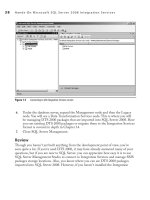
59. Execute the package and check out the output files. You will see the data from
synchronous output written into a comma-delimited text file and the data from
asynchronous output written into a nonstandard text file (Figure 11-19).
Figure 11-19 A nonstandard text file written with the data from asynchronous output
530 Hands-On Microsoft SQL Server 2008 Integration Services
Debugging Techniques for Script Component
In the previous parts, you’ve used a combination of Row Count transformation and
the data viewers to break the data flow and inspect the records visually. While this
technique is very helpful in debugging and identifying the component that is causing
issues, it fails if you want to know what’s happening within your own developed
component. You’ve used breakpoints within your scripts while working with the Script
task to step through the code to isolate the error causing rows, but unfortunately the
Script component does not support breakpoints. So, in a Script component you’ve to
use alternate techniques to capture the information within your code. SSIS provides the
following methods to capture information from within your script.
Raise informational messages
c You can raise messages from within the script
using the MessageBox.Show, Console.Write, or Console.WriteLine methods. You
will be using these methods during development when you want to find out what
rows or values are causing errors. For example, when you use the MessageBox.
Show method, the output will be displayed in a modal message box, which you
have to click to proceed further. You won’t be using this method for the normal
run; otherwise, you will have to keep clicking through the pipeline to progress the
package execution. You can test your package by adding the following line in the
Script Transformation component in the XfrInput_ProcessInputRow method
just before the line where you pass the BonusPaid value to the Row.IsBonusPaid
column (refer to Figure 11-20). is will show you the Bonus for each row, and
you will have to click OK to progress to the next row.
MessageBox.Show("BonusAmount: " + Bonus.ToString)
Raise events c You can raise various events to let the package know about some
information, warnings, or errors raised within the script. e Script component
provides the following methods that you use to raise different events.
Event Method Description
FireCustomEvent Fires a user-defined custom event—e.g., you may want to capture certain data-related
attributes.
FireError Fires an error event.
FireInformation Fires an informational message—e.g., information for auditing purposes.
FireProgress Fires the on-progress event.
FireWarning Fires a warning that is less critical than an error—e.g., a warning for a varchar(50) column
is being mapped to varchar(10), which will work as long as the data doesn’t exceed ten
characters.
Chapter 11: Programming Integration Services 531
As you know from the Script task, these methods were exposed by the event
property of the Dts global object, but the Script component doesn’t have any
such object and though the event-firing methods have the same names, they
are the methods of the IDTSComponentMetaData100 interface exposed by
the ComponentMetaData property of the ScriptMain class. This also means
the usage will be different than what you used in the Script task. Once the
events have been raised by the Script component, the package event handlers
then manage the event notifications. You can build your own event handlers to
respond to a certain event—e.g., you can change the course of a package work
flow in response to an event raised by the Script component.
To raise an event, you need to declare a variable for this interface as
Dim myMetadata as IDTSComponentMetaData100
and then add the following lines in the code where you earlier put the
MessageBox (Figure 11-20).
If Bonus > 1000 Then
myMetaData = Me.ComponentMetaData
myMetaData.FireInformation(0, "Script Transformation
Component", "Bonus paid: " + Bonus.ToString, String.Empty, 0, False)
End If
Figure 11-20 Raising events in a Script component
532 Hands-On Microsoft SQL Server 2008 Integration Services
This will raise informational messages to tell the package the amount of bonuses
paid whenever the bonus is more than 1000. You can see these messages
displayed in the output window and in the Progress tab. Refer to Books Online to
know how different methods can be written and how they print their messages.
Log information
c Much as when raising events, you can log detailed information
about the execution progress, results, and errors. You can also raise events first and
then log those events later. e main difference between first raising events and
then logging compared to direct-logging to a log provider is that the direct logging
method doesn’t provide you an opportunity to build event handlers to respond to
the events. If you want to use a log directly without using any other log event, then
you must use the ScriptComponentLogEntry event while configuring logging for
the Data Flow task as shown in Figure 11-21. e ScriptComponentLogEntry
Figure 11-21 Custom log entry for the Script component
Chapter 11: Programming Integration Services 533
event gets added to the Data Flow task event in the Log Details tab when you
add a Script component into the Data Flow task. After selecting this log entry, use
the Log method within the ScriptMain class to log directly to the log providers
enabled in the package. For example, if you add the following code in the Script
Transformation component instead of the information event, the package will log
the lines where the bonus is more than 1000:
Dim bt(0) As Byte
If Bonus > 1000 Then
Me.Log(Bonus.ToString, 0, bt)
End If
Review
You’ve used the Script component to configure a source, a transformation, and a
destination in this exercise. You’ve also learned the different types of outputs—i.e.,
synchronous and asynchronous outputs—that you can configure for a Script
Transformation component. The general steps you followed to create any of these
components is to configure the component first in the metadata design mode and
then in the code design mode to write custom code for the processing rules. Do not
underestimate the power of metadata design mode, as the settings you use in this
mode are used to create code for you in the three project items—BufferWrapper.vb,
ComponentWrapper.vb, and main.vb. While the code is auto-generated for both the
BufferWrapper.vb and ComponentWrapper.vb items whenever you make a change,
this does not happen for the main.vb project item. The code for the main.vb project
item is auto-generated only once, when you invoke the code design mode for the first
time. Though you can always write the code to fix anything that has been missed by
the auto-generated code, it will be far easier and effective to let the auto-generation
engine work for you, especially during the initial days of your working with the Script
component. Also, make sure you understand the differences between a Script task and
the Script component, especially how the different properties and methods are exposed
within both the objects. For example, the variables and the connections are exposed by
the Dts object in the Script task, while they are exposed using strongly typed accessor
properties within the Script component. Last, the debugging techniques are different
in both the objects—while you can use breakpoints to debug a Script task, you’ve to use
alternate methods to debug a Script component such as MessageBoxes, data viewers,
and events.
534 Hands-On Microsoft SQL Server 2008 Integration Services
Summary
You’ve worked with the object model of Integration Services in this chapter and learned
the different options it provides to extend an SSIS package. Based on your problem
and the skills you have in-house, you can choose an appropriate method from scripting,
developing custom objects, or programming packages from scratch. Later you worked
with the Script task and the Script component and understood the various methods and
properties provided by their object models. You also learned that though you have to
write code differently for both the objects to use their methods, they provide the same
functions, such as access to package variables or connection managers and the ability
to raise events and log information. There are many samples contained in the Books
Online that can enhance your understanding about the workings of SSIS object model.
Also, check out the CodePlex site as well to see some rich programming content to
hone your programming skills.
Data Warehousing
and SQL Server 2008
Enhancements
Chapter 12
In This Chapter
c
The Need for a Data Warehouse
c
Data Warehouse Design
Approaches
c
Data Warehouse Architecture
c
Data Warehouse Data Models
c
Loading a Dimension Using a
Slowly Changing Dimension
c
Data Model Schema
c
Building a Star
Schema
c
SQL Server 2008 R2 Features
and Enhancements
c
SQL Server 2008 R2 Data
Warehouse Editions
c
SQL Server 2008 R2 Data
Warehouse Solutions
c
SQL Server 2008 R2 Data
Warehouse Enhancements
c
Summary
536 Hands-On Microsoft SQL Server 2008 Integration Services
N
ow that you have gone through all the development chapters on Integration
Services, it is time to take a slight digression to understand the facilities
that are available outside SSIS that can be very helpful in developing a
well-performing data operations and management system. Soon after developers start
using an ETL tool such as Integration Services, they will find themselves working on
some operation of a data mart or a data warehouse. It is therefore necessary that you
understand the data warehousing and the processes involved along with the tools and
utilities that are available in SQL Server 2008, which can be exploited to develop data
warehousing processes. You can use the tools and utilities provided in SQL Server
2008 to enhance an SSIS package or replace some of the package functionality so that
overall solution performs well. This chapter is primarily split in two parts, with first
part focusing on data warehousing and the second part on SQL Server 2008 database
engine enhancements, such as change data capture (CDC), backup compression,
and the MERGE statement, along with two new editions specially targeted to data
warehouses. The purpose of this chapter is not to cover how to use or configure the
new functionalities, as it would be too great a deviation from the subject of this book,
but to know how you can use them alongside SSIS to best utilize the toolset you
have. However, if I succeed in my little effort to induce enough interest in you in data
warehousing, there are tons of books and other online material available that I would
recommend for you to check out.
The Need for a Data Warehouse
As a business starts, it needs to capture information and record transactions to support
business needs. The applications that help to serve this need are called line of business
(LOB) applications. The systems used to support line of business applications are
referred to as online transactional processing systems. OLTP systems are designed to
respond very quickly for accessing and recording small chunks of information. Generally,
lots of users are connected to such systems performing transactions to support activities
such as sales, billing, and order management. Technically, OLTP systems are highly
normalized to capture the current state of information and not to keep the historical
data. As the business grows, the business managers need some reporting out of the
information systems to take business forward, for example, how many sales yesterday
or the how many deliveries completed. These kinds of reports are called operational
reporting and to some extent can be served from OLTP systems. However, when the
business has grown enough and is in such a good position that the OLTP systems are
running busy most of the time, you can’t run reports on them. Running reports touches
more data and requires more resources that affect the performance of already-busy
OLTP systems and can result in lost sales. So, the IT extracts data from OLTP systems
into new systems so as to serve reports. As the report recipients generally do not want to
Chapter 12: Data Warehousing and SQL Server 2008 Enhancements 537
look at detailed information related to individual transactions, it makes sense to extract
data to only the lowest level of granularity required.
Think of a web-based business that allows customers to buy products online. The
underlying OLTP system keeps information about all the activities of the customers
that may not be important for creating business reports. For example, a customer
might have added three similar types of products in the basket, but while checking
out removed two of the products from the basket after looking at the delivery charges
for each of the items. While this data might be interesting for purposes such as data
mining or to understand customer behavior, it is not very interesting for the business
manager, who is concerned about the sales of the day only. So, while taking out data
from an OLTP system, data is cleaned at the individual sales level, removing unwanted
details. This data is still the detailed data as per requirements of the business manager
and is kept more or less in the same format as that of the source OLTP system.
Furthermore, this data might be combined with data from other source systems to
create a bigger picture. In our example, consider joining the sales information with
the information coming from the customer repository system to know who is an active
buyer. These systems that keep cleaned, subject-oriented information at a detailed level
and collect this information in real- or near-real-time mode are called operational data
stores, or ODS in short.
Once the business creates an ODS system, they look forward to get the right
information at the right time to make well-informed decisions. However, an ODS is
limited by its very definition and cannot answer the questions that are spread across
the enterprise or are related to multiple departments. This is the beginning of the need
to have a decision support system (DSS) within the organization. As an organization
grows further where it becomes important to improve business performance and make
strategically right decisions, more complex questions are being put to information
systems. These complex questions generally contain comparisons with a previous period
such as sales this quarter compared to sales in the same quarter last year. This creates
a need to keep data over longer periods of time. Some businesses that fall under strict
regulations—e.g., the financial services industry—may be required to keep data as long as
five to ten years. Keeping data over longer periods is not just to comply with regulations,
but also to get some answers that otherwise would not be possible. A business dependent
on sales around Christmas day might ask the sales comparison over a week not with
the last year, but with the year when Christmas was on the same day of the week (say
Thursday), previously. Also, as the organization evolves and starts to sell multiple
products across multiple zones and countries, another need arises to see the single
version of truth. This will mean that the data from multiple source systems needs to be
collected in a common place and business rules need to be applied to collate the data
to create an information store that can answer the complex questions across countries,
currencies, products, departments, and time. The operational reports created on top