Hands-On Microsoft SQL Server 2008 Integration Services part 54 potx
Bạn đang xem bản rút gọn của tài liệu. Xem và tải ngay bản đầy đủ của tài liệu tại đây (397.46 KB, 10 trang )
508 Hands-On Microsoft SQL Server 2008 Integration Services
import. We have to write custom code to parse the good rows of data into the correct
columns. So, let’s start configuring our first Script component.
1. Add a new Integration Services package in the Programming SSIS project and
rename it as Extending Data Flow with Script Component.dtsx.
2. Add a Flat File Connection Manager for C:\SSIS\RawFiles\Sales.txt file with
default settings and rename it to Sales.
3. Add a Data Flow task in the newly created package and double-click it to go to
the Data Flow tab. Drag and drop the Script component onto the Data Flow
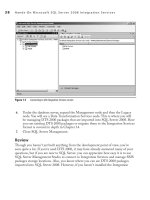
Designer surface. The Select Script Component Type dialog box will pop up on
the screen (see Figure 11-10). Select the radio button to configure the component
as a Source and click OK to place this task as a source on the Data Flow Designer
surface.
4. Rename the component as Script Source Component and double-click to open
the Script Transformation Editor. Change the ScriptLanguage to Microsoft
Visual Basic 2008.
5. Rename the Output 0 in the Inputs And Outputs page to SalesOutput. Note
that you have only one output available in this tab and no inputs. Though you can
add more outputs if you wish to create a multiple outputs source, you can’t add
an input here. This is because the Sources have no inputs. You refer to outputs
(and inputs) with their names suffixed by buffer in the code. For example, the
SalesOutput will be referenced in the code with the name SalesOutputBuffer.
Figure 11-10 Selecting the Script component type in the Data Flow Designer
Chapter 11: Programming Integration Services 509
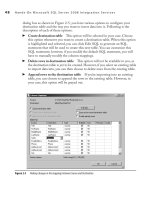
6. Expand the SalesOutput and click the Output Columns node. Now you can add
columns to SalesOutput by clicking Add Column. Click this button four times to
add four columns with the following details as shown in Figure 11-11.
Column Name Data Type Length
FirstName string [DT_STR] 20
LastName string [DT_STR] 20
Title string [DT_STR] 20
SalesAmount four-byte signed integer [DT_I4]
Figure 11-11 Adding columns in the Script Source Component Outputs
510 Hands-On Microsoft SQL Server 2008 Integration Services
Remember that when you decide on a data type for the columns here, it is
efficient to choose the correct data types; for instance, we used length 20 in this
case instead of default 50. The space we save by using the correct data type that
is sufficient enough to fit the data will mean more rows can be fit into the data
buffers and hence SSIS can work faster. It is as if to say, you need to take fewer
buckets out of the well if you fill your buckets up to the full capacity.
7. Now go to the Connection Managers page and add the Sales Connection
Manager. Change the name from Connection to Sales in the Name field. This
name is exposed inside the script and makes accessing the package connection
managers quite easy in your script.
8. Now click the Edit Script button in the Script page to open the scripting
environment. As you can see this environment is quite different than the one
you’ve seen earlier in the Script task. So, let’s spend some time here to understand
various parts of this auto-generated code.
First of all, notice in the Project Explorer window that there are three project
items in the ScriptComponent project—BufferWrapper, ComponentWrapper,
and Main.
BufferWrapper
c e classes in the BufferWrapper project item provide
methods for working with the data flow buffers and typed properties for
each column. Double-click the BufferWrapper.vb project item to the auto-
generated code. It contains a public class for each output buffer, in our case,
only one SalesOutputBuffer, and two typed write-only properties for each
column; one with the column name to refer to the column in the code and
the other one with the column name suffixed with _IsNull to set the column
value to null. Scroll all the way down to see an AddRow method that is used
to add an empty row to the output buffer, and a SetEndOfRowset method
that determines, using the EndOfRowset function, that the current buffer
is the last buffer of data and passes this information to the data flow engine.
Note that the ScriptBuffer class serves as the base class for the read-only
classes representing the input and the outputs. You are not supposed to edit
this auto-generated code, as it will be overwritten when you modify the Script
component.
ComponentWrapper
c e classes in the ComponentWrapper project
item provide methods and properties to process data and to interact with
the package objects. Double-click ComponentWrapper.vb to see the auto-
generated code. is project item creates a UserComponent class that is
inherited from the ScriptComponent class. e ComponentWrapper has
an overridden implementation of PrimeOutput method that is called only
once at run time. e PrimeOutput method prepares the outputs to accept
Chapter 11: Programming Integration Services 511
new rows and is used for the outputs where you add new rows to the output
buffers such as a source or a transformation with asynchronous output. is
method then passes the processing to CreateNewOutputRows method, the
FinishOutputs method, and MarkOutputsAsFinished, which sets the end of
rowset on the last output buffer. Note that the ComponentWrapper item also
contains Connections and Variables collection classes. As with BufferWrapper,
you are not supposed to edit this auto-generated code, as it will be overwritten
when you modify the Script component.
Main
c is project item contains the ScriptMain class, which inherits from
the UserComponent class. In contrast to the other two project items where
you don’t write your code directly against them, you will be writing your code
here using methods and properties provided by the derived classes in this
project item. Double-click main.vb to see the auto-generated code for the
configurations you’ve done earlier in the metadata design mode. Also, bear
in mind that the auto-generated code in the Main.vb item is generated only
when you click the Edit Script button for the first time. Later, when you make
changes to the Script component, for example, you may add more outputs; the
Main.vb code is not updated with those changes and you have to add methods
and properties manually to perform the additional functions. is behavior
also means that the code you write in the Main.vb project item is persisted
within the Script component and the auto-generation of code doesn’t affect it.
Note that the imports statements have two wrappers. These are the Primary
Interop Assemblies for their respective namespaces. The run-time wrapper
provides the classes and interfaces used to access the Control Flow components
in the run time, while the pipeline wrapper provides the classes and interfaces
used to create custom Data Flow components. This implies that the wrappers
help your custom script to access package objects such as variables and connection
managers, in the same way as the Dts global object provides access in the
Script task.
The ScriptMain class is the entry Point class here, but there is no Main()
subroutine such as you’ve seen in the Script task. In a script Source component,
most of the work is performed in the CreateNewOutputRows() subroutine.
The CreateNewOutputRows method is used along with the AddRow method
to add new rows to the output and is primarily used when you’re writing code
for a source or for an asynchronous output. You will study the synchronous and
asynchronous outputs in the next part of this Hands-On exercise. There are
two more subroutines, PreExecute() and PostExecute(). As the names indicate,
these subroutines run any one-time tasks necessary before and after the Script
component has processed its inputs and outputs to perform, such as initializing or
closing connections.
512 Hands-On Microsoft SQL Server 2008 Integration Services
9. As we are going to use StreamReader to read our nonstandard text file, add the
following namespace in the Imports statements.
Imports System.IO
Declare the following in the ScriptMain class:
Private textReader As StreamReader
Private SalesFile As String
10. Next, to use the package connection manager Sales in your script—the connection
manager you specified in the Connection Managers page in the Script
component GUI—you can use the AcquireConnections method along with the
IDTSConnectionManager100 interface that returns a reference to the required
connection manager. You can override the AcquireConnections method to
retrieve the connection information from the Sales Connection Manager. Add
the following subroutine below the previous statements as shown in Figure 11-12.
Public Overrides Sub AcquireConnections(ByVal Transaction As Object)
Dim connMgr As IDTSConnectionManager100 = Me.Connections.Sales
SalesFile = CType(connMgr.AcquireConnection(Nothing), String)
End Sub
11. As the connection has been set to the Sales.txt file using SalesFile connection
manager string in the previous step, now you can initialize the textReader
to connect to the SalesFile. As this is a one-time operation that needs to
be performed before the component starts reading the file, we will use the
PreExecute method. Add the following lines in the PreExecute subroutine:
MyBase.PreExecute()
textReader = New StreamReader(SalesFile)
12. While you have opened the text reader, it needs to be closed after all the rows
have been processed. As this is a one-time operation that needs to be performed
after processing of rows, you will use the PostExecute method for this. Add the
following code in the PostExecute subroutine:
textReader.Close()
13. Finally, you can create new output rows as the text reader reads the text file. Add
the following piece of code in the CreateNewOutputRows subroutine (refer to
Figure 11-12).
Dim textLine As String
textLine = textReader.ReadLine
Do While textLine IsNot Nothing
If textLine.StartsWith("BEGIN_RECORD") Then
SalesOutputBuffer.AddRow()
ElseIf textLine.StartsWith("FirstName: ") Then
SalesOutputBuffer.FirstName = textLine.Remove(0, 11)
ElseIf textLine.StartsWith("LastName: ") Then
SalesOutputBuffer.LastName = textLine.Remove(0, 10)
Chapter 11: Programming Integration Services 513
ElseIf textLine.StartsWith("Title: ") Then
SalesOutputBuffer.Title = textLine.Remove(0, 7)
ElseIf textLine.StartsWith("SalesAmount: ") Then
SalesOutputBuffer.SalesAmount = textLine.Remove(0, 13)
End If
textLine = textReader.ReadLine
Loop
Figure 11-12 Code listing for the Script Source Component
514 Hands-On Microsoft SQL Server 2008 Integration Services
This code reads a line of using the textReader ReadLine function and stores the
line into the textLine string variable. The read process is in the while loop that
goes on till there is nothing to read. Once a line has been read, it then passes
through various case statements and, depending upon the evaluated conditions,
it either adds a new row to the output buffer using the AddRow method or adds
the data into any of the evaluated columns. Last, it is a good practice to use a
SetEndOfRowset method that determines that the current buffer is the last
buffer of data so that the downstream components know that no more rows are
expected. One example of SetEndOfRowset is shown later in the chapter (refer to
Figure 11-17). Close the scripting environment and click the OK button on the
Script Transformation Editor as you’ve created a Script Source component.
14. Though we will debug the package when it is ready, running the package now
to test the script source will be a good idea and will confirm that the code we
have built so far is working. To run the package and see how the file has been
read, we will use a Row Count transformation, as it can consume pipeline rows
without requiring a destination. Also, we will need a variable to configure this
transformation.
15. Create a variable varRecords at the package scope of the Int32 data type with
0 as its value. Drop the Row Count transformation below the Script Source
component and join both of them with the data flow path.
16. Add a grid-type data viewer to the path to row count to see the records in a
tabular format. To add a data viewer, double-click the data flow path, go to Data
Viewers page, click Add, and choose the Grid type data viewer.
17. Execute the package and you will see the SalesOutput Data Viewer showing the
records that we wanted to read in a tabular format as shown in Figure 11-13. At
this time if you open the file, you can appreciate that the Script component has
read the data from a nonstandard text file and formatted it in a much easier to
read and easier to operate on format. Also, it has nicely ignored the comments in
the text file that we didn’t want to read anyway.
Figure 11-13 SalesOutput Data Viewer showing the data in a grid format
Chapter 11: Programming Integration Services 515
Script Component as a Transformation
In this section, you will learn to configure a Script component as a transformation.
You will be writing code for a script transformation more often than writing code
for a script source or a script destination. So, it is more important to understand the
components involved in designing code for a transformation. You have imported Sales
data into the pipeline using a script source; now in this part of the exercise, you will
derive bonuses paid out to the employees based on title and the sales amount that
each employee achieves. Business also wants to know the total sales amount and the
total bonus disbursed as a separate reports. The business rules are defined in this way:
Bonuses will be paid to all employees who achieve their targets. The target for a Sales
representative is ten thousand dollars, that for a Sales Manager is fifty thousand dollars,
and that for Vice President is one hundred thousand dollars. A bonus is paid at a fixed
rate of 2 percent of the sales amount, and business wants to know who has been paid
bonuses and how much. Second, business also wants to know the aggregated sales and
bonus amounts.
From this description, you can very well understand that you need to derive an
indicator for bonuses paid and derive the bonus amount per employee if he or she
has achieved the target. Second, you need to aggregate sales amount and the bonus
amount and write those values into a separate file. It is also evident that while the
first requirement can be derived using row-based operations, the second requirement
is a complete rowset-based operation. This also leads us to a brief discussion of
synchronous and asynchronous components. These components will be covered in
detail in Chapter 15, but here just keep in mind that a synchronous component is one
in which the output is synchronous to the input—for instance, the rows get processed
as they come and row-level operations are performed such as deriving a column value
based on the other column values. On the other hand, the asynchronous components
are the ones that perform operations on the complete rowset instead of one row, such as
aggregations and sorting operations. These operations need all the rows before they can
provide outputs. Moreover, the output rows can be different (generally less) than the
input rows, which is opposite to the synchronous component, which outputs the same
number of rows it receives at the input. One last but very important difference from the
point of view of writing code: The synchronous components work on the same buffers
of data sets and do not create or write data to new buffers; they simply add or change
data in the same buffer. On the other hand, asynchronous components block inputs,
collect all the input rows, perform the required operations, and write outputs to new
buffers, which means they work with more than one buffer at a time. This also explains
why the asynchronous components generally need more memory.
So, we will create two outputs for our script transformation. They will be, as you can
guess, synchronous and asynchronous to meet both the requirements.
516 Hands-On Microsoft SQL Server 2008 Integration Services
Scripting a Synchronous Transformation
In this part you will create an IsBonusPaid indicator based on the targets and will
derive the bonus using the sales amount. Though this kind of operation doesn’t
need SSIS to be scripted, as the Derived Column transformation is quite capable
of performing such operations, this example will show you how you can implement
complex business requirements that otherwise can’t be met using preconfigured
components in Integration Services.
18. When you are ready to proceed, create a variable for the bonus calculation at the
package scope with the following details:
Name
varBonusMultiplier
Data Type
Int32
Value
2
19. Delete the data flow path between Row Count and the Script Source component.
Drop a Script component in between the Script Source component and the
Row Count transformation. Choose Transformation and click OK in the Select
Script Component Type dialog box. Rename this as the Script Transformation
Component.
20. Join this new transformation component with the source and the row count
transformation. Double-click the newly added script transformation component
to open the editor. Change the ScriptLanguage to Microsoft Visual Basic 2008.
21. Just as with a Script task, you can make the package variables available to your
script using ReadOnlyVariables or ReadWriteVariables fields. Select the
User::varBonusMultiplier variable in the ReadOnlyVariables field.
22. Note that you have one additional page, this time called Input Columns, in which
you can select the columns you want to work with. In this page, when you select
an input column, you can specify the Usage Type as ReadOnly or ReadWrite.
This is quite a handy feature from a data security perspective, as it won’t let the
columns marked for the ReadOnly usage type get accidentally updated. For
example, you may want to derive data using your custom code and want to output
that derived data in the new output column; it is advisable to mark the input
column’s usage type as ReadOnly. You can assign an alias to the output column
in the Output Alias column in case this is a ReadWrite column and you’re going
to update this column. Also, keep in mind that you don’t need to select all of the
available fields in the input; rather, it is efficient to select only the fields you’re
going to work with. The unselected fields will be passed on to the downstream
component as is without any changes. Typically the synchronous component
works only on the columns used in the derivations in a buffer and rest of columns
Chapter 11: Programming Integration Services 517
in the buffer stay untouched and the buffer is passed on to the next component in
the data flow.
23. Select the Title and SalesAmount columns and assign them a ReadOnly usage type.
24. Go to Inputs and Outputs page. Note that you’ve two items here, Input 0 and
Output 0. This is because a transformation has both the inputs and the outputs.
Rename the input 0 to XfrInput and the Output 0 to SynchXfrOutput. Expand
the XfrInput to see the Title and SalesAmount fields that you’ve selected in the
Input Columns page. Note that you can add more outputs here but not inputs.
This is because a Script component can have only one input when used as a
transformation or a destination. Also, remember that a script source doesn’t have
any input. Click the SynchXfrOutput. Here are two important properties that
need to be understood properly, as they can be quite useful on some occasions.
The first property is the ExclusionGroup, which is set to 0 by default. This
implies that all the input rows are sent to all the outputs. If you add more than
one output to your Script component and you do not want all the rows to be sent
to all the outputs—i.e., you want to split the rows between outputs based on some
criteria—you will need to set the ExclusionGroup value to be the same on all the
outputs to indicate that you want to split the rows among all the outputs; this may
be any arbitrary nonzero value. In this case you will use DirectRowTo<Output
Name>Buffer method in your code to decide where to direct the different types of
rows. For instance, along with usual data split, you can actually use this method
to direct error rows to one of the outputs and have a made-up error output, which
otherwise is not provided by the Script component.
The second property is SynchronousInputID that by default contains the ID
of the input for the first output. This tells the Data Flow task to add rows from
the input buffer to the output buffer of the component. When you add a second
output or more outputs to your component, you need to set this ID yourself, as it
is not set automatically. If you set the value of SynchronousInputID to None, the
output becomes asynchronous, in which case you must add the rows to the output
buffer after applying transformation logic on the input rows. You will use this
attribute while adding an asynchronous output to this component in the next part
of this Hands-On exercise.
25. With this component, you will be creating two more derived columns to meet the
exercise requirements. So, add two output columns in the SynchXfrOutput with
the following details:
Column Name Data Type Length
IsBonusPaid string [DT_STR] 1
BonusAmount numeric [DT_NUMERIC]
As you won’t be connecting to any outside data source, you don’t need to any
connection manager in the Connection Managers page.