Real World Adobe InDesign CS4- P11 pptx
Bạn đang xem bản rút gọn của tài liệu. Xem và tải ngay bản đầy đủ của tài liệu tại đây (1.33 MB, 30 trang )
Before Last. e value you enter here sets the minimum size, in char-
acters, of the word fragment following a hyphen. Some people don’t
mind if the “ly” in “truly” sits all by itself on a line. You care about
type, so you set this to at least three.
Hyphen Limit. You can limit the number of consecutive hyphens
you’ll allow to appear at the le edge of a column of text using the
Hyphen Limit eld. Enter a value greater than one to allow consecu-
tive hyphens.
Hyphenation Zone. Another way to limit the number of hyphens
in a paragraph is the Hyphenation Zone setting. e idea is that
there is an invisible zone along the right margin of each paragraph.
If InDesign is trying to break a word at the end of a line, it looks to
see where the hyphenation zone is. If the word before the potentially
hyphenated word falls inside the zone, then InDesign just gives up
and pushes the word onto the next line (without hyphenating it). If
the previous word does not fall into the zone, then InDesign will
hyphenate the word.
at’s the concept, at least. As it turns out, InDesign’s composi-
tion algorithms are complex enough that the hyphenation zone is
oen overridden by other factors, especially when using the Para-
graph Composer. In addition, the Hyphenation Zone setting doesn’t
have any eect at all on justied text. In general, for non-justied
text, larger amounts mean fewer hyphens but more variation in line
lengths (“rag”).
Hyphenation Slider. Someone, somewhere must have complained
that InDesign’s hyphenation controls weren’t exible enough,
because those wacky engineers at Adobe have added the Hyphen-
ation Slider to the Hyphenation Settings dialog box. We’re sure
there’s a lot of math behind what this slider is doing, but all you really
need to know is that you can move the slider back and forth between
Better Spacing and Fewer Hyphens to get a more pleasing appear-
ance (turn on preview to see the eect of the slider).
is control is called “Nigel” because it goes all the way to eleven.
Hyphenate Capitalized Words. To prevent capitalized words (i.e.,
proper names) from hyphenating, turn o this option.
Hyphenate Last Words. We pride ourselves on having open minds
and strong stomachs, but there are few things more nauseating than
the last word of a paragraph being hyphenated, leaving a little runt
Real_World_Adobe_InDesign_CS4b.pdf 301Real_World_Adobe_InDesign_CS4b.pdf 301 08/04/2009 05:54:54 p.m.08/04/2009 05:54:54 p.m.
.
on the last line. We won’t say that it’s impossible to avoid it entirely,
but you should at least turn o the Hyphenate Last Words checkbox,
so that it won’t happen automatically.
Hyphenate Across Columns. Our generous, kind, and patient pub-
lisher asks little from us (besides the best book we can muster), but
they do ask one thing: Please don’t allow words to hyphenate from
one page to another. In older editions, we had to proof each page
manually. Now we simply turn o the Hyphenate Across Columns
checkbox in our body text paragraph style. Note that this stops
hyphenation across all columns, even from one column in a multi-
column text frame to the next. By the way, we have seen this control
fail, so it appears that InDesign considers it a request rather than a
rule; it tries not to hyphenate across a column, but it will if it thinks
it needs to.
Discretionary Hyphens. ere’s another way to control hyphenation:
Use a discretionary hyphen character. When you type a discretion-
ary hyphen (Command-Shi-hyphen/Ctrl-Shi-hyphen) in a word,
you’re telling InDesign that you wouldn’t mind if the word hyphen-
ates here. is doesn’t force the program to hyphenate the word at
that point; it just gives it the option. is is much better than typing
a regular hyphen because if (or when) your text reows, you won’t be
stuck with hyphens littered in the middles of your paragraphs—the
discretionary hyphen “disappears” when it’s not needed. Another
way to get a discretionary hyphen is to use the Insert Special Charac-
ter submenu (in the Type menu or the context-sensitive menu).
By the way, longtime QuarkXPress users know that in that pro-
gram you can place a discretionary hyphen before a word to make it
not break. at’s also true in InDesign, but, if you want a word (or
phrase) not to hyphenate, select the text and turn on the No Break
option in the Character panel’s menu. If it’s a word that you think
should never be hyphenated, or should always be hyphenated dier-
ently than InDesign thinks, you can add it to your user dictionary
(see “Adding Words to the User Dictionary” in Chapter 3, “Text”).
When InDesign composes the text in your publications, it does so
by following the spacing rules you’ve laid down using the controls in
the Justication dialog box (choose Justication from the Paragraph
panel menu or press Command-Option-Shi-J/Ctrl-Alt-Shi-J to
display the dialog box; see Figure 4-50). Contrary to popular opinion,
this dialog box controls all text composition, not only that of justi-
ed text.
Controlling Word and
Letter Spacing
Real_World_Adobe_InDesign_CS4b.pdf 302Real_World_Adobe_InDesign_CS4b.pdf 302 08/04/2009 05:54:54 p.m.08/04/2009 05:54:54 p.m.
is dialog box oers six controls: Word Spacing, Letter Spacing,
Glyph Scaling, Auto Leading, Single Word Justication, and Com-
poser. e important thing to remember is that you will never nd a
set of spacing values that will work for all fonts, point sizes, and line
lengths. e text itself plays a role: spacing settings that work for one
author may not work for another, even when the typesetting speci-
cations are the same. You have to experiment to discover the settings
that work best for you and your publications.
InDesign’s default settings give you a reasonable starting point.
e spacing values encourage wide word spacing over narrow word
spacing, and attempt to discourage letter spacing.
Word Spacing. You can adjust the amount of space InDesign places
between words by changing the Minimum, Desired, and Maximum
percentages. In non-justied text, only the Desired value matters. In
InDesign, the values in the word spacing elds are percentages of the
standard word space (the width of the space is dened by the font’s
designer, and is stored in the font). e defaults tend to encourage
wide word spacing over narrow word spacing in justied text.
Letter Spacing. You can adjust the amount of space the program
places between each character in your paragraphs by changing the
Minimum, Desired, and Maximum percentages. Again, in text that
isn’t justied, only the Desired value makes a dierence. Note that
these percentages represent the amount of variation from a standard
spacing unit—the “spaceband” dened in the font. By default, the
percentages are all set to zero, which discourages letter spacing.
Glyph Scaling. When you enter anything other than 100% in any of
the Glyph Scaling elds, you give InDesign permission to scale the
characters in the paragraph to make them t. Ole and David disagree
on usefulness of this feature. Ole is not a type purist, but he does
not see the point in distorting character shapes when other, better
options are available. Why take the risk? David, on the other hand
insists that no one can see the dierence when you allow InDesign
-
Justication Dialog Box
Real_World_Adobe_InDesign_CS4b.pdf 303Real_World_Adobe_InDesign_CS4b.pdf 303 08/04/2009 05:54:54 p.m.08/04/2009 05:54:54 p.m.
.
to scale glyphs by plus or minus one percent (and sometimes even
two). Ole thinks that this is something like thinking that it’s not
committing a crime if no one catches you.
Both authors agree that glyph scaling might come in handy if you
have exhausted every other available option to get a line to t. What
you do is, of course, up to you and your conscience.
Auto Leading. e Auto Leading feature is easy: is controls how
InDesign calculates the leading of characters that have a leading of
Auto (see “Leading,” earlier in this chapter, for why we almost never
use Auto leading). is control is here, rather than in one of the Pref-
erences dialog boxes, because the base autoleading percentage is a
property of individual paragraphs (unlike QuarkXPress, where the
autoleading percentage is set at the document level).
Single Word Justication. What do you want InDesign to do when a
word in the middle of a paragraph is so long (or a column so narrow)
that only that one word ts on the line? If the line isn’t justied, it’s
no big deal. But if the line is justied, do you want InDesign to add
letterspacing to spread the word out across the line? Or make it ush
le, ush right, or centered? at’s what the Single Word Justica-
tion pop-up menu controls.
Composer. Earlier in this chapter, we discussed the Paragraph Com-
poser and how it’s dierent from the Single Line composer. Here’s
one more place you can specify which InDesign should use.
Sometimes headlines or headings are way out of balance—and we
don’t just mean the political slant. We mean that the lines are of
wildly varying length. e rst line lls the column; the second line
contains a single short word. is is, at best, unsightly; at worst, it
makes the text hard to read.
InDesign’s Balance Ragged Lines feature can help you make the
line widths in a paragraph more even. To do this, choose Balance
Ragged Lines from the Paragraph panel or Control panel menu.
(Note that this feature only works on non-justied paragraphs.) Take
a look at Figure 4-51 to see the eect of Balance Ragged Lines.
If the last line of the paragraph is signicantly narrower than the
other lines, the program breaks the text so that the last line is wider.
Balance Ragged Lines generally produces an inverted pyramid
shape—that is, the rst line is longer than the second line, the third
line is shorter than the second line, and so on. is matches Ole’s
expectations, but is the opposite of what David expects.
Balance Ragged Lines
Real_World_Adobe_InDesign_CS4b.pdf 304Real_World_Adobe_InDesign_CS4b.pdf 304 08/04/2009 05:54:55 p.m.08/04/2009 05:54:55 p.m.
InDesign can “ag” text composition problems—cases where the
program has had to break your rules for composing text, or where
substituted fonts appear in your publication. Open the Preferences
dialog box, choose the Composition pane, then turn on the options
in the Highlight section of the Composition Preferences dialog box.
Lines in which InDesign has had to violate composition rules you’ve
established (using the Justication and Keep Options dialog boxes)
are highlighted in yellow; substituted fonts are highlighted in pink
(see Figure 4-52). We usually work with these turned on so we can
quickly identify “problem” lines.
A widow is the last line of a paragraph that winds up all by itself at
the top of a column or page. An orphan is the rst line of a paragraph
that lands all by itself at the bottom of a column or page. Widows and
orphans are the bane of a typesetter’s existence.
Designers sometimes also refer to the single-word last line of a
paragraph as either a widow or an orphan. To avoid the confusion,
we oen just use the word runt.
All typographic widows and orphans are bad, but certain kinds
are really bad—for example, a widow line that consists of only one
word, or even the last part of a hyphenated word. Another related
typographic horror is the heading that stands alone with its follow-
ing paragraph on the next page.
Fortunately, InDesign has a set of controls that can easily prevent
widows and orphans from sneaking into your document. ese con-
trols—along with a setting that lets you force a paragraph to begin
at a particular place—live in the Keep Options dialog box, which
Highlighting
Typographic
Problems
Paragraph
Keep Options
-
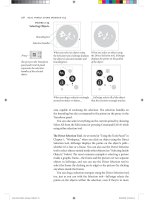
Balancing Ragged Lines
Select a paragraph and choose
Balance Ragged Lines from the
Paragraph panel menu or
Control panel menu.
InDesign changes the line
breaks in the paragraph to
make the width of the lines
more even.
Since Balance Ragged
Lines is a paragraph-level
attribute, it can be made
part of a paragraph style.
e lines of this heading are
of very dierent widths.
Real_World_Adobe_InDesign_CS4b.pdf 305Real_World_Adobe_InDesign_CS4b.pdf 305 08/04/2009 05:54:55 p.m.08/04/2009 05:54:55 p.m.
.
you can nd by selecting Keep Options from the Paragraph panel’s
menu, or by pressing Command-Option-K/Ctrl-Alt-K (see Figure
4-53). ere are three parts to this dialog box: Keep with Next, Keep
Lines Together, and Start Paragraph.
When you turn on the
H&J Violations option…
…InDesign highlights lines
that break the spacing ranges
you set in the Justication
dialog box.
InDesign uses three shades
of yellow to highlight loose
or tight lines—darker
shades indicate more
severe spacing problems.
-
Highlighting Loose
and Tight Lines
is heading has come
“unstuck” from the
paragraph following it.
To prevent this, select the
heading paragraph and
display the Keep Options
dialog box.
Enter a value in the Keep
with Next eld. is way,
when the paragraph follow-
ing the heading moves to
a new page or column, the
heading follows along.
In addition to the Keep with
Next control demonstrated in
this example, the Keep Options
dialog box contains other options
that you can use to control the
way that paragraphs break (or
don’t break) across columns and
pages.
-
Keep Options
Real_World_Adobe_InDesign_CS4b.pdf 306Real_World_Adobe_InDesign_CS4b.pdf 306 08/04/2009 05:54:55 p.m.08/04/2009 05:54:55 p.m.
Keep with Next. e Keep with Next Lines feature helps you ensure
that headings and the paragraphs that follow them are kept together.
If the paragraph is pushed onto a new column, a new page, or below
an obstructing object, the heading follows. It’s rare that we need to
type more than 1 in the Lines eld.
Keep Lines Together. e Keep Lines Together feature is the primary
control over widows and orphans. When you turn on the Keep Lines
Together checkbox and choose All Lines in Paragraph, InDesign
won’t break the paragraph across column or pages. If a paragraph
spans two pages, enabling All Lines In Paragraph results in that
entire paragraph being pushed onto the next page to keep it together.
You can control the number of lines that should be kept together
at the beginning and end of the paragraph by choosing At Start/End
of Paragraph. e value you type in the Start eld determines the
minimum number of lines that InDesign allows at the beginning of
a paragraph. For example, a Start value of 2 means that if at least two
lines of that paragraph cannot be placed on the page, then the entire
paragraph is pushed over to the next page. e value specied in the
End eld determines the minimum number of lines that InDesign
lets fall alone at the top of a column or aer an obstruction. Setting
both Start and End to 2 means you’ll never get a widow or orphan.
Start Paragraph. Use the options on the Start Paragraph pop-up
menu to force a column or page break before your selected para-
graph. For example, if you always want a particular paragraph to sit
at the top of a page, select the paragraph and choose On Next Page
from the Start Paragraph pop-up menu. e options are: Anywhere
(this is the default value for paragraphs), In Next Column, In Next
Frame, On Next Page, On Next Odd Page, and On Next Even Page.
Note that you can also get a similar eect by choosing an item
from the Insert Break Character submenu in the Type menu (or the
context-sensitive menu). e Start Paragraph feature is better, how-
ever, because you can use it in a denition of a paragraph style (see
“Styles,” later in this chapter).
Bullets and Numbering
As the human attention span has grown shorter under the stresses
of modern life, lists of one sort or another have come to dominate
our texts. Abraham Lincoln could spend several days delivering a
single perfect paragraph to an informed audience; we must convey
Real_World_Adobe_InDesign_CS4b.pdf 307Real_World_Adobe_InDesign_CS4b.pdf 307 08/04/2009 05:54:56 p.m.08/04/2009 05:54:56 p.m.
.
the same information in an executive summary that takes no more
than nanoseconds to parse. InDesign aids and abets this diminution
of the human intellect by providing the Bullets and Numbering fea-
ture, which provides:
Bullets.
Numbering.
Bullets and Numbering is a paragraph level attribute that applies
a bullet character or a numeral to the start of the paragraph. Apply-
ing a bullet is straightforward; numbering is a bit more complicated.
e simplest way to apply bullets to a selection of paragraphs is to
click the Bulleted List button in the Paragraph view of the Control
panel (or choose Apply Bullets from the Bulleted & Numbered Lists
submenu of the Type menu). Follow the steps below, and you can
control the formatting, and position of the bullets (see Figure 4-54):
1. Select a range of text.
2. Choose Bullets and Numbering from the Paragraph panel or
Control panel menu. You can also Option/Alt-click the Bulleted
List button in the Paragraph view of the Control panel. InDesign
displays the Bullets and Numbering dialog box.
3. Choose Bullets from the List Type pop-up menu.
4. Pick from among the choices in the Bullet Character section,
which works very much like the Glyphs panel described earlier
in this chapter—the dialog contains a short list of characters, but
you can click the Add button to choose characters from any of
the available fonts and add them then to the list.
5. If you want the bullet to be followed by a tab, leave the Text Aer
eld set to
^t. If you’d prefer the bullet followed by something
else (such as an en space), you can type it in that eld or pick
from the yout menu to the right of the eld.
6. You can apply formatting to the bullet character in the Character
Style pop-up menu (assuming you have dened a style).
7. Adjust the position of the bullet in the Bullet or Number Position
section. e Le Indent and First Line Indent elds control the
indents for the entire paragraph (overriding any other indents
you’ve set). To hang the bullet in the margin, you’d want a posi-
tive Le Indent and a negative First Line Indent.
Applying Bullets
Real_World_Adobe_InDesign_CS4b.pdf 308Real_World_Adobe_InDesign_CS4b.pdf 308 08/04/2009 05:54:56 p.m.08/04/2009 05:54:56 p.m.
-
Applying Bullets
Select a range of text.
Hold down Option/Alt
and click the Bulleted
List button in the Control
panel.
Select a list type (Bullets,
in this example).
InDesign applies the
bullets or numbering to
the selected text.
If you don’t see the
character you want to
use, click the Add button.
InDesign will display the
Add Bullets panel.
Select a bullet character.
Specify paragraph
formatting, if necessary.
If the First Line Indent is set to zero and your Text Aer is
set to a tab character, the position of the text aer the bullet is
dened by the rst tab stop. If you’ve assigned tab stops already,
you can ignore this.
e Alignment pop-up menu lets you control the position
of the bullet at the beginning of the paragraph—Le, Right,
or Centered—but it only works when your Le Indent is large
enough to allow the character to move (InDesign won’t allow
the bullet to fall outside the text frame).
8. Once you’ve got the inserted characters to look the way you want
them to (turn on the Preview option), click the OK button to
apply the list formatting to the selected paragraphs.
Default Bullets. If you choose a custom bullet character with the
Add button in the Bullets and Numbering dialog box, InDesign
remembers that bullet in the currently-open document. If you need
Real_World_Adobe_InDesign_CS4b.pdf 309Real_World_Adobe_InDesign_CS4b.pdf 309 08/04/2009 05:54:56 p.m.08/04/2009 05:54:56 p.m.
.
that same bullet character in other documents, you can add it to the
list of default bullets:
1. Close all documents in InDesign.
2. Open the Bullets and Numbering dialog box.
3. Set the Type pop-up menu to Bullets.
4. Use the Add button to add your desired bullet character.
5. If you want this character to be the default bullet (the one
InDesign gives you if you don’t specify any other), select it.
6. Set the Type pop-up menu back to None and then click OK.
When Adobe rst implemented the automatic numbering feature,
we complained that it was anemic and useless. ey responded in
the next version by adding so many features that its now not only ex-
tremely useful but also somewhat overwhelming to use. Fortunately,
it’s all logical if you take it step by step and understand which parts
of the Bullets and Numbering dialog box you can ignore.
e simplest way to apply numbering to one or more selected
paragraphs is to click the Numbered List button in the Control panel
(when it’s in paragraph mode), or choose Apply Numbers from the
Bulleted & Numbered Lists submenu, under the Type menu. is
gives you a basic numbered list, starting at 1.
Continuing Numbering. Let’s say you have ve paragraphs, but the
third paragraph shouldn’t be numbered (that is, the section num-
bered “2” has two paragraphs). e fastest way to accomplish this is
to select all ve paragraphs, turn on numbering, then select just the
third paragraph and turn numbering o.
Alternately, you could assign numbering to the rst two para-
graphs and then number the last two paragraphs (which will start
at “1” again). en place the cursor in the fourth paragraph (which
is currently numbered “1”) and choose Continue Numbering from
either the Context menu or the Bulleted & Numbered Lists submenu,
under the Type menu.
Formatting Numbers. e default formatting applied to automatic
numbers is dull as rocks: the number—set in the same font, size, color,
and styling as the rst character of the paragraph—followed by a tab.
In order to spice up your numbering, select Bullets and Numbering
from the Control panel menu (or Option/Alt-click the Numbered
Applying Numbering
Real_World_Adobe_InDesign_CS4b.pdf 310Real_World_Adobe_InDesign_CS4b.pdf 310 08/04/2009 05:54:56 p.m.08/04/2009 05:54:56 p.m.
-
Applying Numbering
Select a range of text.
Hold down Option/Alt and
click the Numbered List button
in the Control panel.
You can ignore List
and Level at rst.
InDesign displays the Bullets
and Numbering dialog box.
Choose a number format.
Enter the characters you
want to appear around
the number.
Select a character style for
the numbers, if necessary.
Here we’ve set up
a hanging indent.
e list, numbered Turning o numbering for a few
paragraphs renumbers the list.
List button in the Control panel). When the List Type pop-up menu
is set to Numbers, you can adjust the following settings in the Num-
bering Style section of the dialog box (see Figure 4-55).
Format. You can choose from among normal numerals (such as
1, 2, 3, etc.), Roman numerals (I, II, III, etc.), or alphabet charac-
ters (a, b, c, etc.) from the Format pop-up menu. Choose None to
omit the number entirely, though it’s rare that you’d want to.
Number. You can control how the number appears by typing
codes into the Number eld. e default value,
^#.^t, means
type the current number for this list, followed by a period, then
followed by a tab. You don’t have to remember the codes—you
can use the pop-up menu associated with the eld. If you do use
a tab character, it has to be the last code in this eld.
Real_World_Adobe_InDesign_CS4b.pdf 311Real_World_Adobe_InDesign_CS4b.pdf 311 08/04/2009 05:54:56 p.m.08/04/2009 05:54:56 p.m.
.
You can type pretty much anything in the Number eld. For
example, you could type
Item No. ^#^_ which means type “Item
No.” followed by a space, then the number, then an en dash.
Character Style. InDesign applies the character style you choose
from this pop-up menu to everything in the Number eld.
Mode. Use this pop-up menu to specify whether the list should
Continue from Previous Number or Start At a specic number.
Positioning Numbers. You can adjust the position of your number
in the same ways we discussed positioning bullets. You can make the
right edge of the numbers align by choosing Right from the Align-
ment pop-up menu and setting the Le Indent to a positive number.
Multi-Level Numbering. What if you need a sub-list? For exam-
ple, aer number 4, you might have 4a, 4b, 4c, and so on. Or in a
long technical document, you might have sections numbered 1.1.1,
then 1.1.2, then 1.1.3, then 1.2.1, and so on. To pull o this kind of
numbering, you need to assign levels in the Bullets and Numbering
dialog box, then—optionally—adjust the the Number eld’s codes
(see Figure 4-56).
is can get confusing, so let’s focus on that 4a, 4b, 4c example.
Aer you select the paragraphs you want to aect (in this case, the
three paragraphs aer paragraph 4), open the dialog box and change
the Level eld to 2. is denes a sub-list inside the main numbered
list. Now choose the lower-case alphabet from the Format pop-up
menu and change the Number eld to
^1^#.^t (which means “type
the most recent level 1 number, then the current number in this sub-
list, then a period and a tab”). You may also want to adjust the Le
Indent in the Position section so that the sub-list is further indented.
Creating Named Lists. Numbering isn’t just for a few paragraphs in
a single story. You can create far more complex kinds of numbered
lists that continue across multiple text frames, or even across mul-
tiple documents in a book. You can also have multiple numbered
lists in parallel, for example, gure numbering and table numbering.
e key to all these tricks is to dene named lists. (InDesign just calls
these “lists,” but we call them “named lists” to avoid confusion with
the generic “lists” that we’ve been discussing.)
You can dene a named list by choosing Dene Lists from the
Bulleted & Numbered Lists submenu (under the Type menu) and
then clicking the New button in the Dene Lists dialog box. Or, if
you already have the Bullets and Numbering dialog box open, you
Real_World_Adobe_InDesign_CS4b.pdf 312Real_World_Adobe_InDesign_CS4b.pdf 312 08/04/2009 05:54:57 p.m.08/04/2009 05:54:57 p.m.
-
Multi-Level Numbering
is list has been formatted, but
now we want to add numbers.
e headings are numbered
as usual (Level 1).
We set the level of the
nested list to 2.
We entered codes in the
Number eld to include both
the rst and current level
numbering.
We changed the numbering
format to lowercase Roman.
can choose New List from the List pop-up menu. In either case, you
get the New List dialog box, in which you can type the list’s name
and choose whether you want this numbered list to continue across
multiple stories (that is, across more than one unthreaded text frame)
and/or across more than one document in a book (see Figure 4-57).
Once you have a named list dened, you can assign it to a para-
graph by choosing it from the List pop-up menu in the Bullets and
Numbering dialog box.
However, the order in which paragraphs are numbered may be
confusing to you. Here are the rules:
In general, numbering follows page order. For example, if you
have an unthreaded text frame on page 1 and another on page 2,
InDesign will number paragraphs on page 1 rst—just as you’d
expect.
If you have more than one frame on a page (and those frames
aren’t threaded), numbering in the frames is based on the order
in which the frames were created—not the order on which they
appear on the page.
Real_World_Adobe_InDesign_CS4b.pdf 313Real_World_Adobe_InDesign_CS4b.pdf 313 08/04/2009 05:54:57 p.m.08/04/2009 05:54:57 p.m.
.
To number these captions,
we select the three text
frames…
Choose New List from the
List pop-up menu.
InDesign displays the
New List dialog box.
Enter a name for the list,
and turn on Continue
Numbers Across Stories.
…and apply numbering.
Because the text frames
are not threaded together,
we need to create a new
named list to keep our
gure numbering straight.
Back in the Bullets and
Numbering dialog box, we
changed the Format and set
Mode to Continue from
Previous Number.
Each caption is
automatically numbered…
or, um, “lettered.”
Remember that each frame
on a page is numbered in the
order it was created—not its
position on the page!
-
Named Lists
All the numbers in a single story (including multiple threaded
text frames) are numbered at the same time—starting with the
rst frame in the thread—even if they’re on dierent pages. For
example, if you have a story that jumps from page 1 to page 5,
and you have an unthreaded text frame on page 2, the numbered
paragraphs on page 5 would be smaller than those on page 2
because InDesign is numbering the threaded story rst.
Even stranger, if for some reason that story was instead
threaded from page 5 to page 1, the numbering would start on
page 2, then continue on page 5, then end on page 1.
Paragraphs inside anchored text frames are numbered along
with the story they’re in. Let’s say you’re numbering your gures
and some of your gure numbers are anchored inside a text
story that spans from page 1 to 100—but one gure number
is sitting in an unthreaded, unanchored text frame on page 2.
Real_World_Adobe_InDesign_CS4b.pdf 314Real_World_Adobe_InDesign_CS4b.pdf 314 08/04/2009 05:54:57 p.m.08/04/2009 05:54:57 p.m.
InDesign will number all 100 pages, including anchored frames,
before it gets around to numbering page 2.
is means that you should either keep all your text frames
anchored or keep them unanchored—mixing and matching will
cause you heartache.
If you want a numbered list to continue from one document to
the next in a book panel, your named list has to be present in all the
documents—fortunately, the book panel’s Synchronize feature can
copy named lists for you (see Chapter 8, “Long Documents”).
To remove bullets or numbering, select the paragraphs in question
and then click once on the Bulleted List or Numbered List button in
the Control panel (whichever is currently highlighted). Alternately,
you could choose Remove Bullets or Remove Numbering from the
Bulleted & Numbered Lists submenu, under the Type menu. Or you
could display the Bullets and Numbering dialog box and choose
None from the List Type pop-up menu. Whichever you choose, the
bullets and numbers are gone, baby, gone.
To change the characters inserted by the Bullets and Numbering
feature to normal text (i.e., text you can select with the Type tool
and format using InDesign’s typesetting features), select the para-
graphs and choose Convert Numbering to Text or Convert Bullets to
Text from the Context menu. You can also nd this command in the
Paragraph panel menu, the Control panel menu, and the Bulleted
& Numbered Lists submenu, under the Type menu. If you select a
range of text that contains both bulleted and numbered paragraphs,
choose Convert Bullets and Numbering to Text.
We’ve been talking about applying numbering or bullets directly to
paragraphs as local formatting, but in the real world we’d virtually
never do this. Instead, we’d rst create a paragraph style that in-
cludes the bullet or numbering, and then apply that paragraph style
to the paragraphs in question. We talk about styles below, but suce
it to say that we oen work with two or three paragraph styles for
each type of list. For example, in this book, we use a “numbered list”
style that includes both numbering and a little Space Aer; and we
use a “numbered list rst” (which we apply to the rst item in the
list) that is based on “numbered list” but also includes a little Space
Before.
Removing Bullets
and Numbering
Converting Bullets
and Numbers
to Normal Text
Bullets and Numbering
in Paragraph Styles
Real_World_Adobe_InDesign_CS4b.pdf 315Real_World_Adobe_InDesign_CS4b.pdf 315 08/04/2009 05:54:57 p.m.08/04/2009 05:54:57 p.m.
.
e selected text contains
local formatting…
…so InDesign displays a
“+” next to the style name.
-
Styles and
Local Overrides
Styles
When you think about the text in your publication, chances are
good you’re thinking of each paragraph as being a representative of
a particular kind of text. You’re thinking, “at’s a headline, that’s
a subhead, and that’s a photo caption.” Chances are also good that
you’re thinking of those paragraphs as having certain formatting
attributes: font, size, leading, and indents.
at’s what text styles do—they bundle all those attributes
together so you can apply them to text with a single click. But there’s
more—if you then change your mind about the formatting, you can
edit the style, and all the text with that style applied to it (that is,
“tagged” with the style) is reformatted automatically.
Once you’ve created a text style for a specic kind of text, you’ll
never have to claw your way through the Character panel or Para-
graph panel again. Unless, of course, you want to apply a local for-
matting override to your styled text, which you’re always free to do.
Global versus Local Formatting. We’ve been using the term “local
formatting.” What are we talking about? e key to understanding
text styles is understanding the dierence between style-based for-
matting and local formatting.
Local formatting is what you get when you select text and apply
formatting directly, using the Character panel or the choices on the
Type menu. When you apply formatting using text styles, on the
other hand, you’re applying “global” formatting (that is, formatting
specied by the selected style).
If local formatting has been applied to text that has had a para-
graph style applied to it, you’ll see a “+” aer the style name in the
Paragraph Styles panel when the text is selected (see Figure 4-58).
Plus What? When you see that the text you’ve selected in a styled
paragraph contains a local override, how can you tell what that
local override is? If you have tool tips turned on, you can move the
cursor over the style name, and InDesign will display a list of the
Real_World_Adobe_InDesign_CS4b.pdf 316Real_World_Adobe_InDesign_CS4b.pdf 316 08/04/2009 05:54:57 p.m.08/04/2009 05:54:57 p.m.
local overrides. Alternatively, you can choose New Paragraph Style
from the Paragraph Styles panel menu. Look at the list of attributes
in the Style Settings list at the bottom of the panel—it’ll say “<stylen-
ame> + next: Same Style +” (where “<stylename>” is the name of the
style applied to the paragraph) and a list of formatting. e items in
the list are the local formatting. Click Cancel (or press Command-
period/Esc) to close this dialog box without creating a new style.
Incorrect Style Order. Paragraph and character styles should appear
in alphabetical order in their respective panels. Sometimes, though,
the panels get confused and list them in a near-random order (prob-
ably the order in which you created the styles, which is silly). If that
happens, just choose Sort by Name from the panel menu.
Styles Are More than Formatting. When you apply a style to a
paragraph (which we call “tagging” a paragraph with a style), you’re
doing more than just applying the formatting dened by the style.
You’re telling InDesign what the paragraph is—not just what it looks
like, but what role it has to play in your publication. Is the paragraph
important? Is it an insignicant legal notice in type that’s intention-
ally too small to read? e style says it all.
e most important thing to remember when you’re creating
and applying styles is that tagging a paragraph with a style creates
a link between the paragraph and all other paragraphs tagged with
that style, and between the paragraph and the denition of the style.
Change the style’s denition, and watch the formatting and behavior
of the paragraphs tagged with that style change to match.
By now, most of us are used to the idea of paragraph styles, which
give us a way to apply multiple paragraph formatting attributes to
an entire paragraph with a single action. (If you’re not familiar with
paragraph styles, we discuss them in the next section.) Character
styles are just like paragraph styles, except that they can be applied to
ranges of text smaller than an entire paragraph (and, obviously, they
lack paragraph formatting features, such as alignment). Applying a
character style to a text selection establishes a link between that text
and the denition of the style—edit the style, and the formatting of
the text changes.
Use character styles for any character formatting you apply over
and over again. Run-in headings, drop caps, and special ornamen-
tal characters are all good candidates for character styles. Each time
you use a character style, you’re saving yourself several seconds you
would have spent ddling with settings in the Character panel or the
Character Styles
Real_World_Adobe_InDesign_CS4b.pdf 317Real_World_Adobe_InDesign_CS4b.pdf 317 08/04/2009 05:54:57 p.m.08/04/2009 05:54:57 p.m.
.
Type menu. It might not seem like much, but saving a few seconds
several hundred times a day can add up.
Creating Character Styles. e easiest way to create a character style
is to build it “by example” (see Figure 4-59).
1. Select some text that has the formatting you want.
2. Hold down Option/Alt and click the Create New Style button at
the bottom of the Character Styles panel (or select New Char-
acter Style from the Character Styles panel menu). InDesign
displays the New Character Style dialog box.
3. At this point, if you want to create a relationship between this
style and another character style, you can choose that style from
the Based On pop-up menu (see “Creating Parent-Child Style
Relationships,” later in this chapter).
-
Creating a
Character Style
To create a new
character style, select a
range of text that has the
formatting you want…
…then choose New Character Style
from the Character Styles panel
menu (or press Option/Alt and click
the New Style button).
InDesign denes a new
character style based
on the formatting of
the selected text.
Note that InDesign does not
dene character formatting
attributes that are the same
as the default formatting of
the surrounding text.
InDesign adds the new
character style to the list
of character styles, but it
won’t necessarily apply it
to the selected text for you.
Enter a
name for
the style.
Real_World_Adobe_InDesign_CS4b.pdf 318Real_World_Adobe_InDesign_CS4b.pdf 318 08/04/2009 05:54:58 p.m.08/04/2009 05:54:58 p.m.
4. Now give your style a name. You can also assign a keyboard
shortcut to the character style—the key used must use a modi-
er key (Command, Ctrl, or Shi and a number key from the
numeric keypad; NumLock must be on to dene the shortcut).
When you create a character style, InDesign won’t automatically
apply the style to the text you selected in Step 1 unless you turn on
the Apply Style to Selection checkbox in the General pane of the
New Character Style dialog box. If you neglect to turn on this helpful
checkbox, you’ll have to apply the style to the selected text manually.
QuarkXPress Users Beware: In QuarkXPress, a character style
always denes all the character formatting of the text—font, color,
size, and other attributes. InDesign’s character styles, however,
are dened by dierences between the character formatting of the
selected text and the default character formatting of the surround-
ing text. In InDesign you can create a character style which, when
applied to text, changes only its size and color, but retains all other
underlying formatting.
is is actually a good thing—it means you can create character
styles that aect some, but not all, of the attributes of a selection. It’s
dierent from the way that almost every other application denes
character styles, and it takes some getting used to.
Character Style Tips. Here are a few things to keep in mind when
dening character styles in InDesign.
If you’re building a character style based on example text (as
we suggested earlier), InDesign only picks up the formatting
dierences between the text you’ve selected and the paragraph
style applied to the paragraph. For example, if the underlying
paragraph style uses the font Minion Pro Italic, and the text
you’ve selected uses the same font, the Font attribute of the char-
acter style will not be dened automatically. If you want the font
to be part of the character style denition, you can add it once
you have the New Character Style dialog box open (select the
font from the Font Family pop-up menu in the Basic Character
Formats pane).
If you want your character style to be dened by every attribute
of your text selection, you can use the CreateCharacterStyle
script (see Chapter 12, “Scripting,” for more on the example
scripts that come with InDesign). Or you can create the char-
Real_World_Adobe_InDesign_CS4b.pdf 319Real_World_Adobe_InDesign_CS4b.pdf 319 08/04/2009 05:54:58 p.m.08/04/2009 05:54:58 p.m.
.
acter style from scratch (not from example text), specifying the
font, size, color, leading, and all other formatting.
Clicking the New Style button in the Character Styles panel cre-
ates a new character style based on whatever style was selected in
the panel. It doesn’t open a dialog box.
If you want to “undene” an attribute in a character style, select
and delete the current value (see Figure 4-60).
To prevent a character
style from aecting a
formatting attribute, select
the attribute…
…and press Delete.
When you apply the style,
InDesign will leave this
attribute unchanged.
-
Undening Attributes
Applying Character Styles. To apply a character style, select some
text and do any one of the following things (see Figure 4-61).
Click the character style name in the Character Styles panel.
Press the keyboard shortcut you assigned to the character style.
Point at the style name in the Character Styles panel and choose
Apply from the context menu.
Press Command-Enter/Ctrl Enter to display the Quick Apply
panel, type the name of the style, and then press Enter.
Again, applying a character style changes only those attributes
that are dened in the style. is can cause grave confusion and hair-
pulling if you’re used to the way QuarkXPress does it. If you apply
a character style that applies only the underline type style and color,
for example—InDesign leaves all other character formatting as is.
To remove a character style from a text selection, click None in
the Character Styles panel—this reverts the text back to the under-
lying formatting of the paragraph style. If you want to remove the
character style and leave the formatting alone (convert it to local for-
matting), choose Break Link to Style from the panel menu. is is
Real_World_Adobe_InDesign_CS4b.pdf 320Real_World_Adobe_InDesign_CS4b.pdf 320 08/04/2009 05:54:58 p.m.08/04/2009 05:54:58 p.m.
sometimes useful when you want some text to be formatted using
the formatting of a given character style, but you don’t want it linked
to that style (because you know the style denition might change).
Editing Character Styles. e great thing about styles is that you can
always change them later, and those changes ripple throughout your
document. To edit a character style, you can use any or all of the fol-
lowing approaches—all of them display the Character Style Options
dialog box, which you can use to change the attributes of the style.
Hold down Command-Option-Shi/Ctrl-Alt-Shi and double-
click the style name in the Character Styles panel.
Point at the style you want to edit in the Character Styles panel
and choose Edit from the context menu.
Select the style and choose Style Options from the Character
Styles panel menu.
Double-click the style name in the Character Styles panel.
e rst two approaches above do not apply the style; the latter
two apply the style to the selected text, or to the document default
formatting when no text is selected. Be aware of this dierence as
you go to edit a style—otherwise, you run the risk of accidentally ap-
plying the character style.
Redening Character Styles. Editing a character style through the
Character Style Options dialog box works ne, but is kind of boring.
For quick changes, try this: Find some text tagged with the character
style you want to redene, then apply local formatting to it (change it
Select the text you
want to format.
Click the character
style name in the
Character Styles
panel.
InDesign applies the
character style to the text.
-
Applying a
Character Style
Real_World_Adobe_InDesign_CS4b.pdf 321Real_World_Adobe_InDesign_CS4b.pdf 321 08/04/2009 05:54:58 p.m.08/04/2009 05:54:58 p.m.
.
to the way you want the style to be dened). A “+” will appear next to
the character style name in the Character Styles panel. Next, without
deselecting the text, press Command-Option-Shi-C/Ctrl-Alt-Shi-
C. InDesign automatically redenes the character style based on the
selected text (see Figure 4-62).
Alternatively, you can select the text and choose Redene Style
from the Character Styles panel menu. Or you could point at the
style name in the panel and choose Redene from the context menu.
But the keyboard shortcut is more fun.
Apply local formatting to
an instance of the character
style you want to redene…
…then choose Redene
Style from the Character
Styles panel context menu.
InDesign updates the
character style’s denition
based on the formatting
of the selected text.
-
Redening a
Character Style
Deleting character styles. To remove a character style, press Com-
mand-Shi-A/Ctrl-Shi-A to deselect everything (do this so that
you don’t accidentally apply the character style to text), then select
the character style and choose Delete Style from the Character Styles
panel menu (or click the Delete Style button in the panel).
InDesign displays the Delete Character Style dialog box, where
you can select a replacement style (including no style). If you choose
another character style, InDesign applies that character style to the
text that had been formatted with the deleted style. If you choose
no style, the text formatted with the style using the character style
doesn’t change appearance—it becomes local formatting.
Paragraph styles encapsulate all text formatting—both paragraph
formatting and character formatting.
Basic Style. If you look at the Paragraph Styles panel, you’ll always
see a “Basic Paragraph” style. is is something like Word’s (infa-
mous) “Normal” style, and provides a kind of default style for all text.
Paragraph Styles
Real_World_Adobe_InDesign_CS4b.pdf 322Real_World_Adobe_InDesign_CS4b.pdf 322 08/04/2009 05:54:58 p.m.08/04/2009 05:54:58 p.m.
We tend not to use this style, or base any other style on it, because
we’ve found it can cause problems as we move text from document
to document. In a nutshell: If you have dened Basic Paragraph Style
one way, then you copy a paragraph tagged with that style to a new
document, the text formatting changes because InDesign applies the
new document’s Basic Paragraph Style denition. at’s usually not
what you were hoping for.
Creating Paragraph Styles. e easiest way (in our opinion) to create
a text style is to format an example paragraph using local formatting,
then create a new style based on that paragraph (see Figure 4-63).
1. Select a formatted paragraph.
2. Display the Paragraph Styles panel, if it’s not already visible
(press Command/Ctrl-F11).
3. Choose New Paragraph Style from the Paragraph Style pop-up
menu in the Control panel, or from the Paragraph Styles panel
menu (or Option/Alt-click the New Style button) to open the
New Paragraph Style dialog box.
4. Enter a name for the style in the Style Name eld. You could
leave the name set to the default, but we think it’s better to enter
a descriptive name—“heading 1” is quite a bit easier to remem-
ber than “Paragraph Style 6.”
5. You can also assign a Next Style (see “Next Styles” later in this
chapter) and a keyboard shortcut to the style—the shortcut must
use a modier key (Shi, Command/Ctrl, Option/Alt, or some
combination of the above) and a number key from the numeric
keypad (NumLock must be on to dene the shortcut).
6. Turn on the Apply Style to Selection checkbox in the General
pane of the New Paragraph Style dialog box. (Otherwise, the
style won’t be applied to the paragraph your text cursor is in.)
7. Click the OK button.
e style denition includes all the character and paragraph for-
matting applied to the rst character in the selected “example” text.
If you work by the hour, you can also dene a paragraph style
from scratch, rather than basing your style on an example:
1. Choose “New Style” from the Paragraph Styles panel menu.
InDesign displays the New Style dialog box.
Real_World_Adobe_InDesign_CS4b.pdf 323Real_World_Adobe_InDesign_CS4b.pdf 323 08/04/2009 05:54:58 p.m.08/04/2009 05:54:58 p.m.
.
-
Dening a
Paragraph Style
Select a paragraph that has the
formatting attributes you want.
Click the New Style button (or choose New Paragraph
Style from the Paragraph Styles panel menu).
InDesign creates a new style
and adds it to the list of
styles in the Paragraph Styles
panel.
At this point, you can enter
a name for the style, or edit
the style denition.
2. Work your way through the dialog box, setting the options as
you want them for your new style. When everything looks the
way you want it to, press Return/Enter to close the dialog box.
Creating a style this way is a little bit more awkward than simply
basing a style on an example paragraph, but some people prefer it.
We’ve met at least one person who likes setting tabs “without all that
pesky text in the way.”
Applying Paragraph Styles. To apply a paragraph style, select a para-
graph or series of paragraphs (remember, you don’t have to select
the entire paragraph to apply paragraph formatting) and click a style
name in the Paragraph Styles panel (see Figure 4-64). Alternatively,
if you’ve dened a keyboard shortcut for the paragraph style, you can
press the shortcut.
When you simply click a paragraph style to apply it, InDesign
retains all the local formatting, so italic text remains italic. e one
exception to this rule is when every character in the paragraph has
local formatting—that stu always gets removed.
To remove all local formatting as you apply a paragraph style,
hold down Option/Alt as you click the paragraph style name. Any
formatting applied using character styles is retained.
To remove all local formatting and remove formatting applied by
character styles, hold down Option-Shi/Alt-Shi as you click the
paragraph style name.
Real_World_Adobe_InDesign_CS4b.pdf 324Real_World_Adobe_InDesign_CS4b.pdf 324 08/04/2009 05:54:59 p.m.08/04/2009 05:54:59 p.m.
Select the paragraphs you
want to format (remember,
you don’t need to select
the entire paragraph).
Click a style name in the
Paragraph Styles panel,
or use the Context menu.
InDesign applies the
paragraph style to the
selected paragraphs.
-
Applying a
Paragraph Style
Alternatively, you can use the Context menu in the Paragraph
Styles panel to control which local formatting overrides you want to
clear and/or keep.
To remove all local formatting (not including character styles)
aer you’ve applied a style, click the Clear Override button at the
bottom of the Paragraph Styles panel. To remove all local charac-
ter formatting, hold down Command/Ctrl as you click the button;
to remove paragraph formatting, hold down Command-Shi/Ctrl-
Shi as you click.
To remove a paragraph style from a text selection, choose Break
Link to Style from the Paragraph Styles panel menu. Note that this
does not change the formatting or the look of the selected para-
graphs—it simply applies the formatting applied by the paragraph
style as local formatting. As we said in the “Character Styles” section,
you can think of this as breaking the link between the paragraph and
the style denition.
Editing Paragraph Styles. To edit a paragraph style, you can use any
or all of the following approaches—all of them display the Paragraph
Style Options dialog box, which you can use to change the attributes
of the paragraph style.
Hold down Command-Option-Shi/Ctrl-Alt-Shi and double-
click the paragraph style name in the Paragraph Styles panel.
Point at the style you want to edit in the Paragraph Styles panel
and choose Edit from the context menu.
Real_World_Adobe_InDesign_CS4b.pdf 325Real_World_Adobe_InDesign_CS4b.pdf 325 08/04/2009 05:54:59 p.m.08/04/2009 05:54:59 p.m.